
Guide
Switching profiles on Bizfile
7 April 2026
Audience
Approved liquidators
Businesses
Corporate service providers (CSP)
Task or topic
Navigating Bizfile
You can switch between entities or clients on Bizfile without logging out.
Before you switch profiles
The switch profile feature lets you switch between different entities or clients without logging out of Bizfile. It applies to:
Position holders in multiple entities
Corporate service providers (CSPs) filing on behalf of clients, ad-hoc clients or their own CSP firm
Group of Companies (GC) employees
Insolvency professionals (IPs)
The feature improves filing accuracy by ensuring that authorised filers can only transact for one selected entity at a time.
If you are a position holder in multiple entities
After you log in to Bizfile via Corppass, you can switch profiles to file for any active entity.
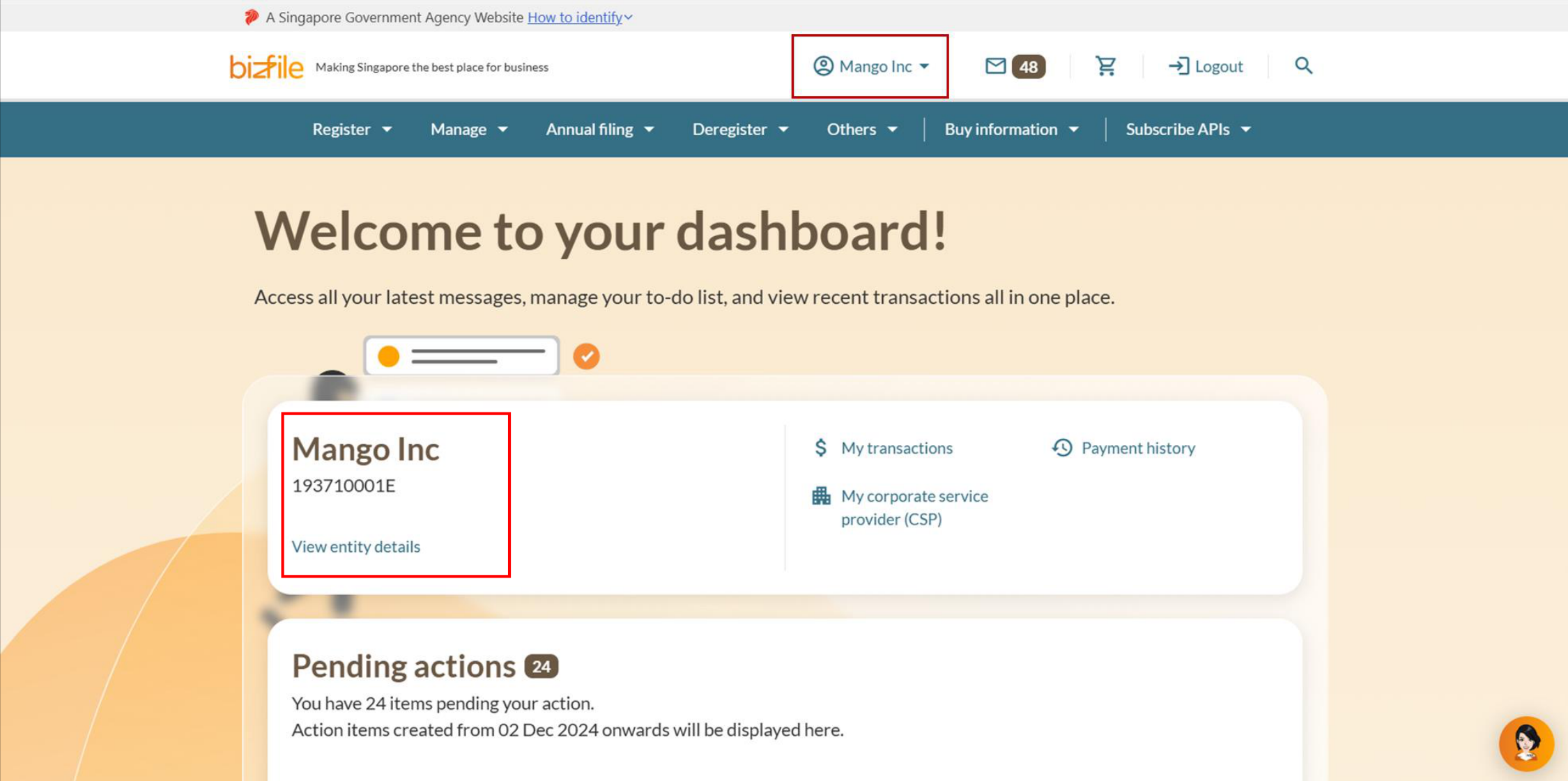
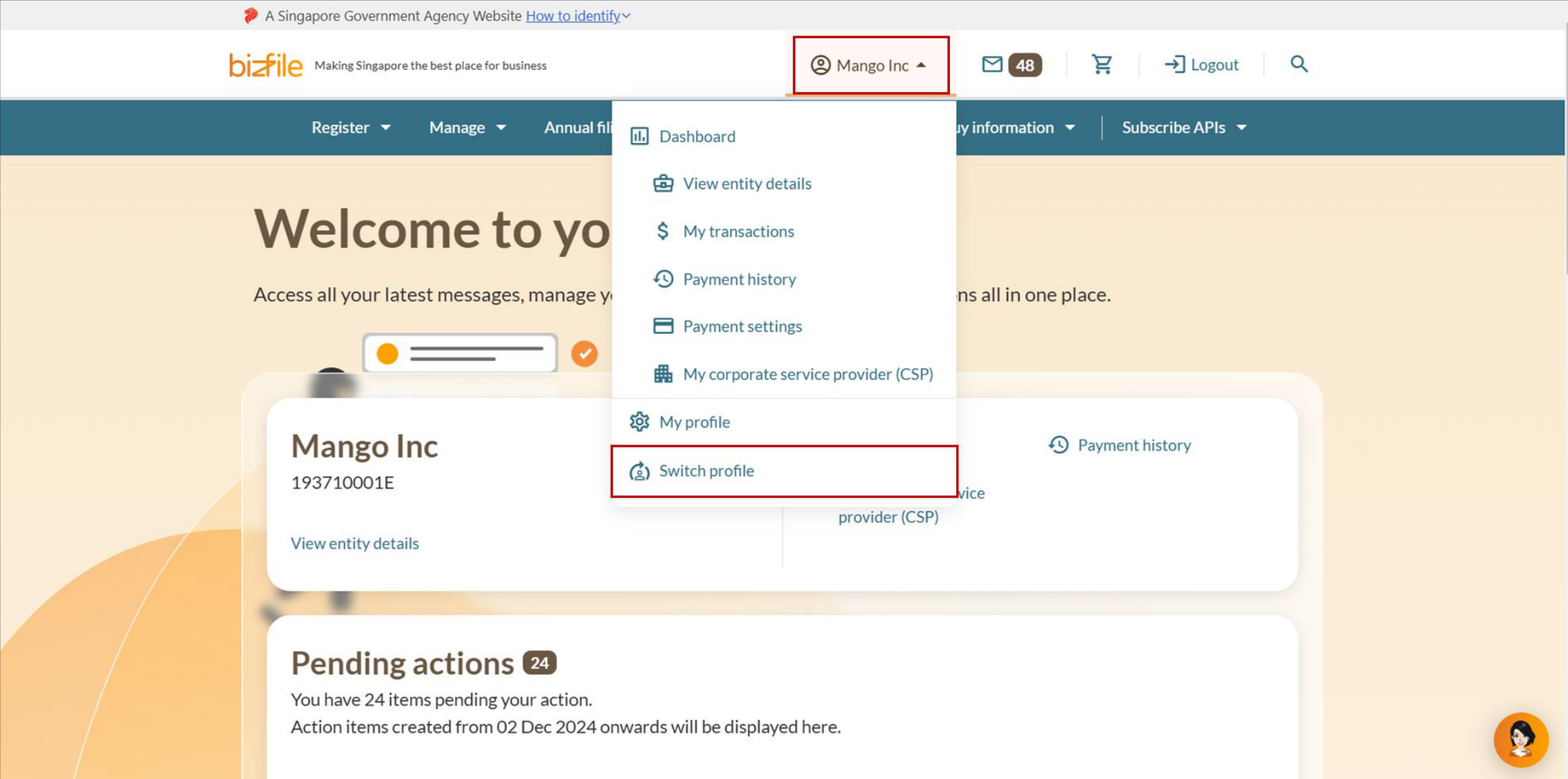
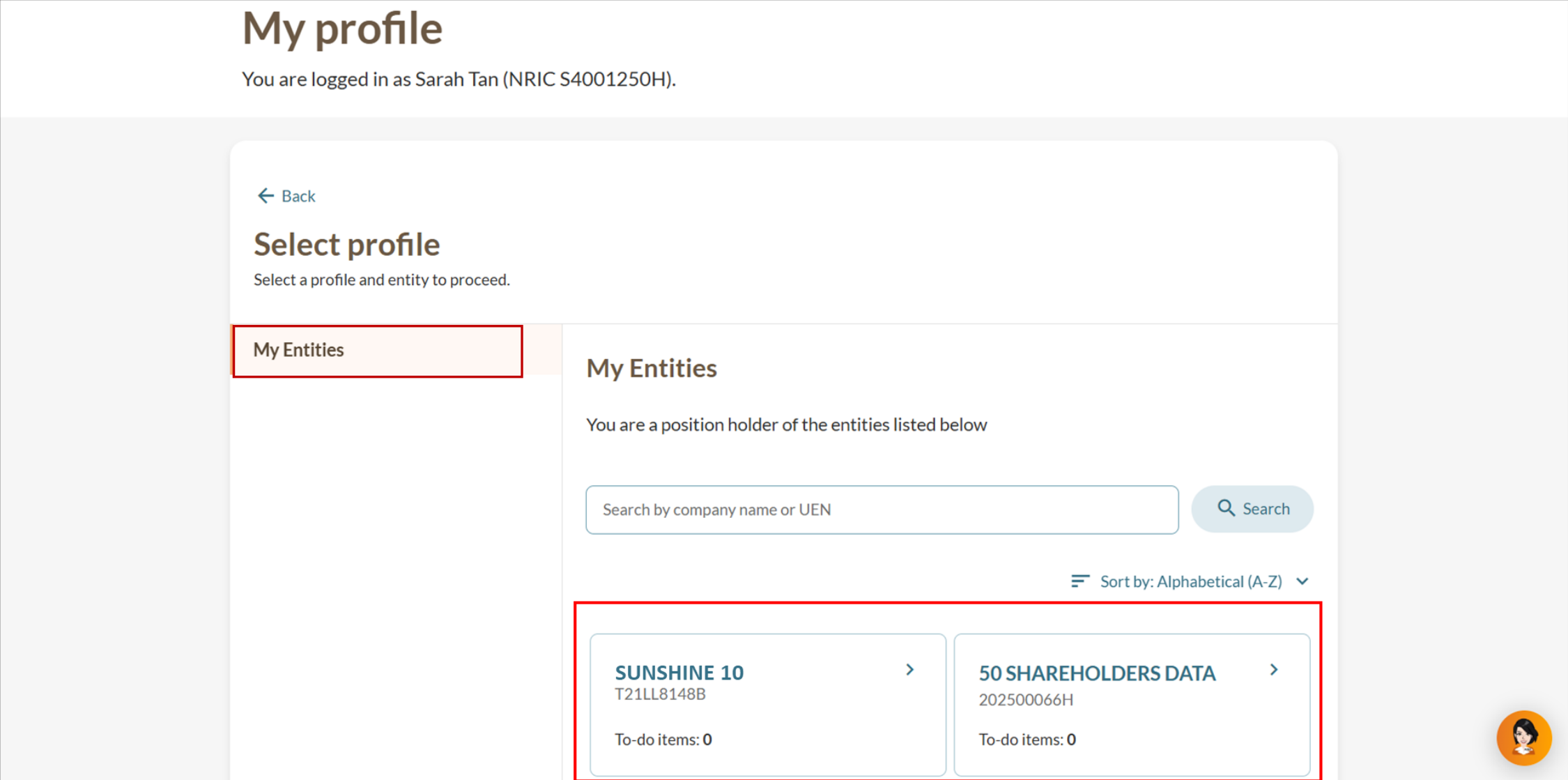
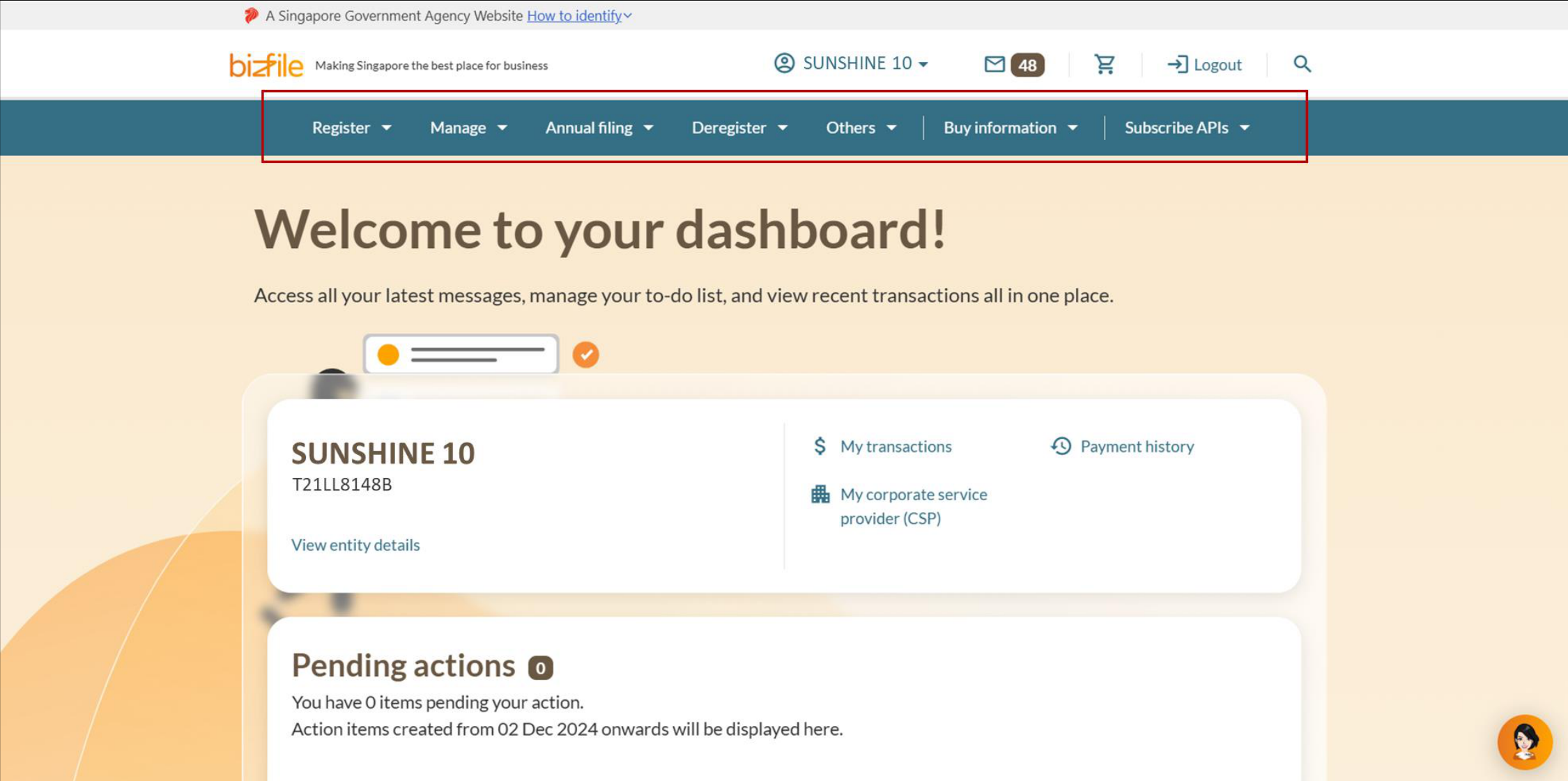
Note: All entity and personal information (including UEN, entity details, NRIC or FIN numbers, names and addresses) shown are dummy data for illustration purposes only.
If you are a CSP
You need to log in to Bizfile via Corppass. Then, select Profile page.
Note: All entity and personal information (including UEN, entity details, NRIC or FIN numbers, names and addresses) shown are dummy data for illustration purposes only.
Filing on behalf of a client
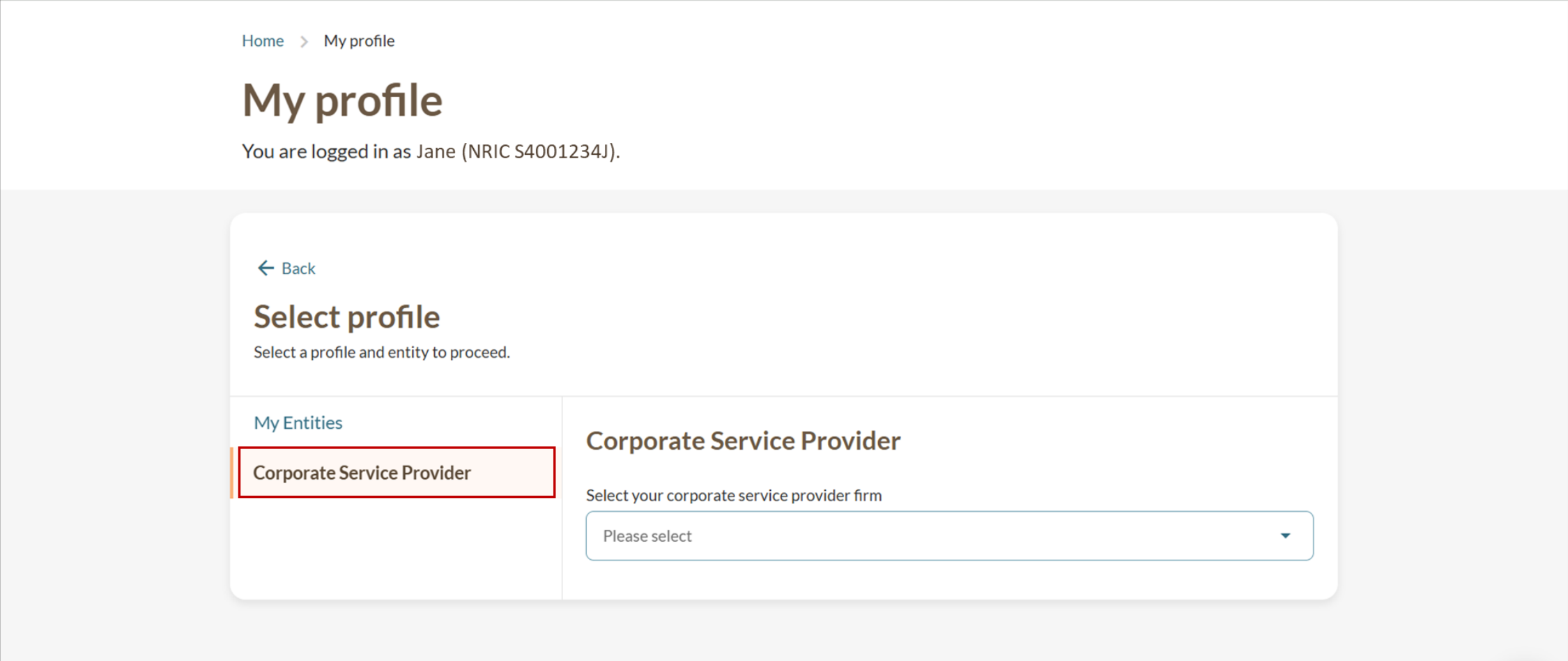
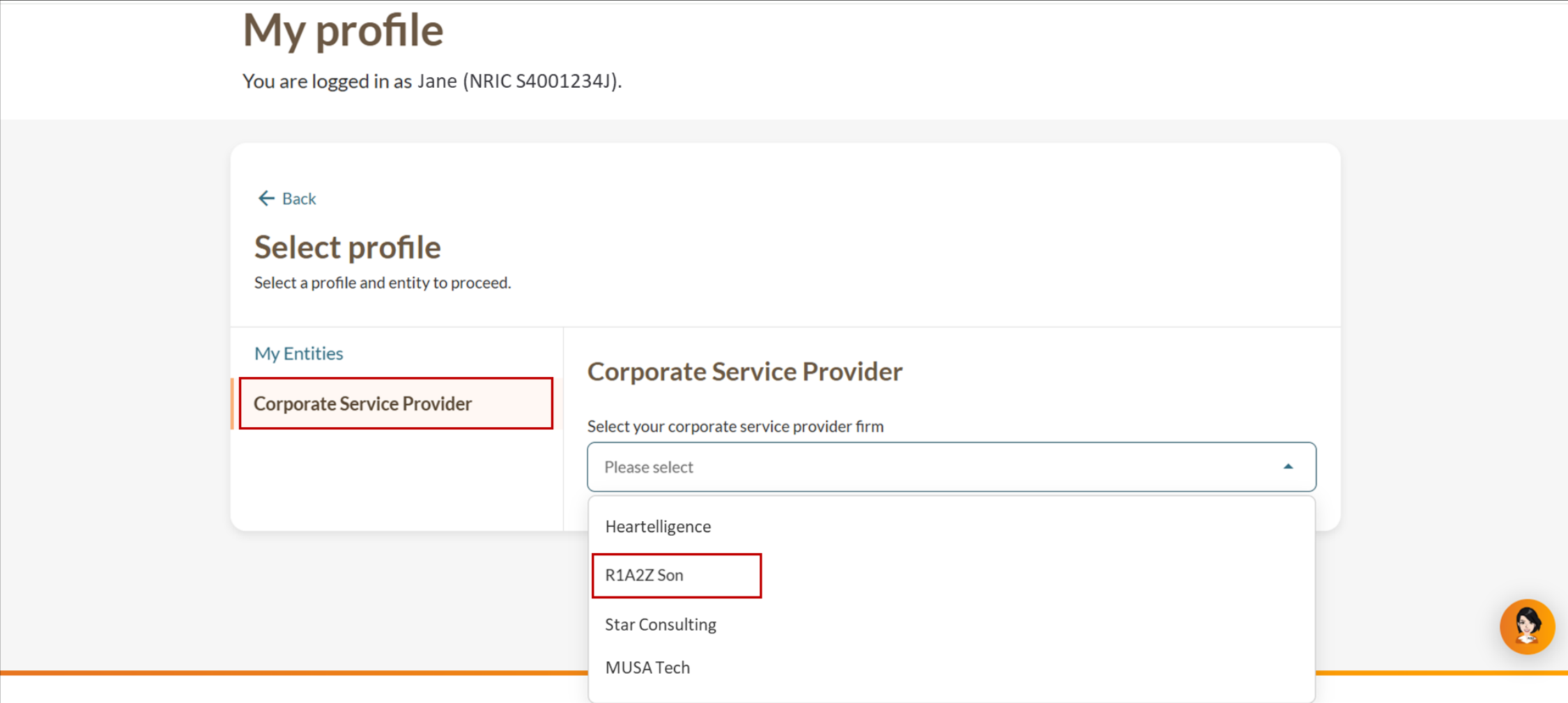
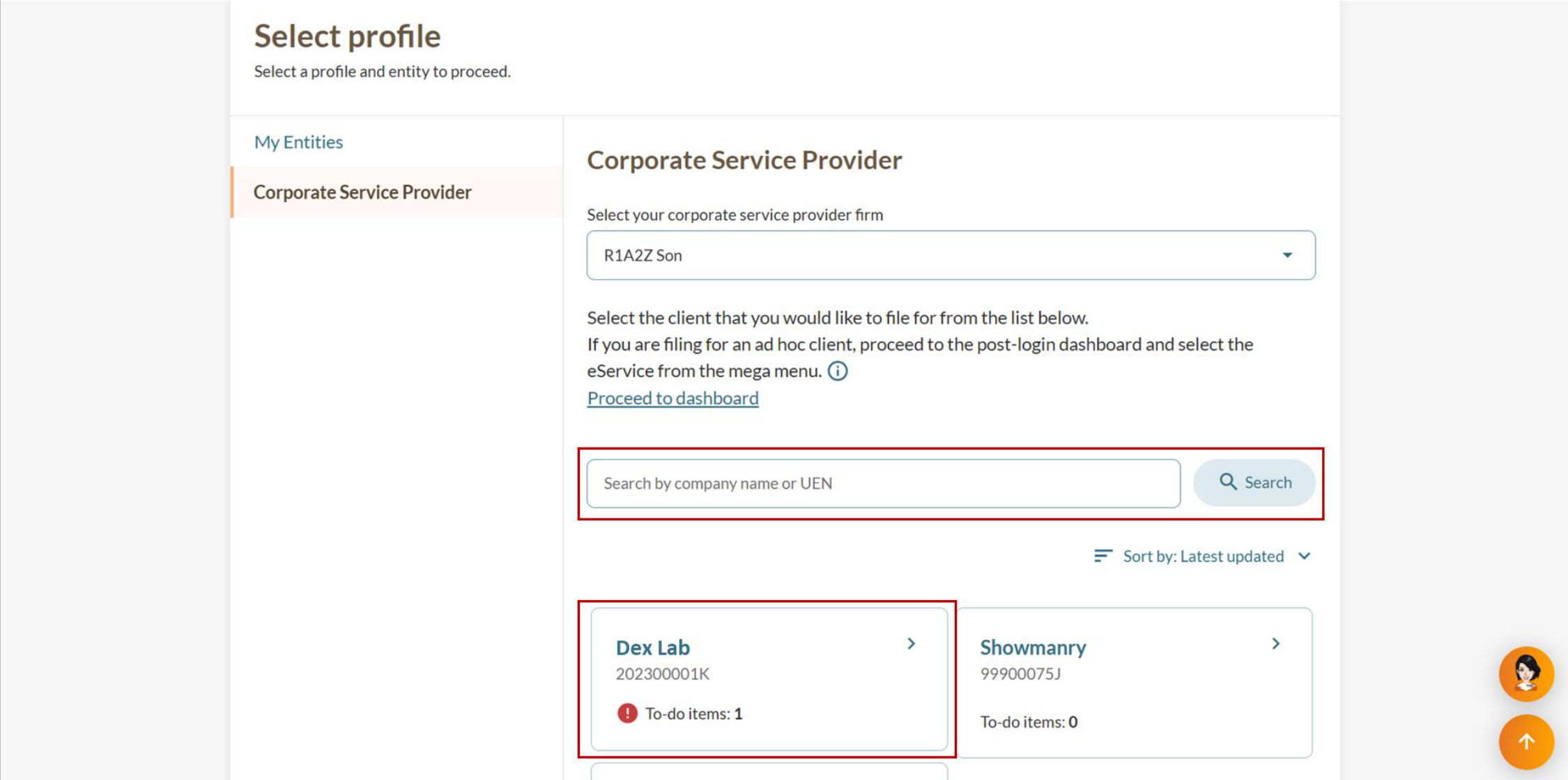
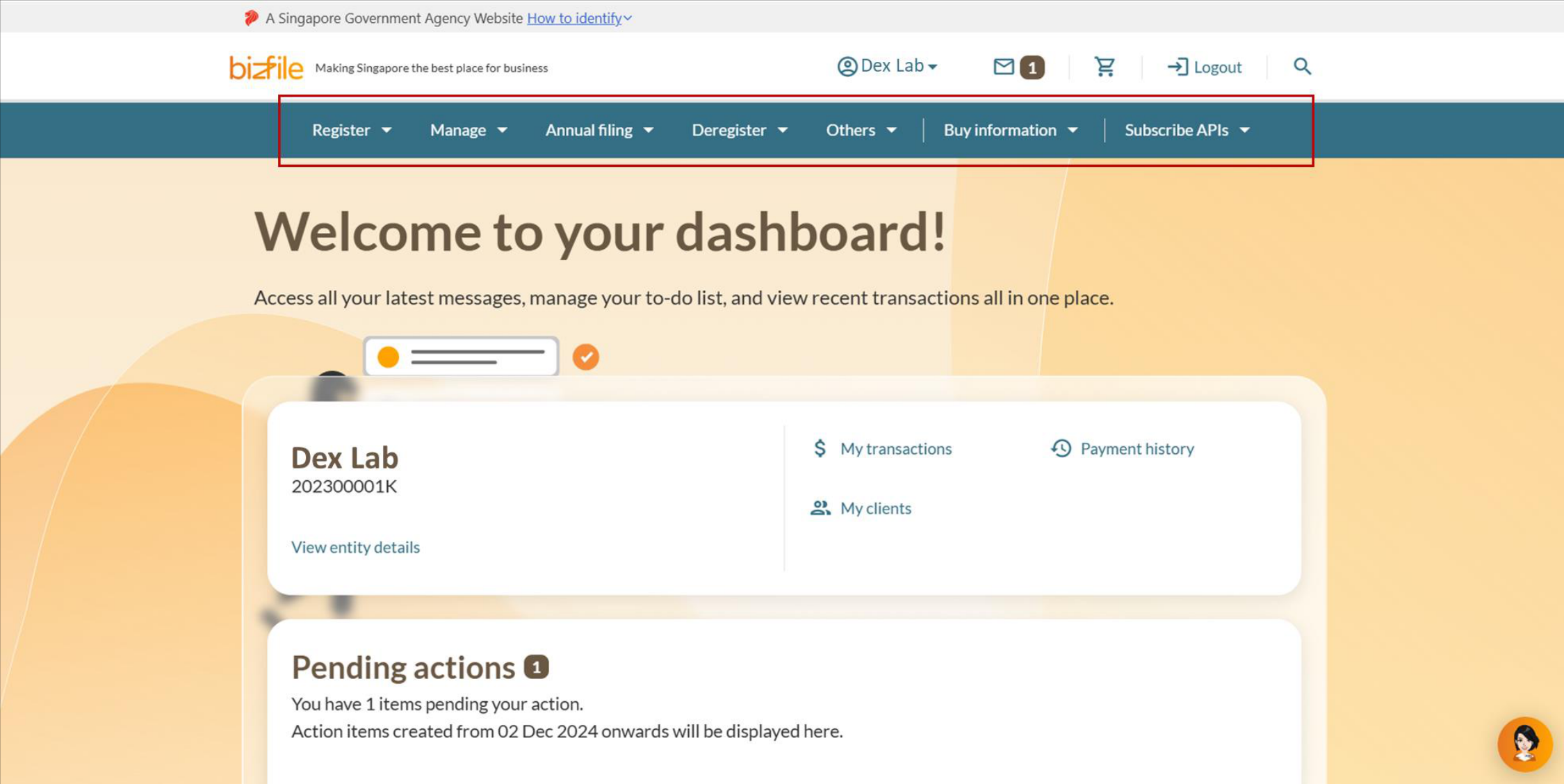
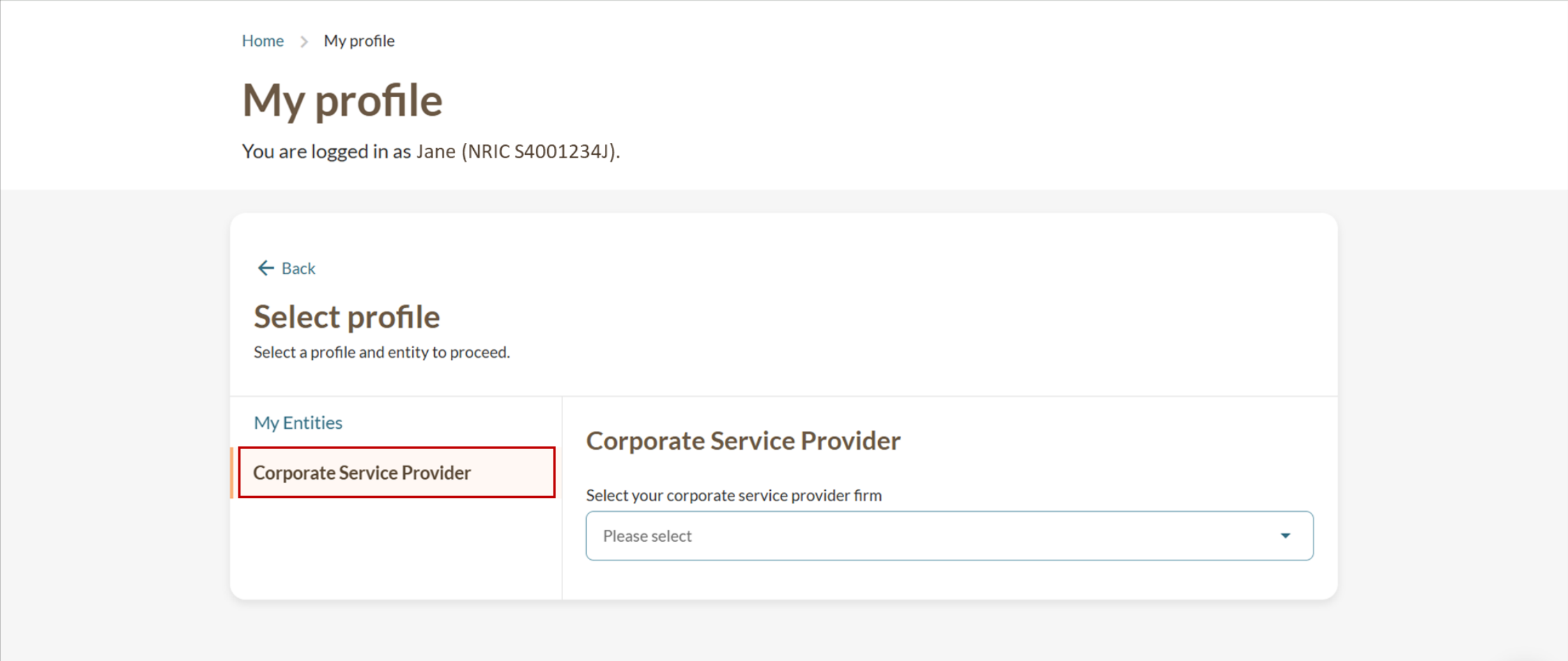
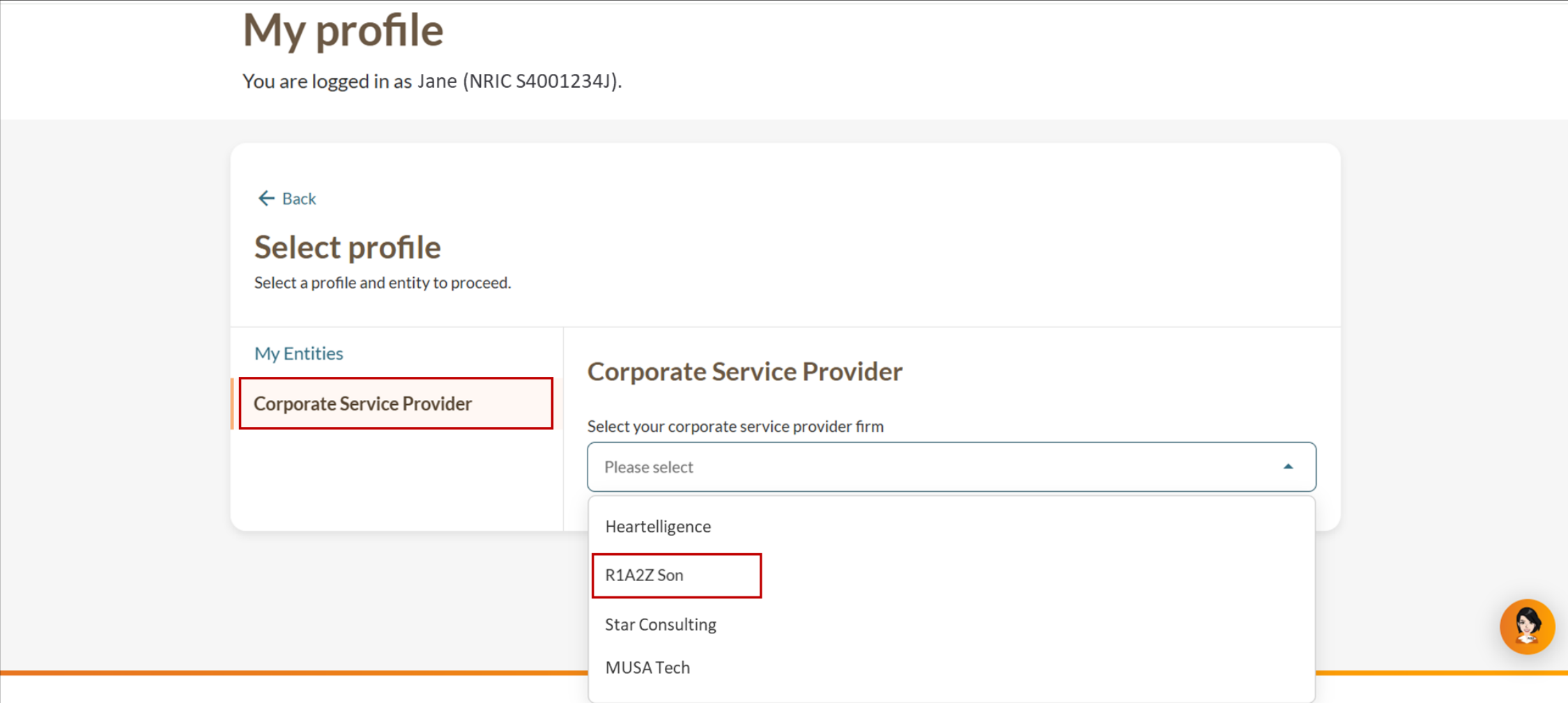
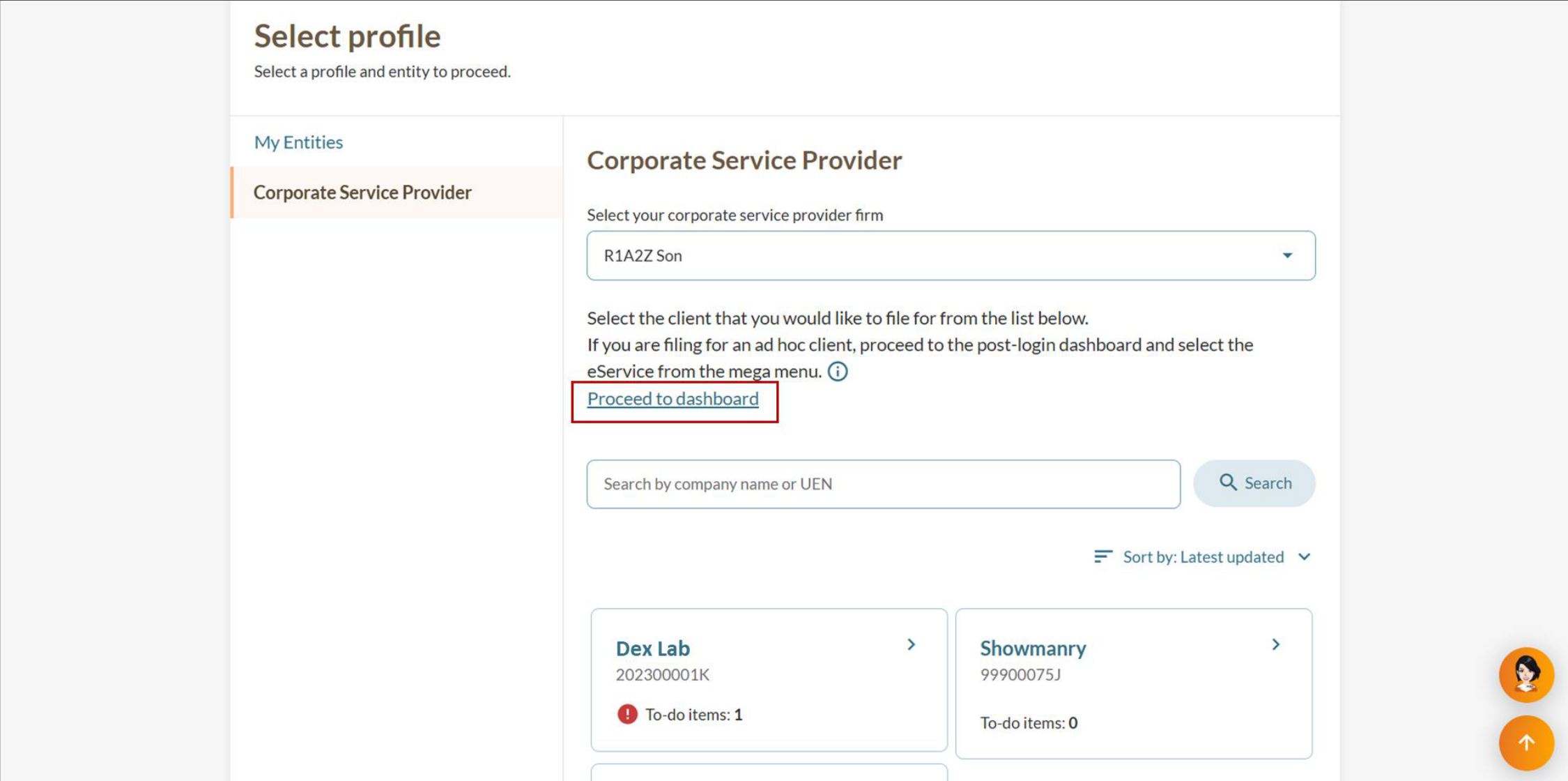
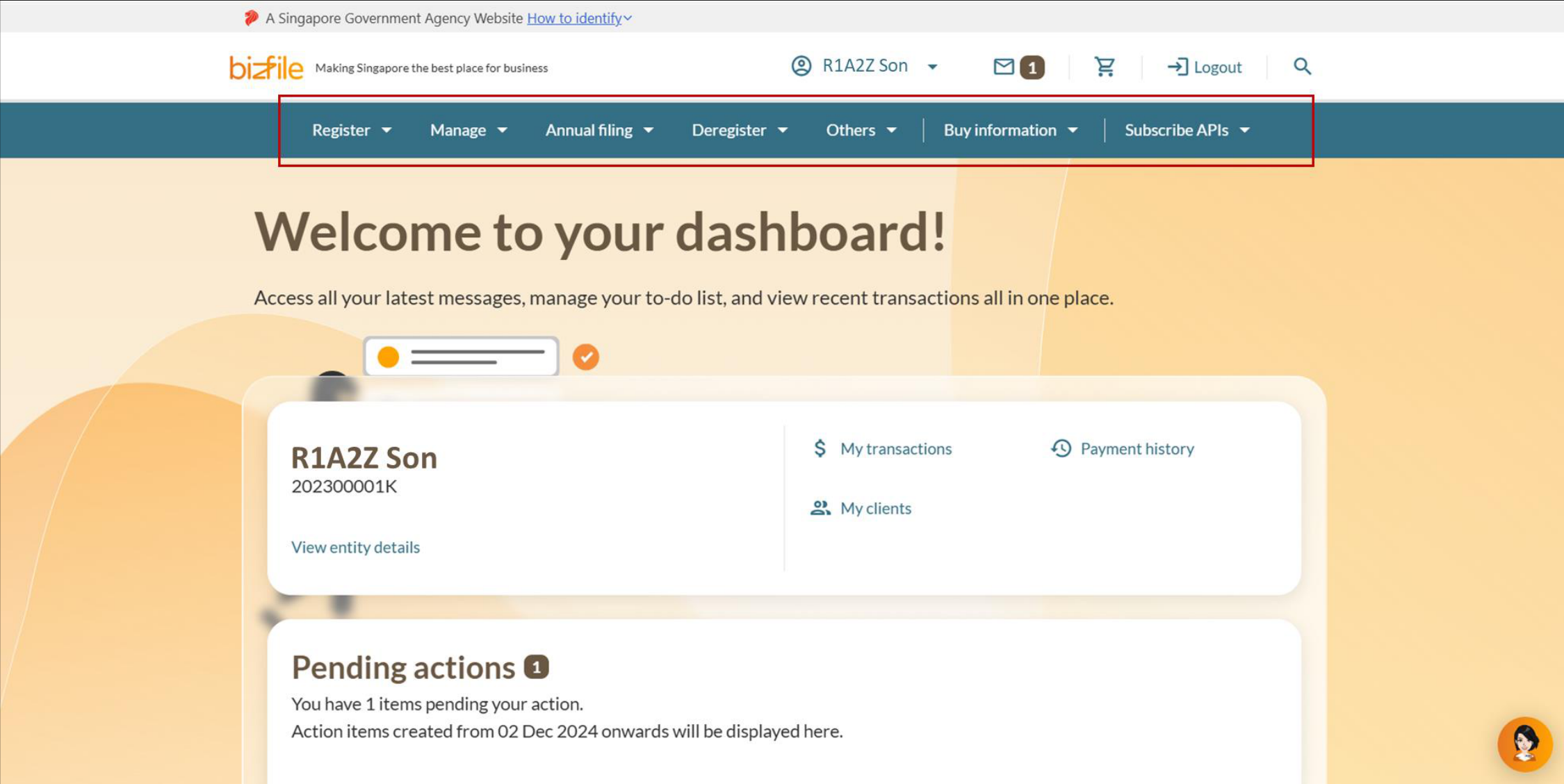
Filing for an ad-hoc client, individual or your own CSP firm
Follow these steps to file for an ad-hoc client or on behalf of your own CSP firm. For example, to apply for a new business entity name or a new business entity.
If you are a GC employee
You need to log in to Bizfile via Corppass. Then, select the entity that you would like to file for on the Corppass page.
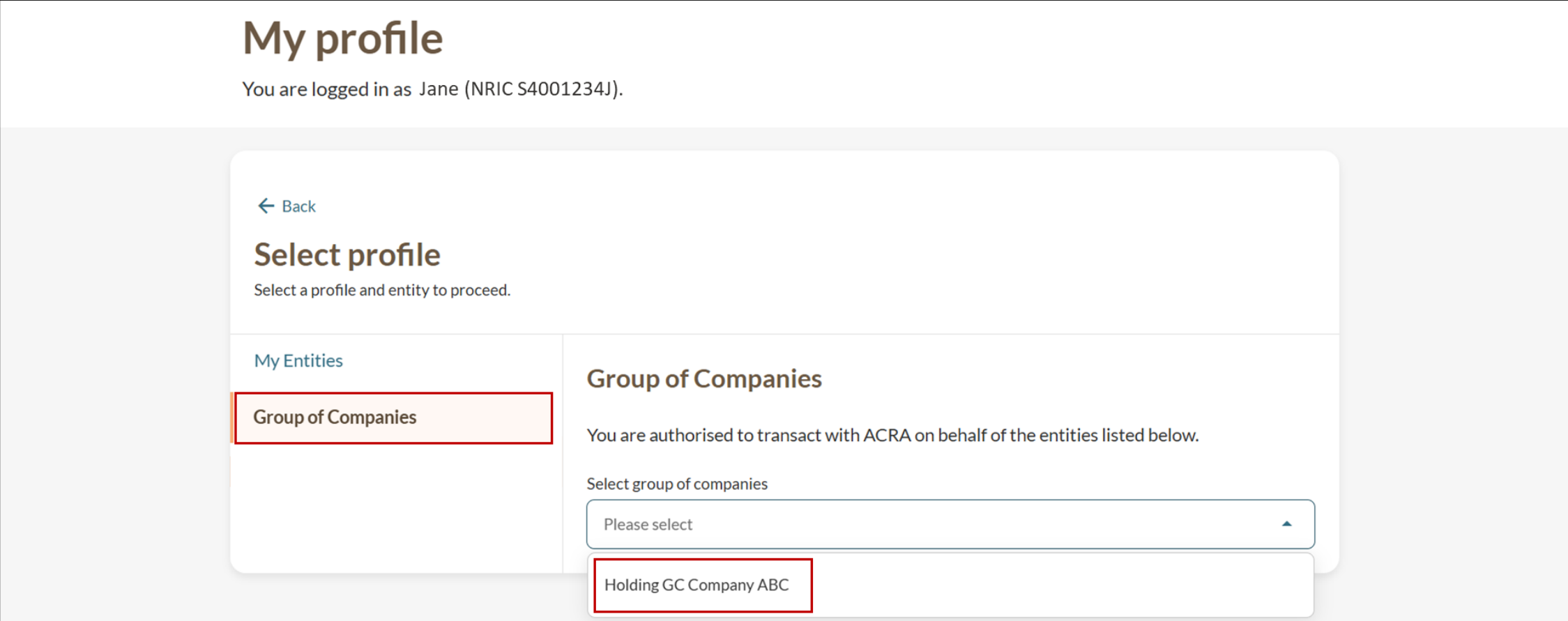
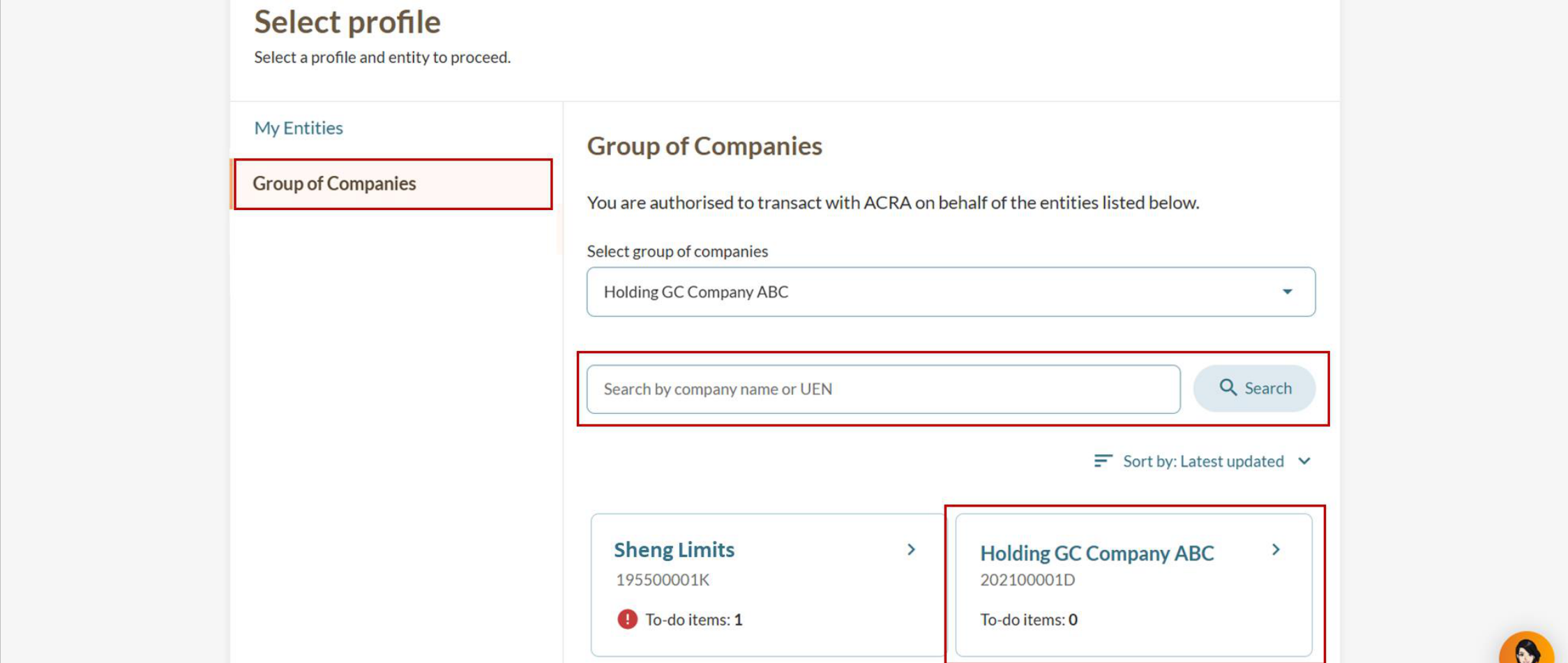
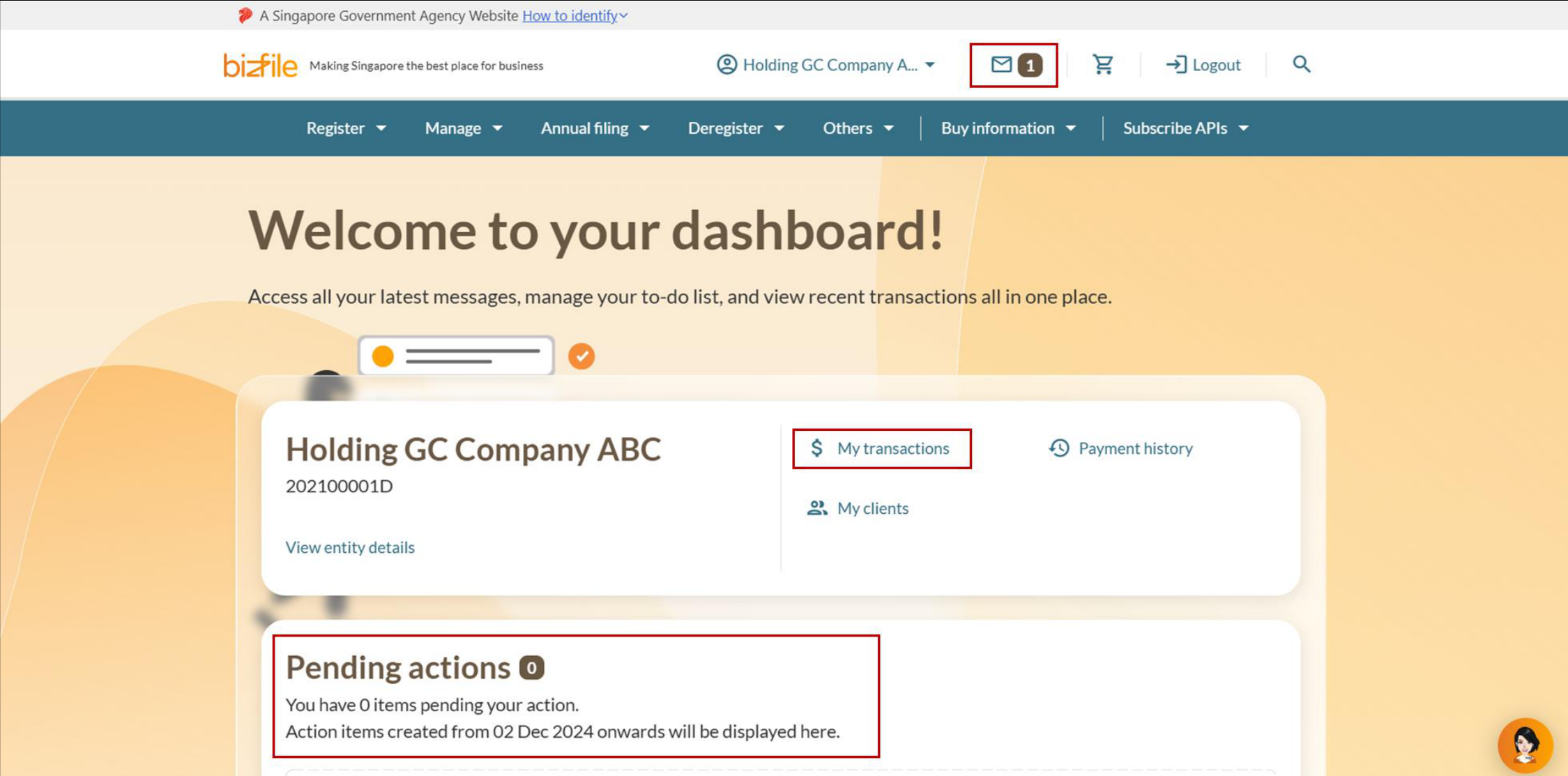
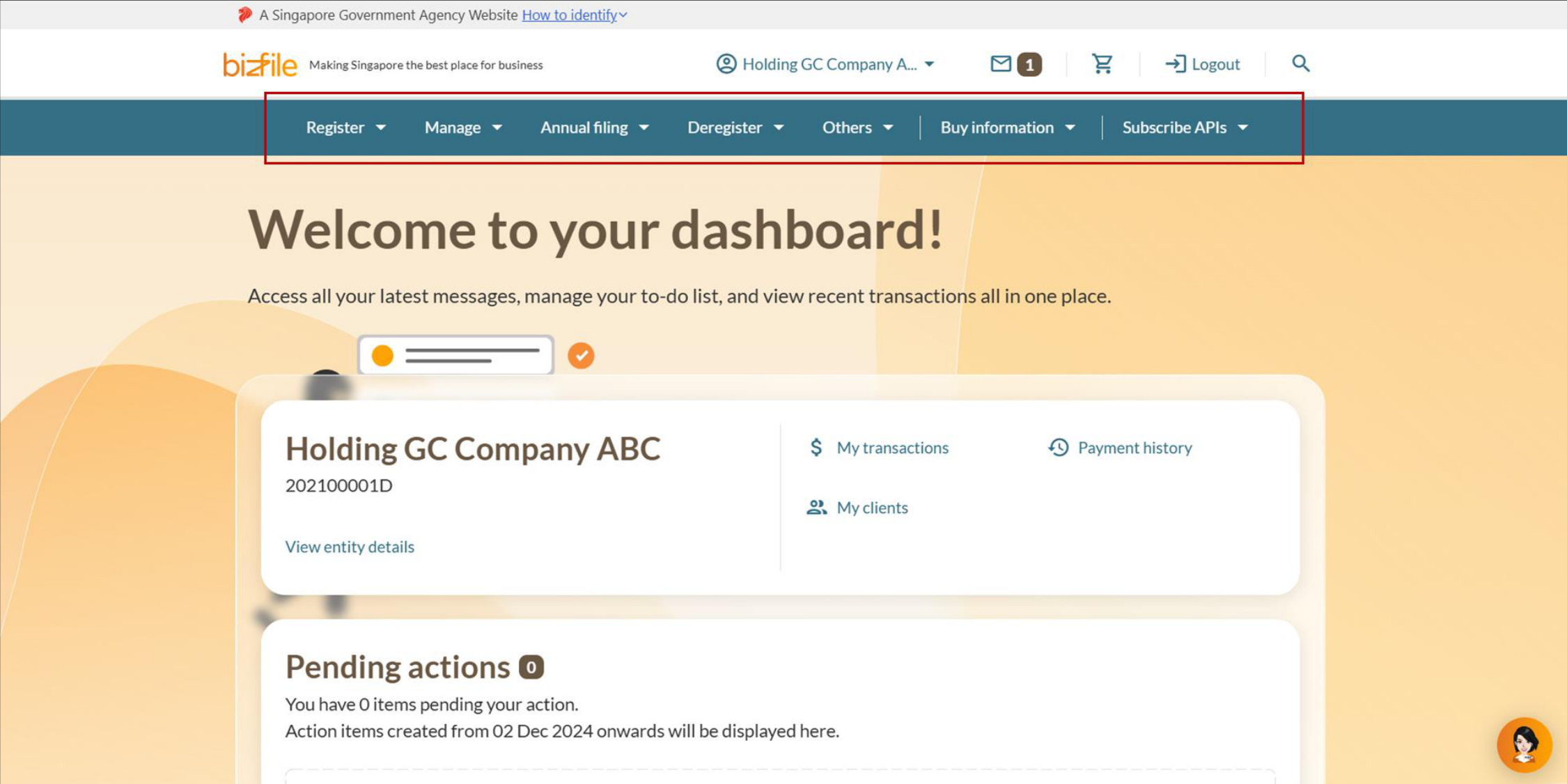
Note: All entity and personal information (including UEN, entity details, NRIC or FIN numbers, names and addresses) shown are dummy data for illustration purposes only.
If you are an IP
You need to log in to Bizfile via Corppass. Then, select the entity that you would like to file for on the Corppass page.
Note: To select a client entity on Bizfile, you must hold a position in both the IP firm and the client firm. This means both firms should appear under your "My Entities" tab too.
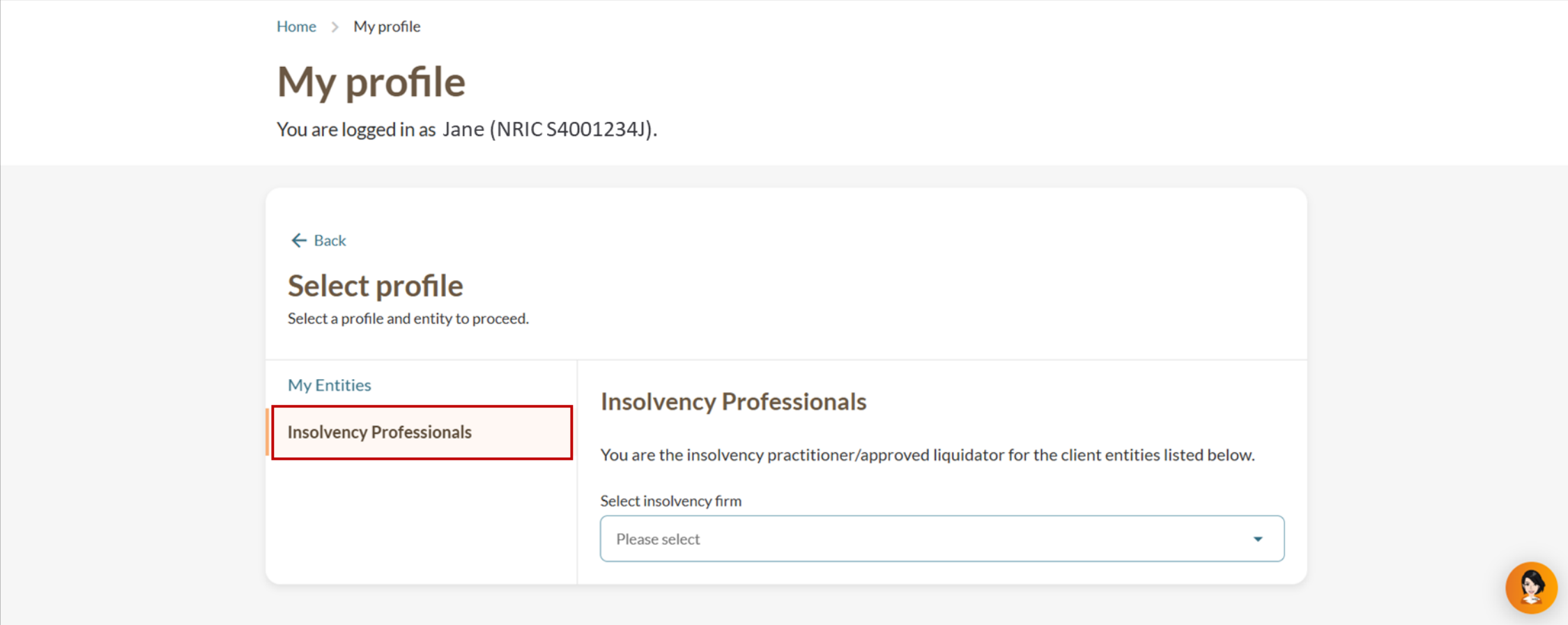
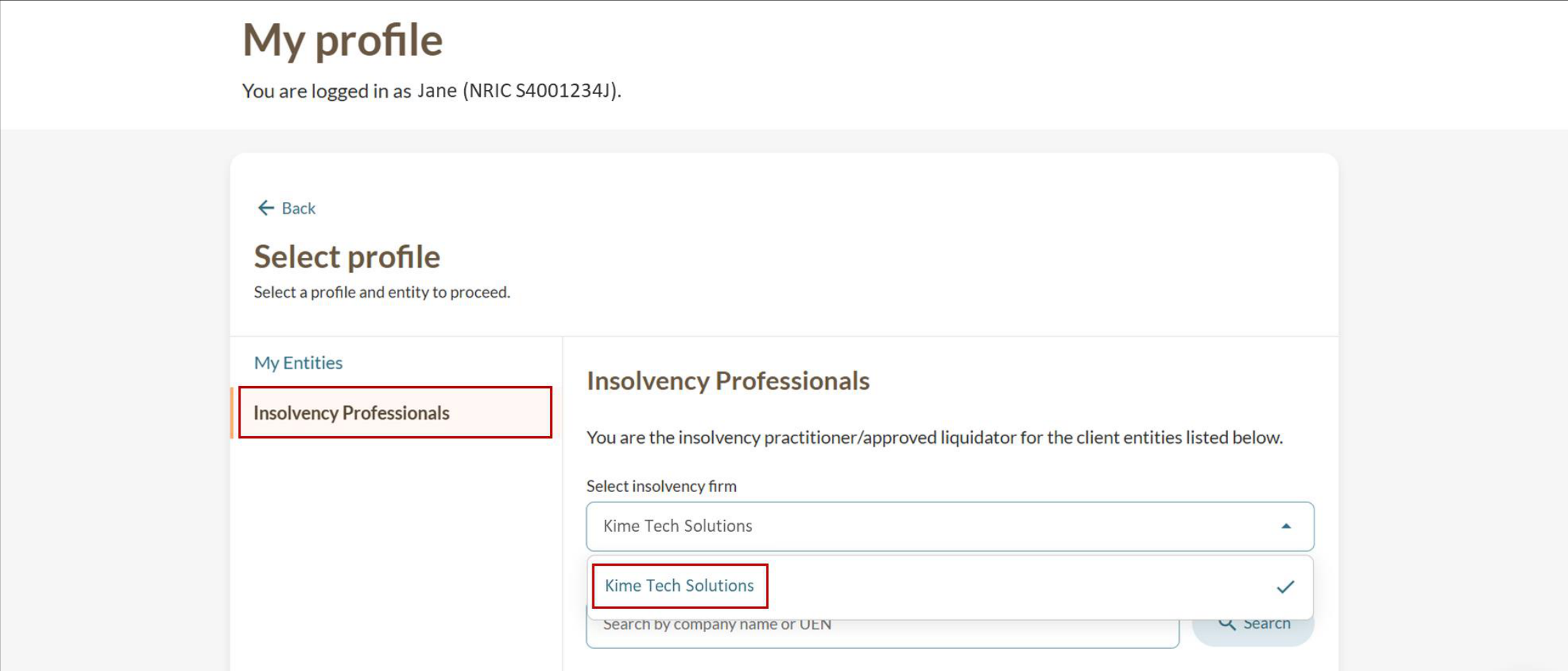
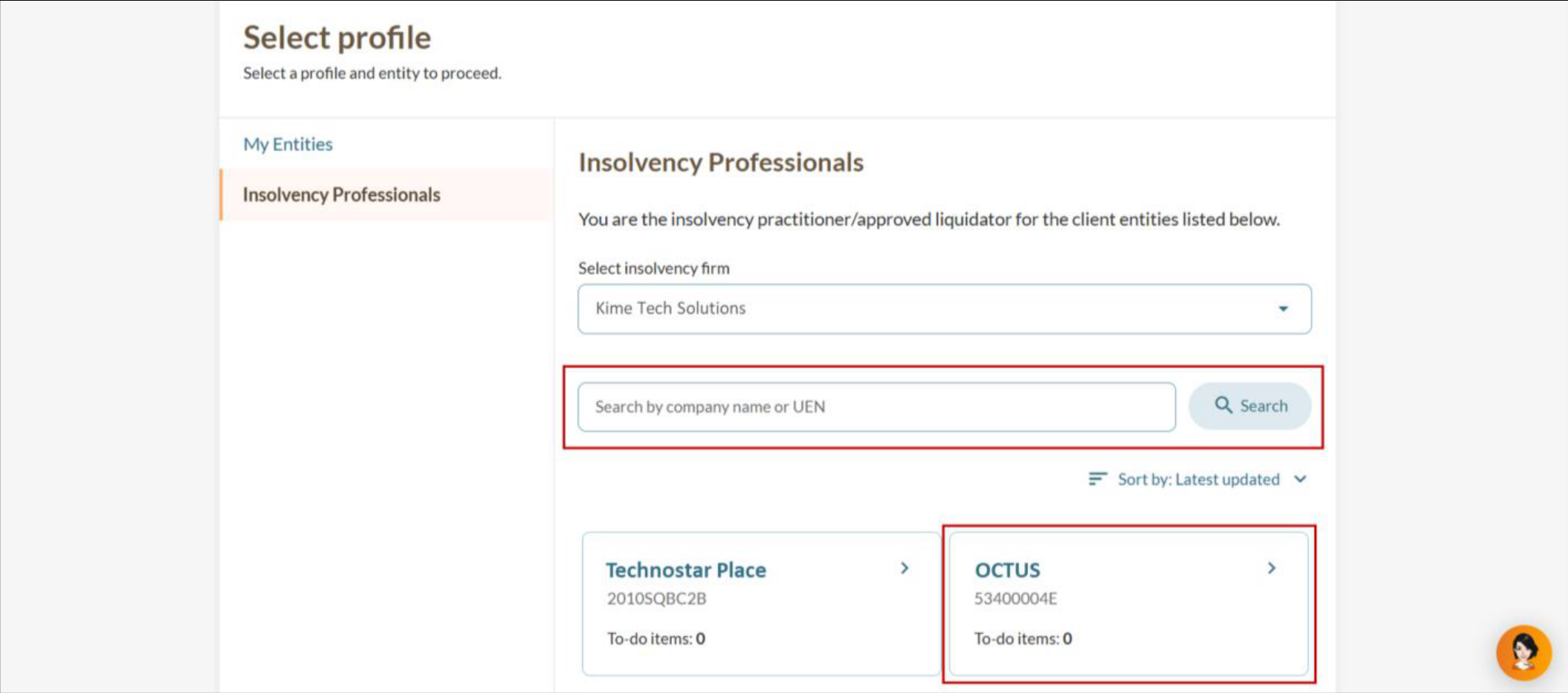
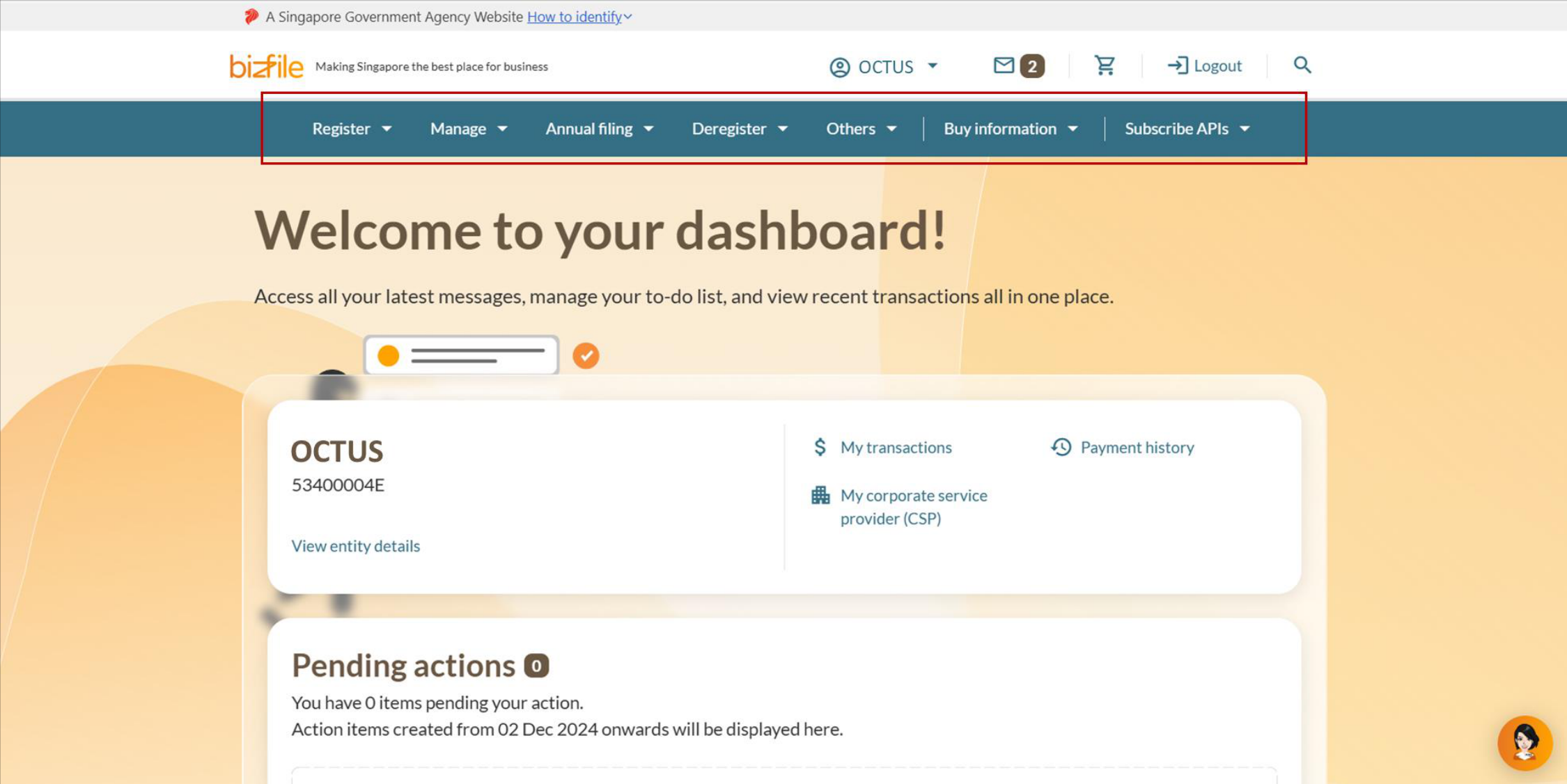
Note: All entity and personal information (including UEN, entity details, NRIC or FIN numbers, names and addresses) shown are dummy data for illustration purposes only.
Frequently asked questions (FAQs)
When will the "Select a profile" pop-up appear?
The pop-up appears when you have not selected an entity to file for.
If you close the pop-up and try to access the mega menu, you will be prompted again.
Once you have selected an entity during your session, the pop-up will not appear again.
Why am I unable to find my client, subsidiary, or entity under "My Entities"?
You will not be able to see the entity if:
The subsidiary or entity is pending endorsement.
The appointment has not been processed by ACRA.
How do I file transactions for the holding company and not its subsidiaries?
Click the Group of Companies tab on the "My profile" page.
Search for the holding company name in the search bar and select it. The holding company is listed alongside its subsidiaries.