
Guide
Creditors' voluntary winding up: Declaration of inability to continue
31 March 2026
Audience
Businesses
Corporate service providers (CSP)
Task or topic
Close business or deregister
Local companies and limited liability partnerships (LLPs) may apply for creditors' voluntary winding up through Bizfile. Filing the declaration of inability to continue business is optional.
Before you declare
A creditors' voluntary winding up applies when an entity cannot continue its business due to its liabilities.
Filing the declaration is optional. If it does not apply to your entity, select "Not applicable" when prompted. Bizfile will then prompt you to file the notice of resolution.
Who may declare
File winding up of business entity
Who may declare | Details |
|---|---|
Authorised position holders | This includes directors of a local company and partners of a limited liability partnership (LLP). |
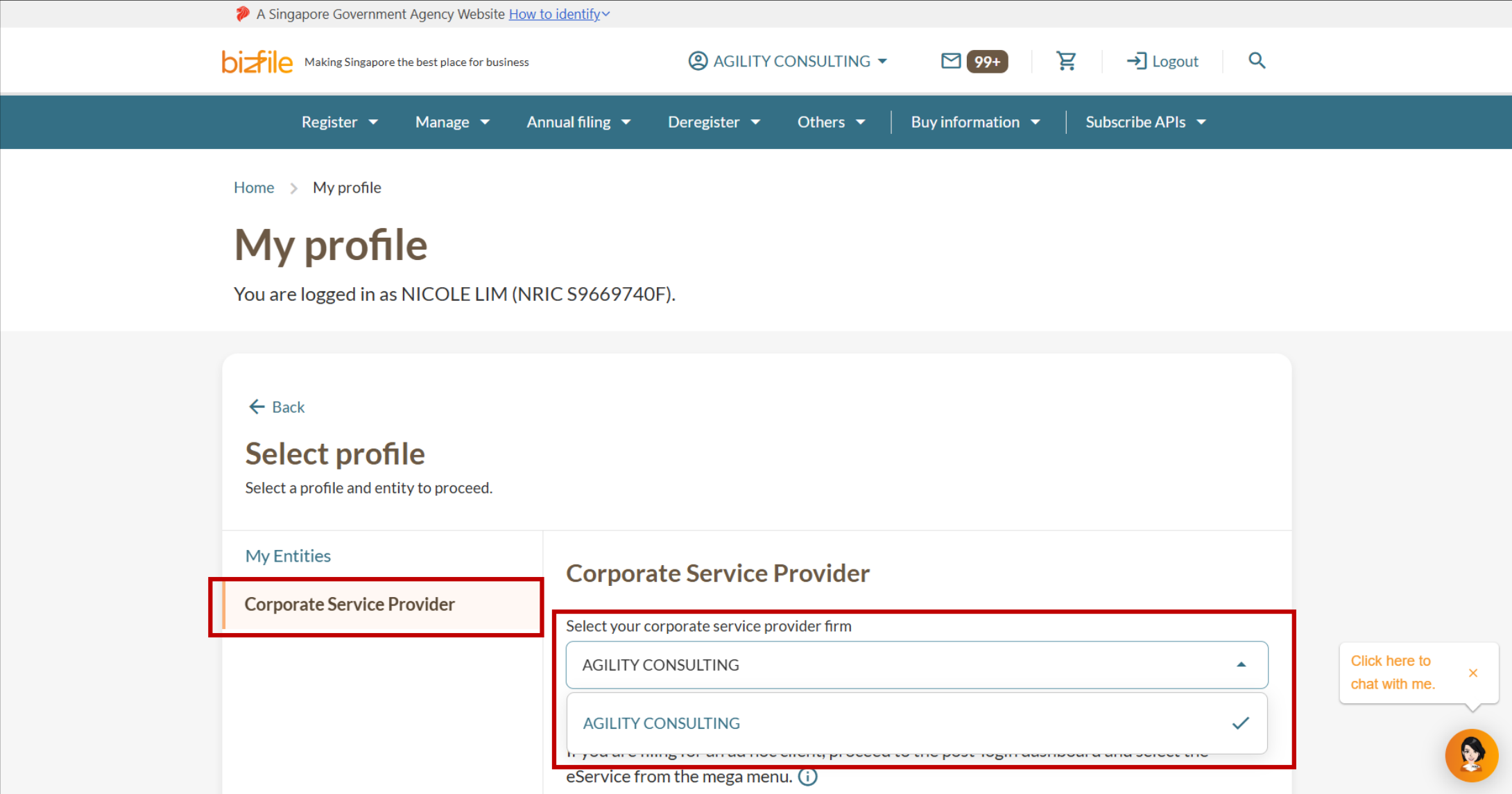
CSPs appointed to file on behalf of a third party. Before you file, you need to add the entity to your client list. |
What you need to prepare
Required documents and information
You need to prepare | Details |
|---|---|
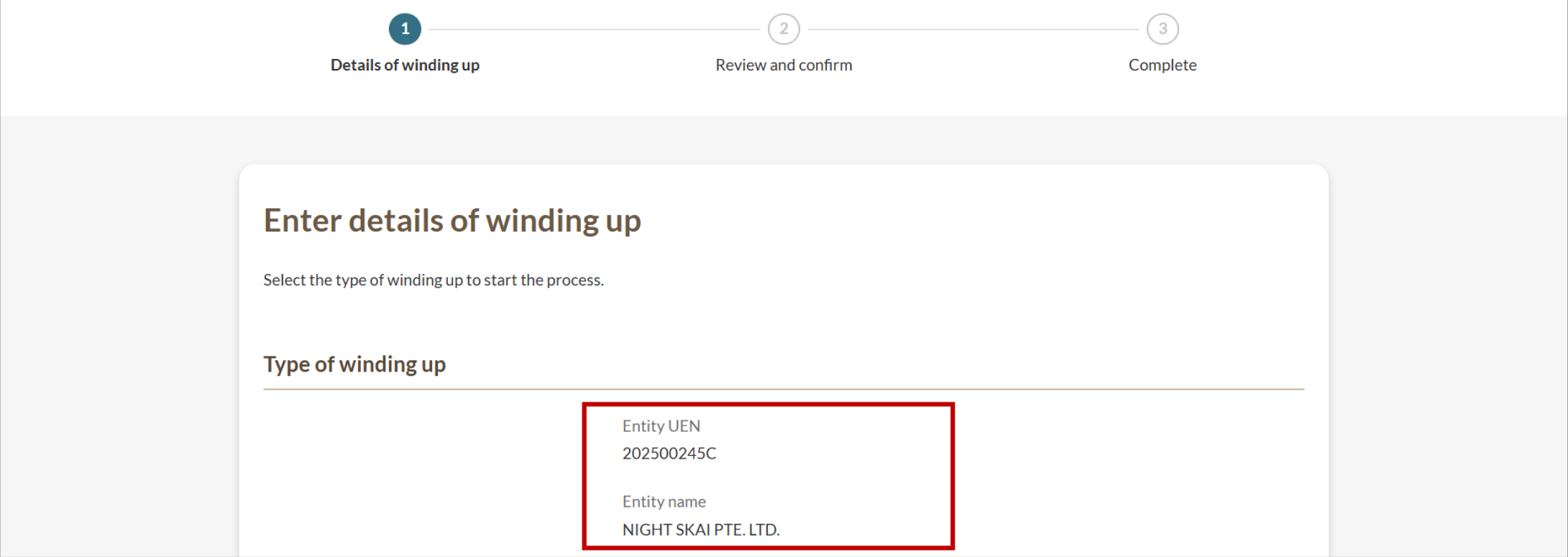
Entity's UEN | The unique entity number (UEN) and name of the entity to be wound up. |
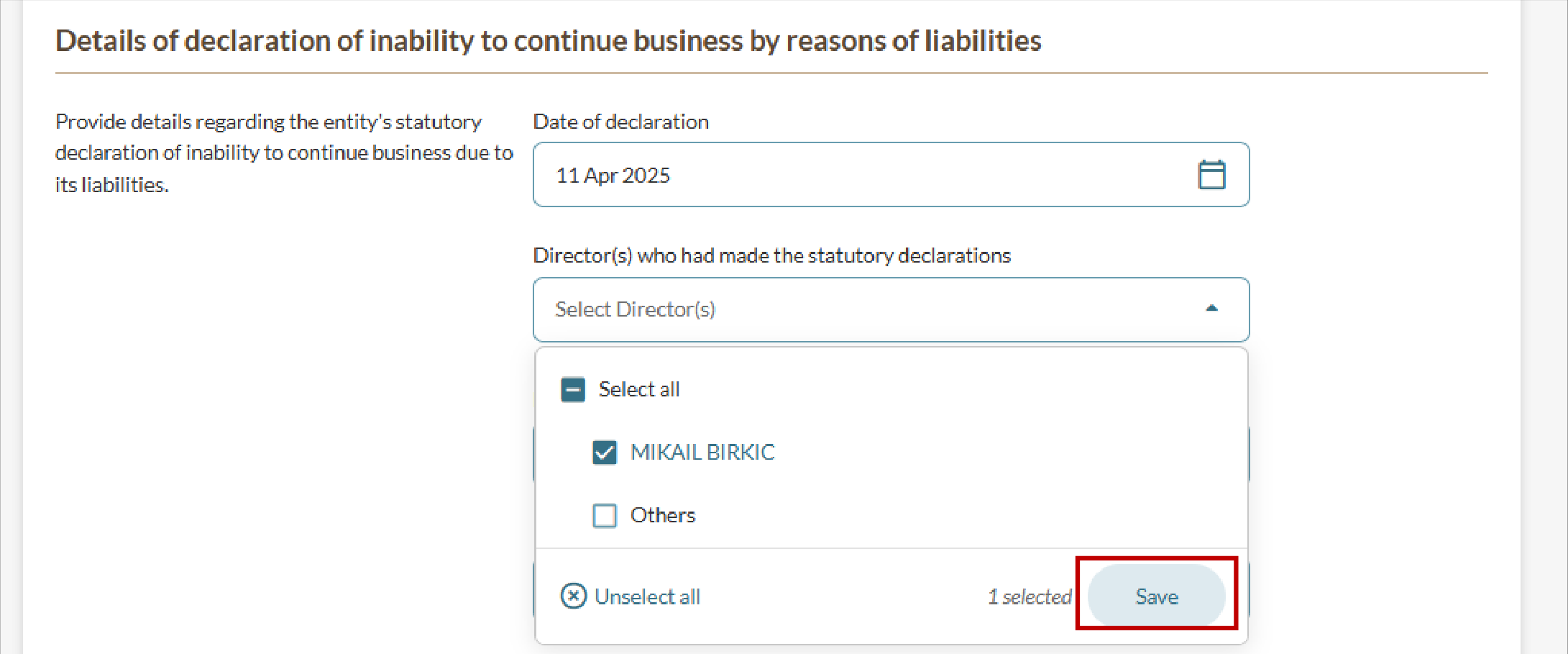
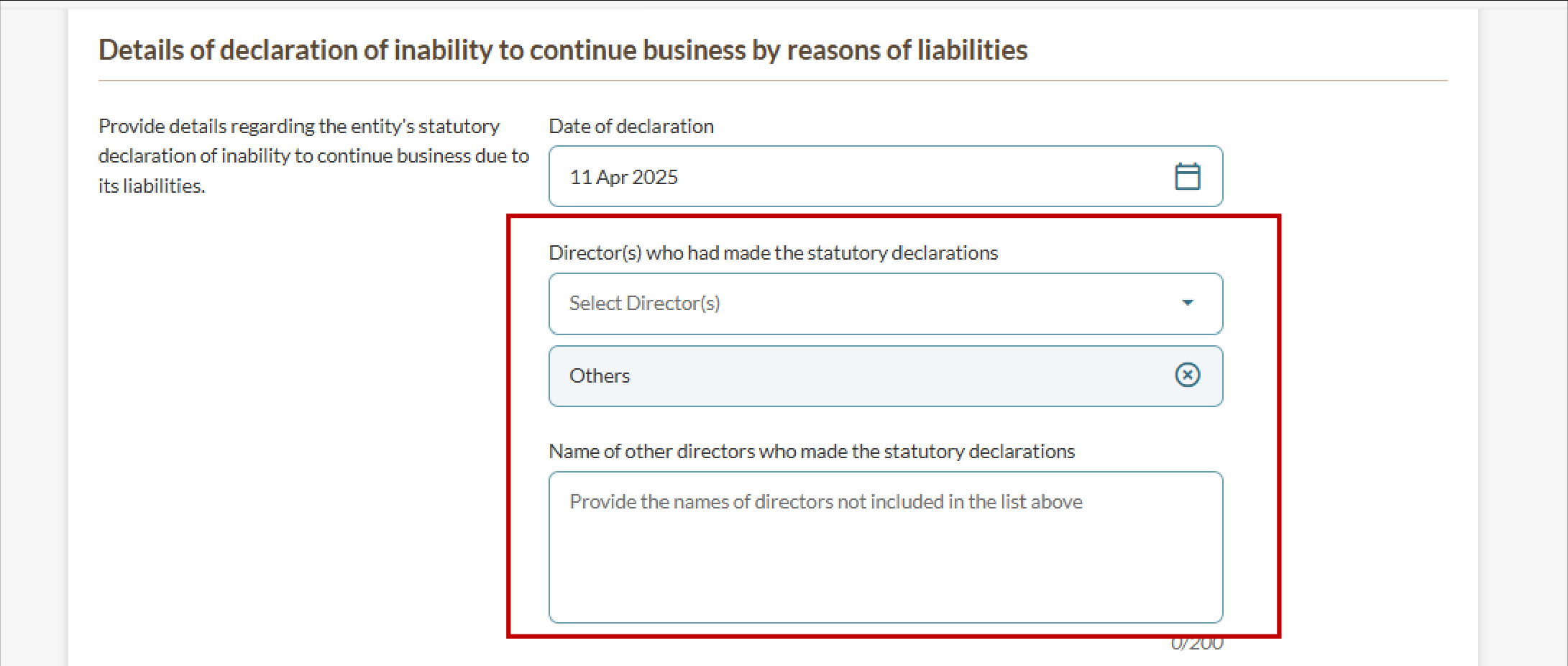
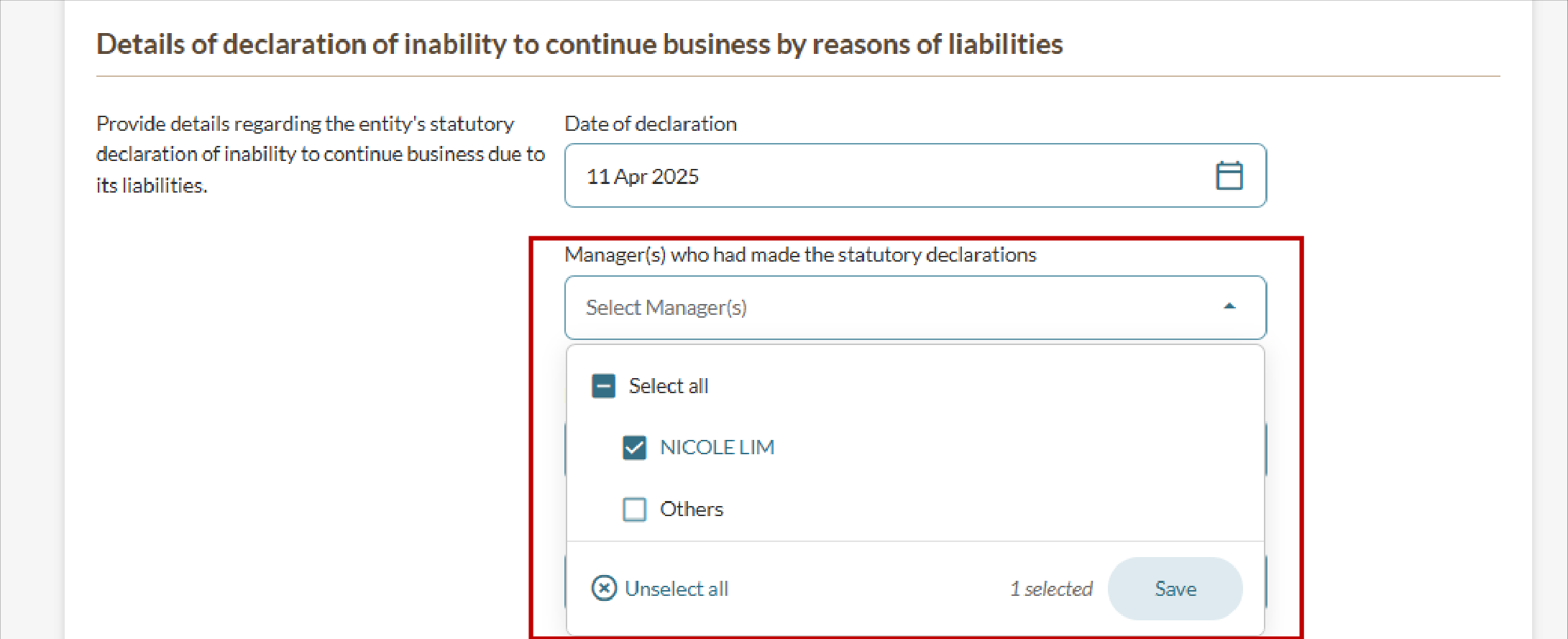
Date of declaration | The date of the declaration of inability to continue business. This must be the current date or a past date. |
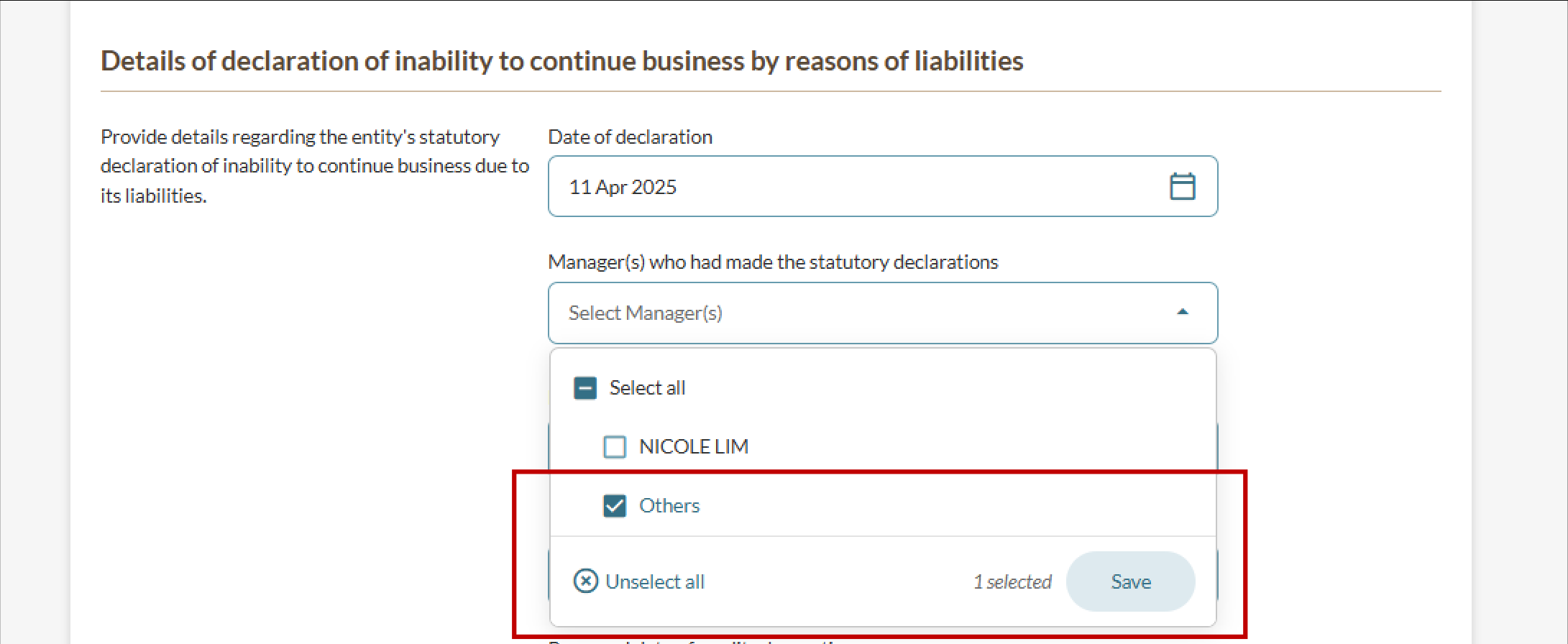
Names of declarants |
|
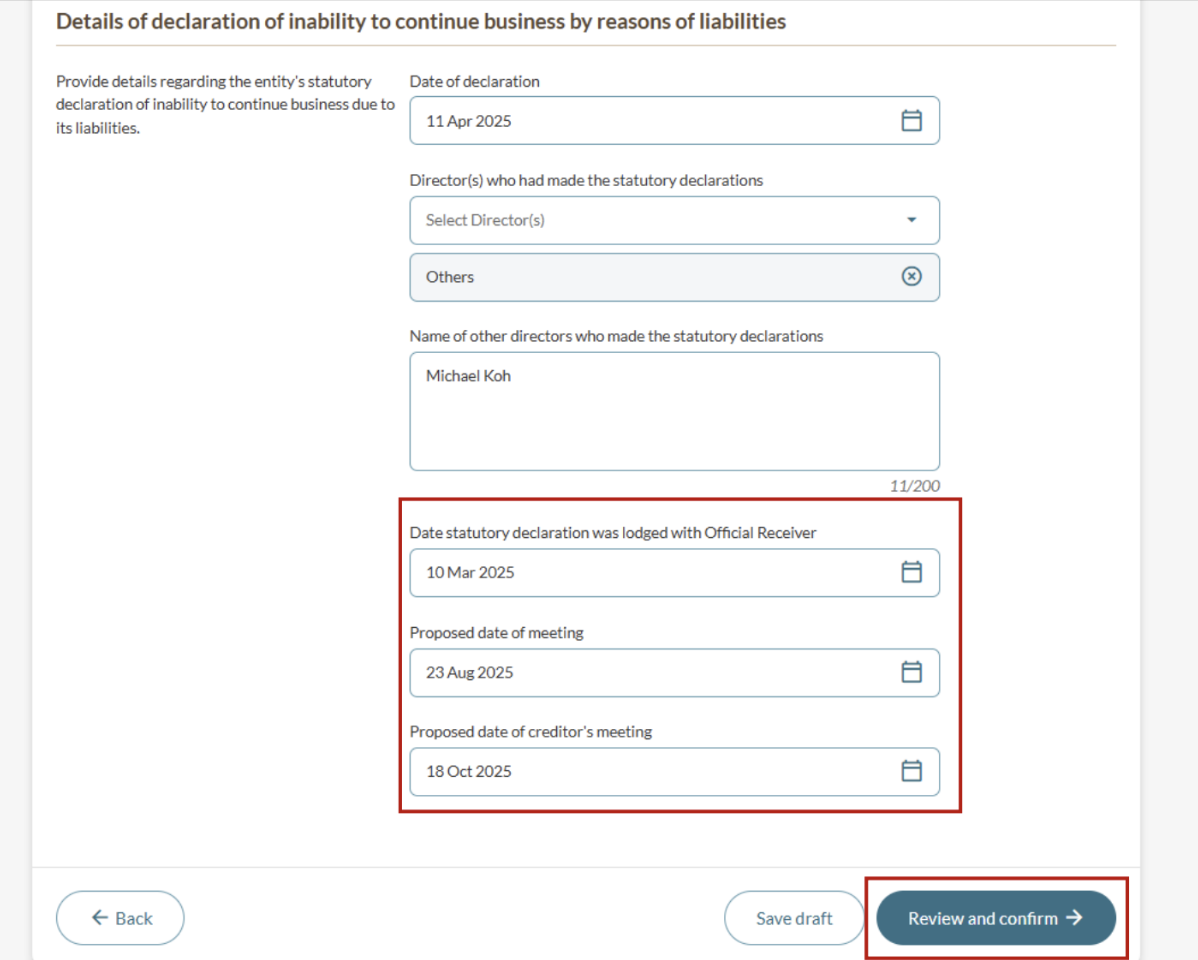
Date of lodgement with Official Receiver | The date the statutory declaration was lodged with the Official Receiver. This must be the current date or a past date. |
Proposed meeting dates | Proposed date of meeting and proposed date of the creditors' meeting. |
Fees and processing time
Declaration of inability to continue business by reasons of its liabilities
What you need to know | Details |
|---|---|
Fees | Free |
Processing time | Immediate |
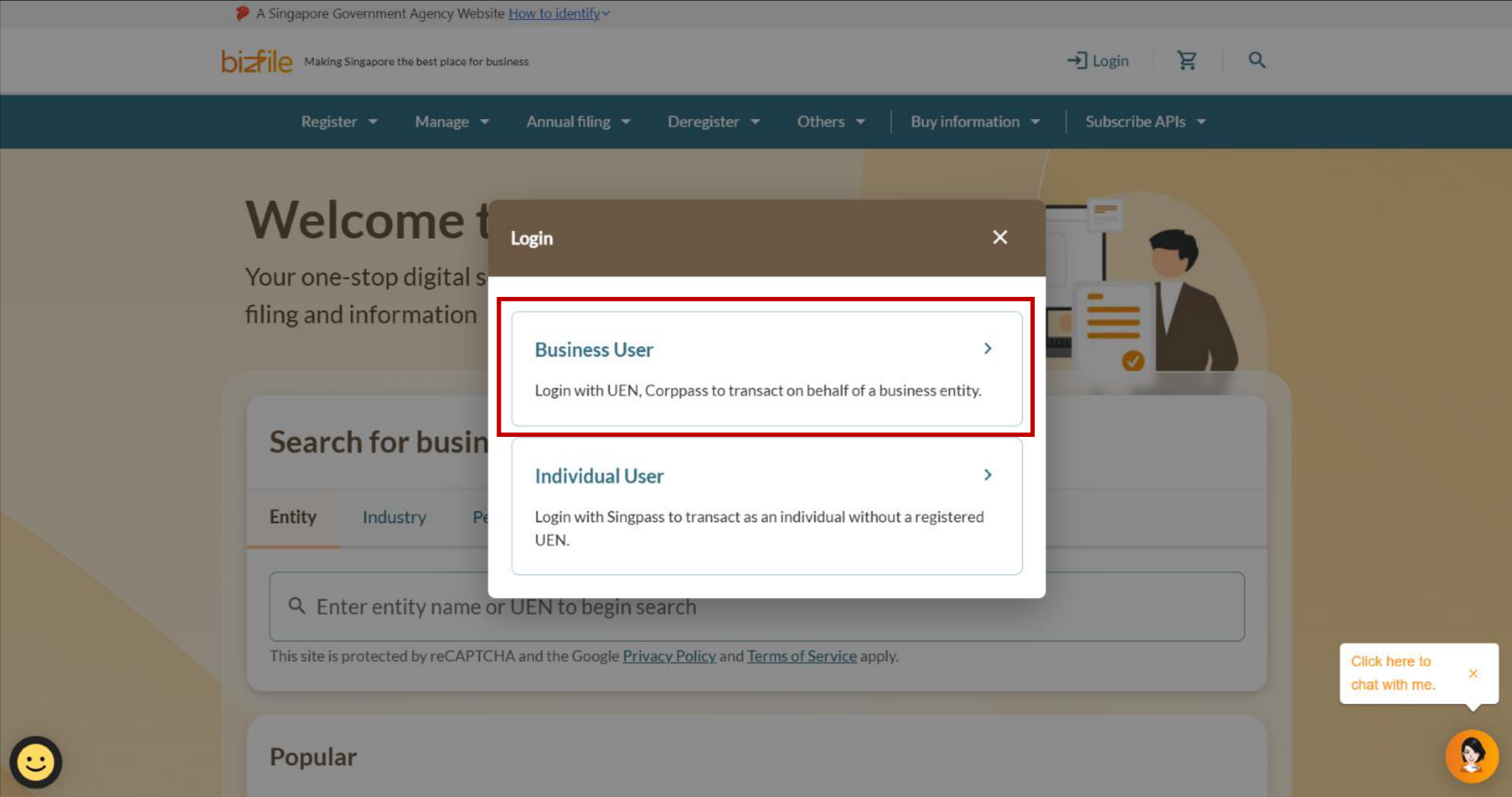
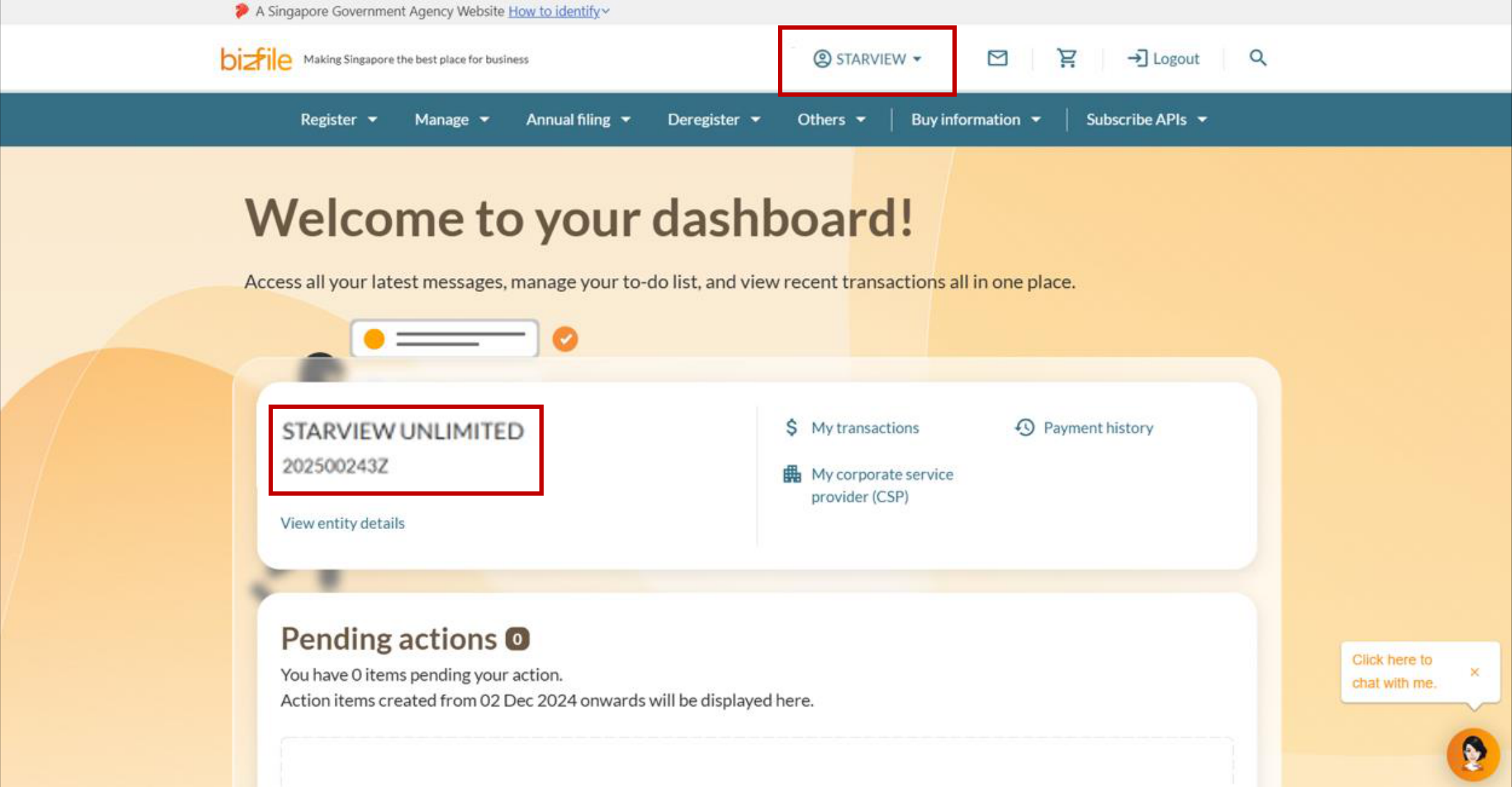
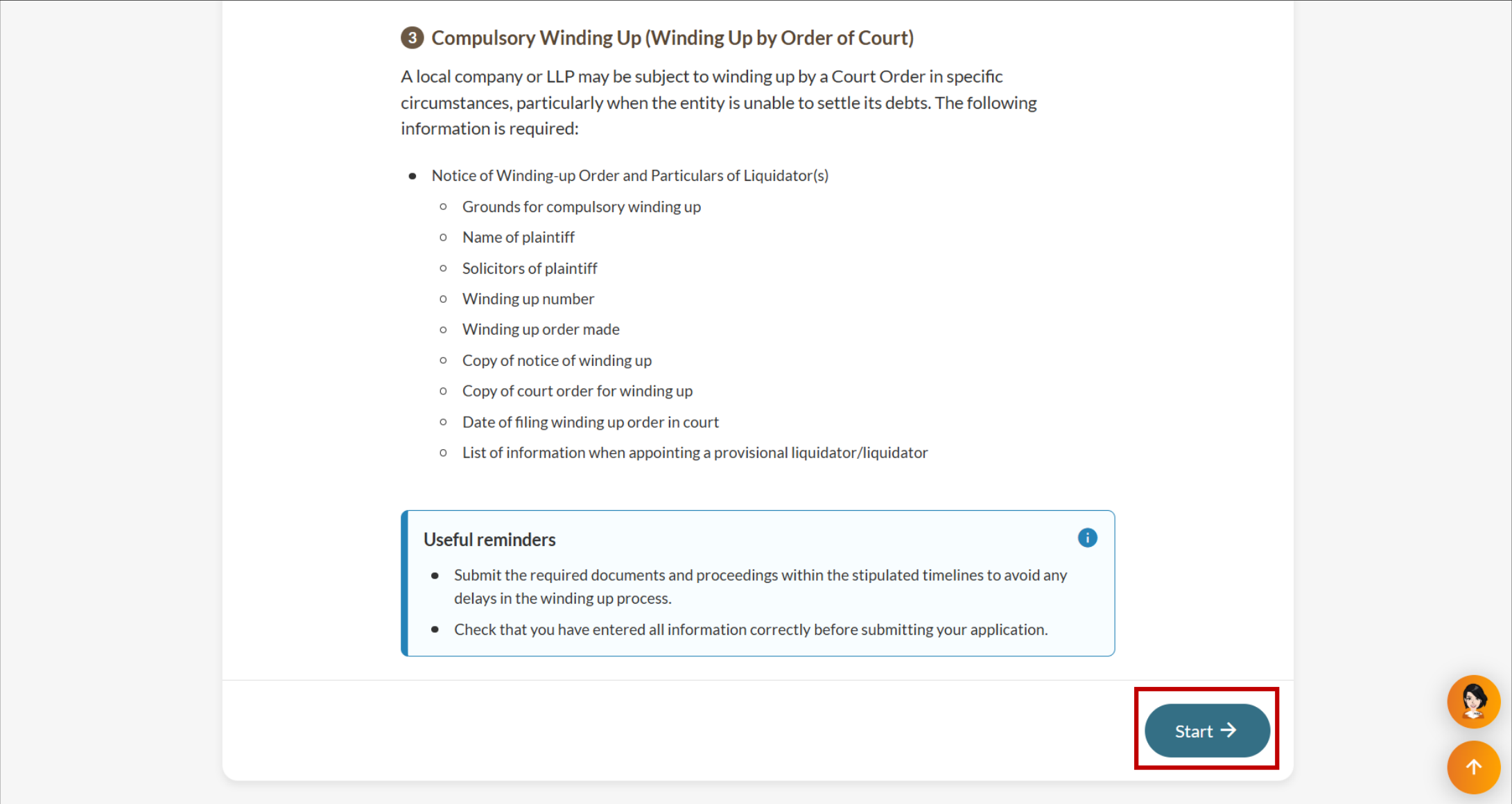
Step 1: Log in to Bizfile and open the “File winding up of business entity” eService
Follow these steps to log in to Bizfile and navigate to the File winding up of business entity (opens in new tab) eService.
Note: All entity and personal information (including UEN, entity details, NRIC or FIN numbers, names and addresses) shown are dummy data for illustration purposes only.
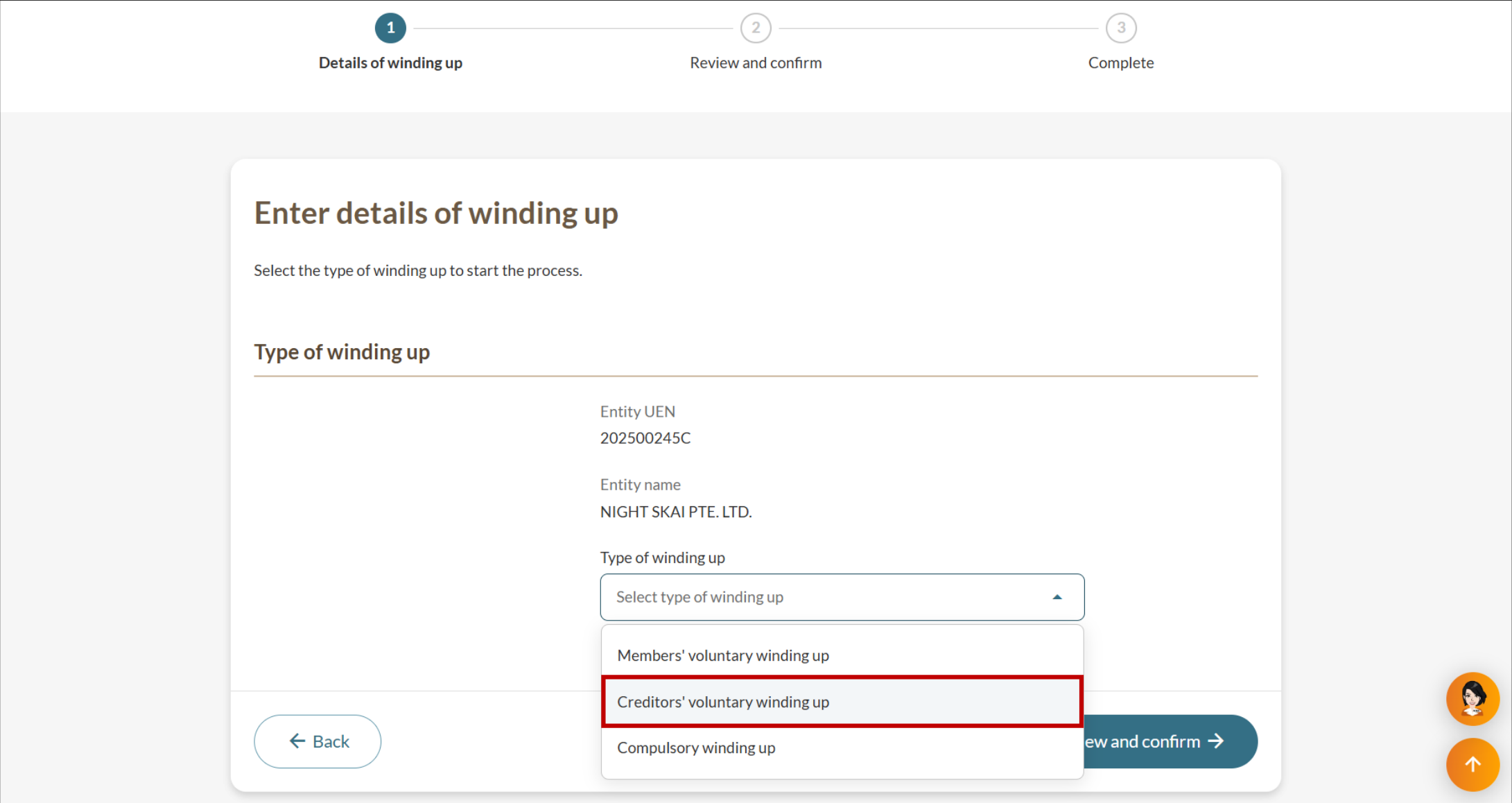
Step 2: File the declaration of inability to continue business
This step is optional. If the declaration does not apply to your business, select Not applicable.
Bizfile will then prompt you to file the notice of resolution.
For local companies
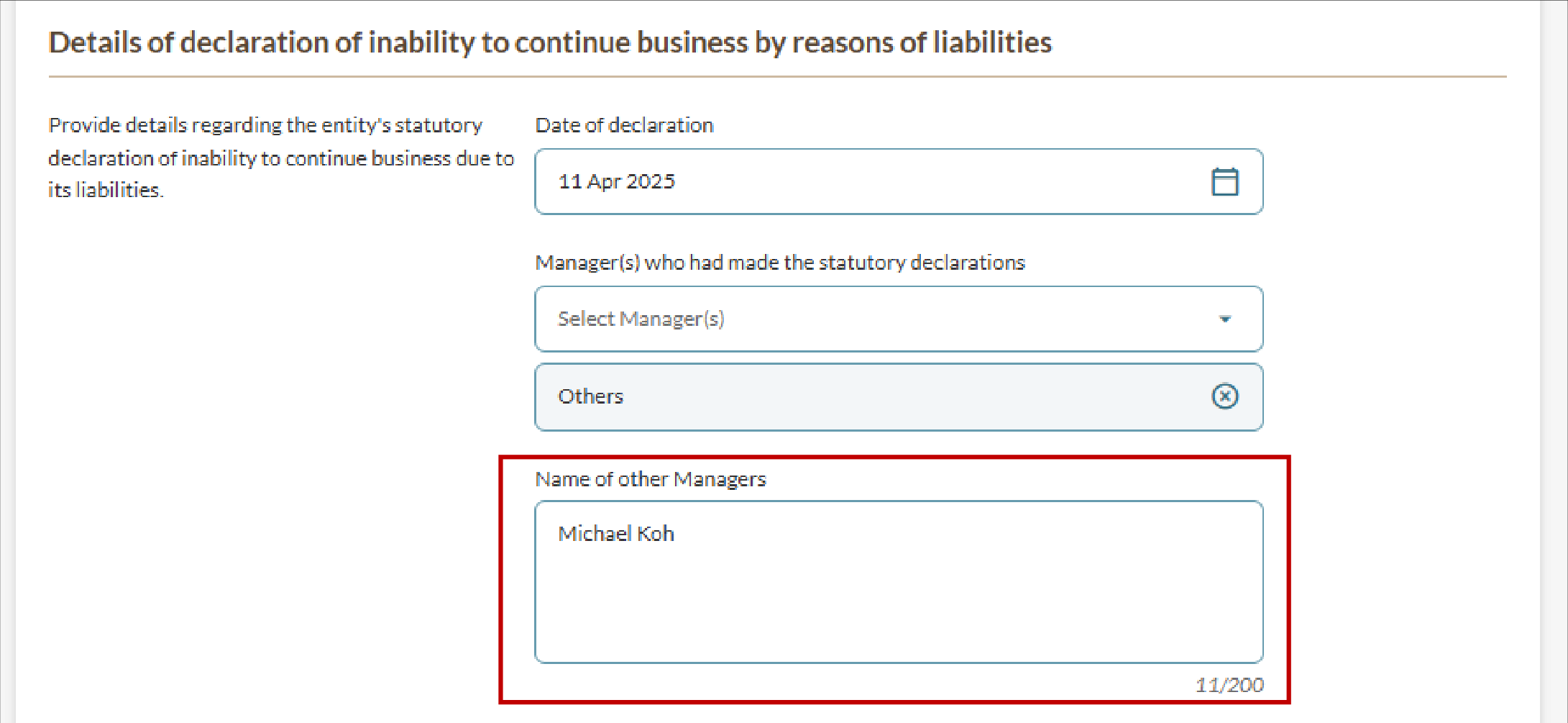
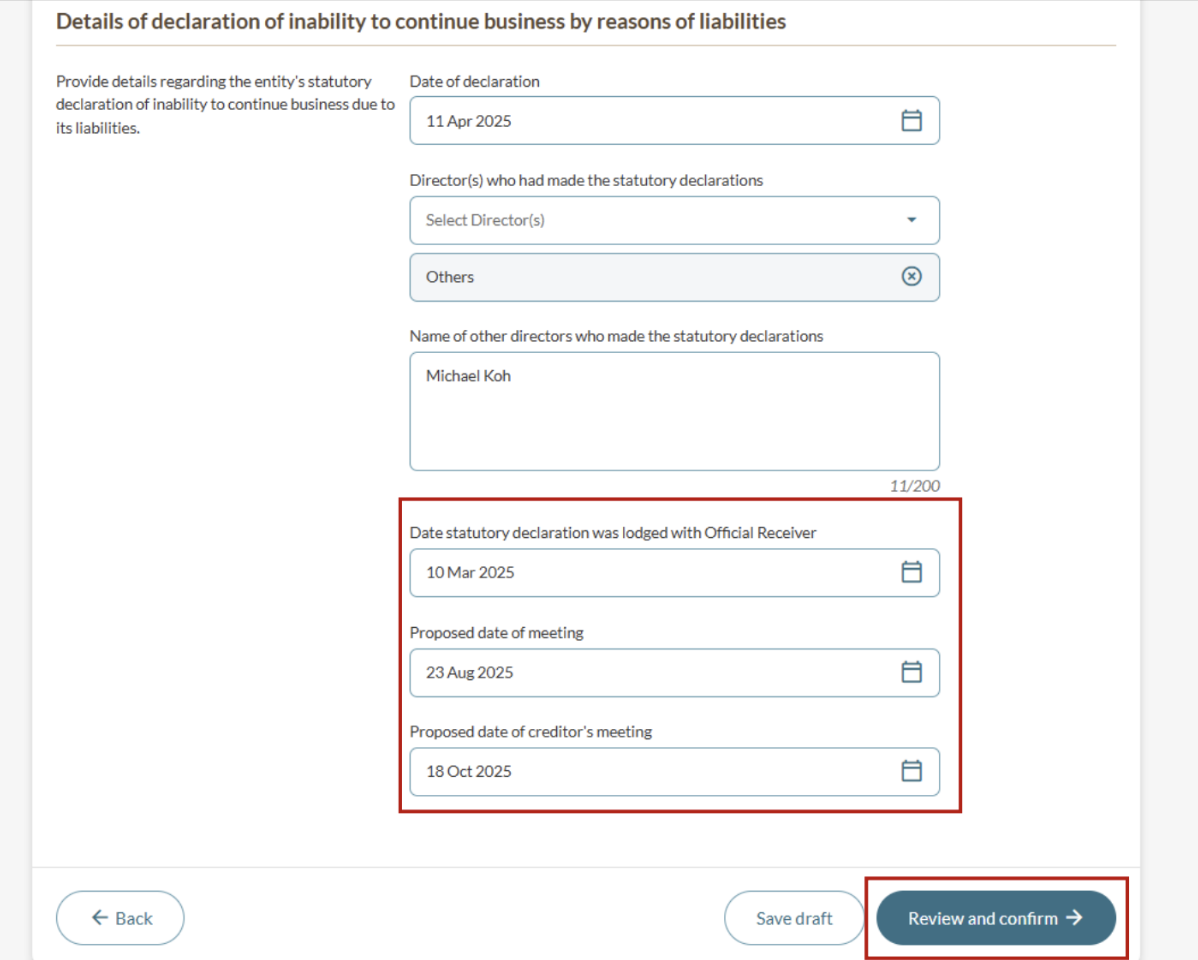
Enter the date of declaration and list the directors who made the declaration.
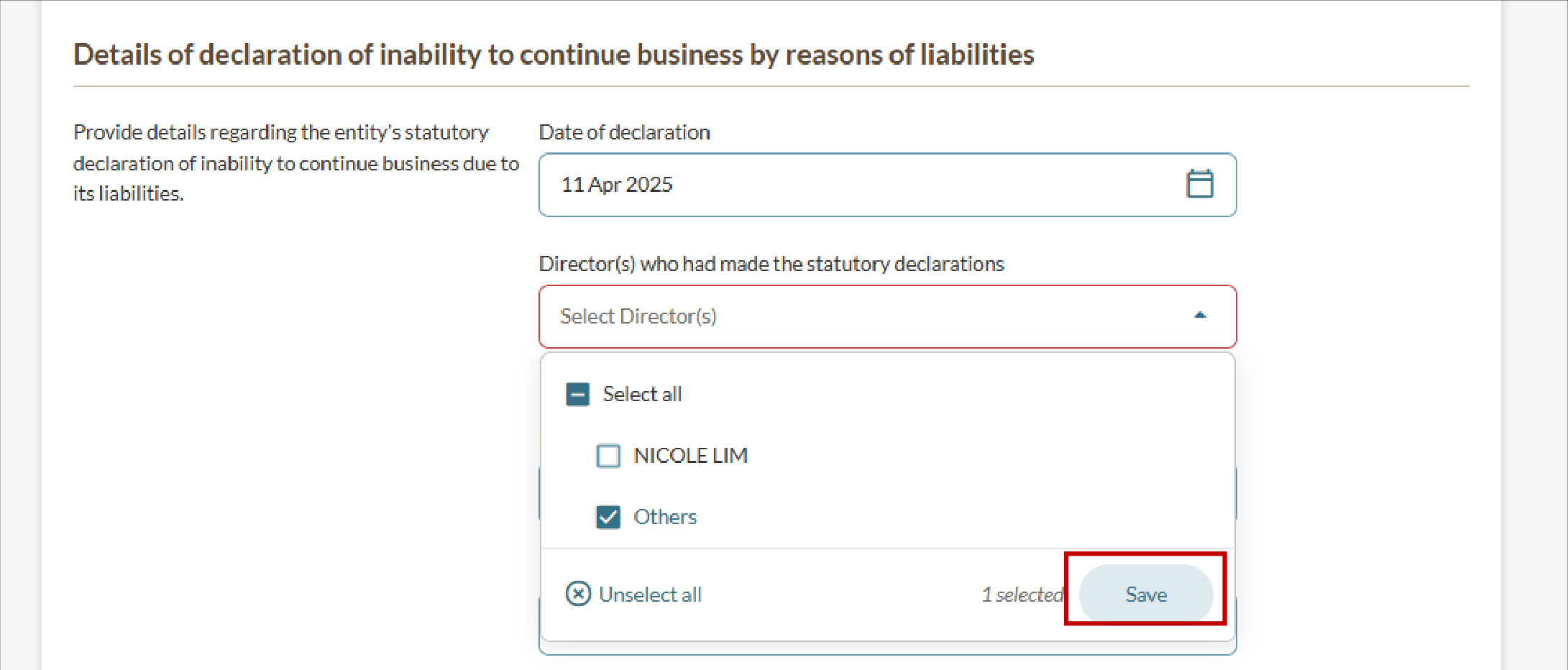
For LLPs
Enter the date of declaration and list the managers who made the declaration.
Step 3: Review and submit
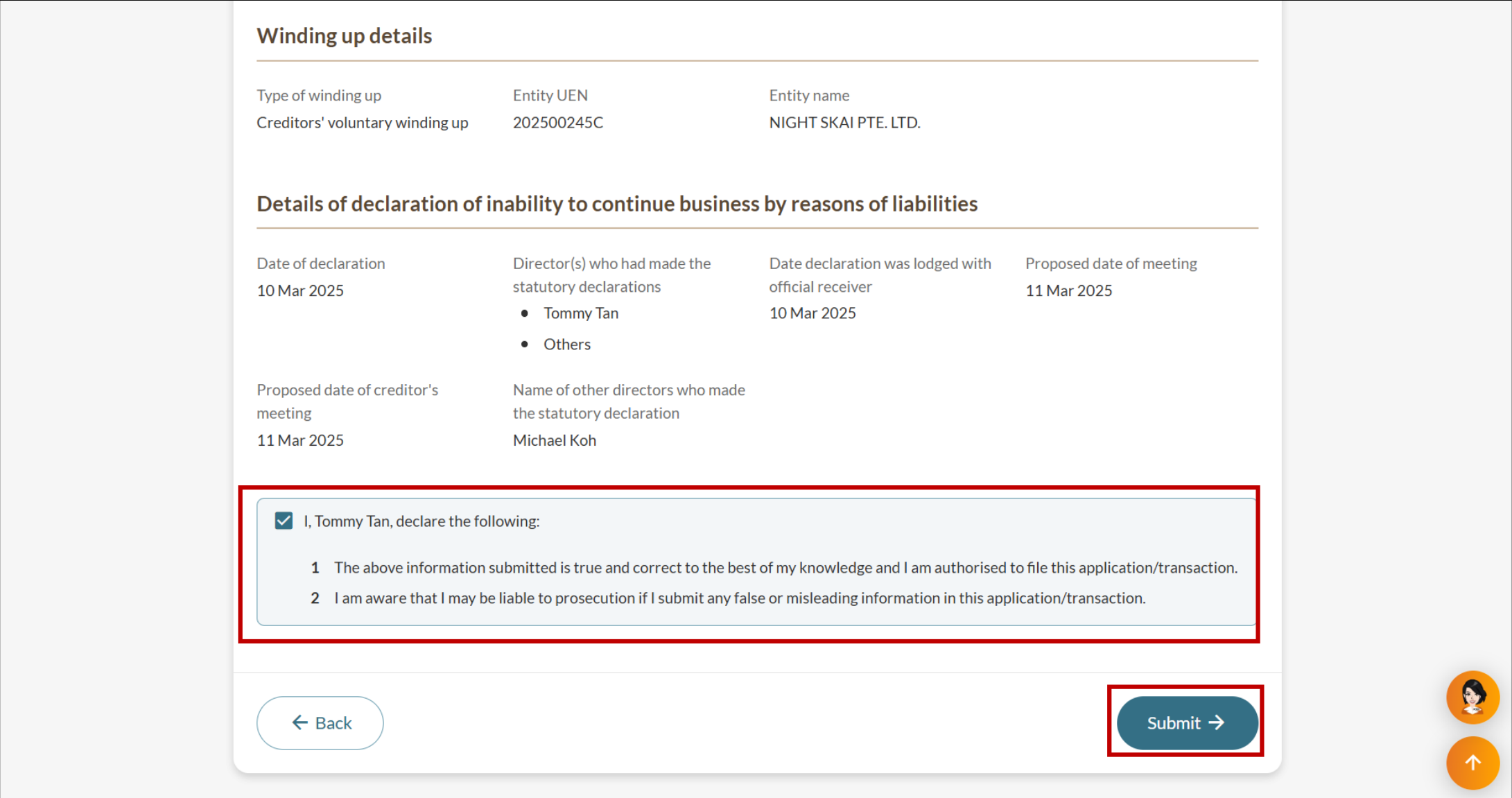
Review all information carefully before submitting the declaration.
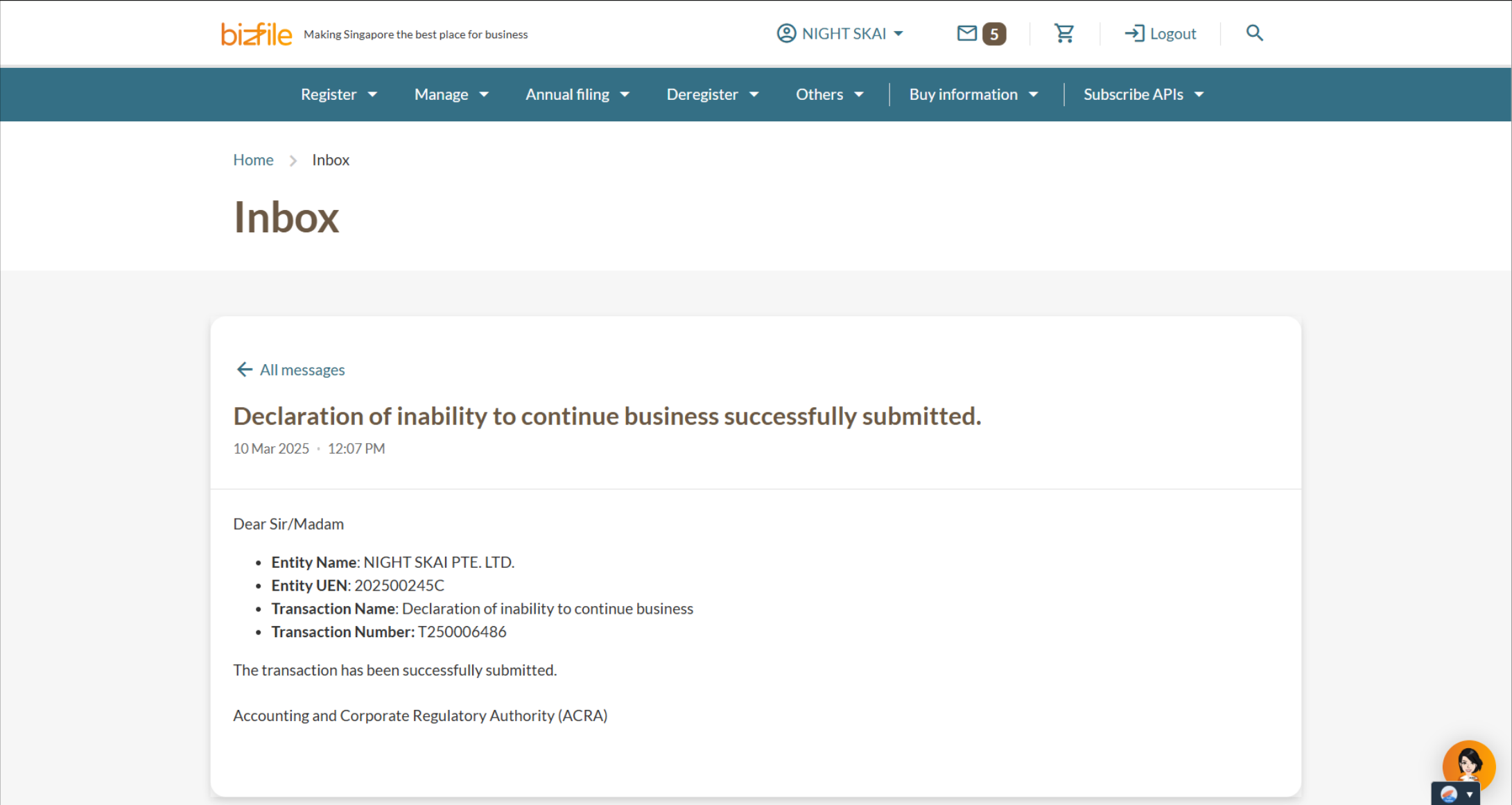
After you file
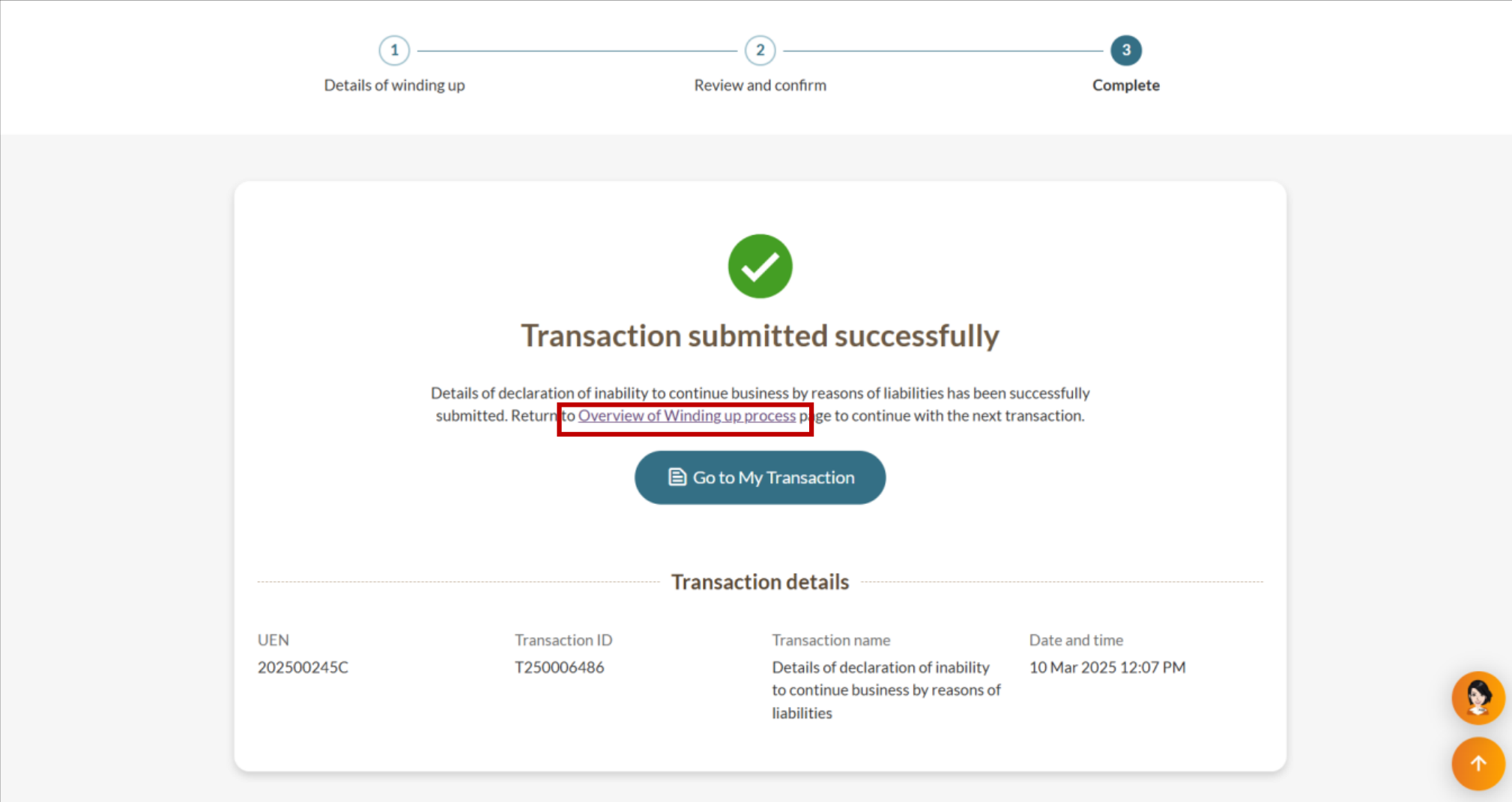
You can proceed to the next required filing immediately or return to it later:
Return to the File winding up of business entity (opens in new tab) eService.