
Step 4.6: Registering a local company via Bizfile
Learn how to register a local company in Singapore through Bizfile.
Last updated 10 March 2026

Before you register
This guide explains how to register a local company using Bizfile. You need to reserve a business name before you register a new company.
Learn more about:
Who may register
Only the person who reserved the company name can register. This person must also be appointed as a director or secretary of the new company.
You can also engage a corporate service provider (CSP) to register for you.
What you need to prepare
Required documents and information
You need to prepare | Details |
|---|---|
| You need to successfully reserve a business name before you register a new business. Note: You must register the same entity type that you chose when you reserved your business name. |
|
|
|
|
| The official address where:
Requirements:
|
| Company officers and shareholders are called position holders. They must meet the requirements for companies.
|
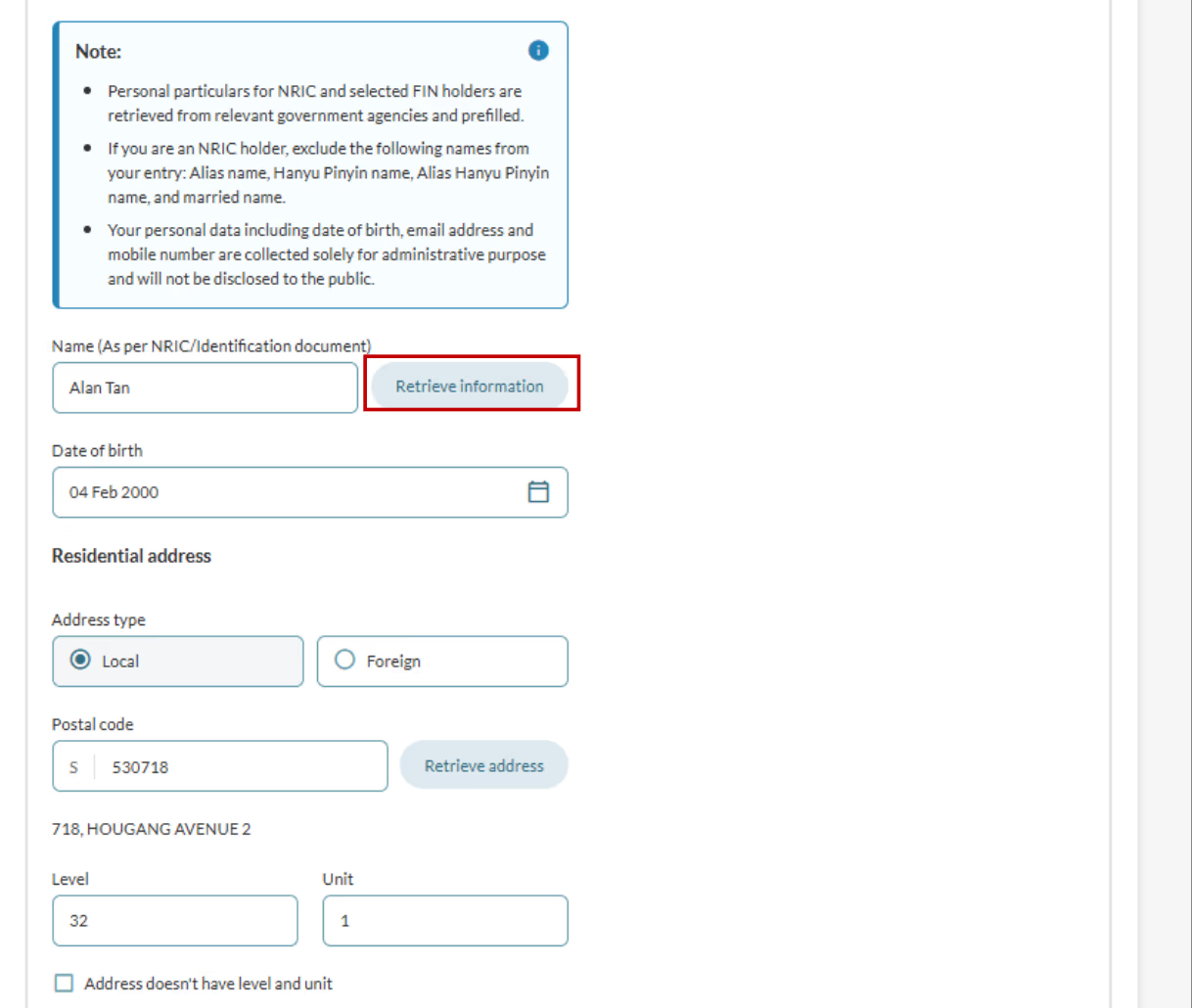
| All position holders must provide their residential address when they register. ACRA will send all official letters to the residential address. |
| Contact addresses are displayed in ACRA's public records. It can be the same as the residential address. You must file a contact address that meets these requirements:
Note: There are no fees to register a contact address. |
|
|
| You need to state whether the company is exempt from maintaining these registers from the date of incorporation: If your company is not exempt, check what you need to prepare to provide these details:
|
Share capital is the amount of money that shareholders have invested in your company. You can allot shares to individual shareholders or a group of shareholders. | |
You can either upload a customised constitution or select a model constitution (if you don't need to create specific rules for your company). |
Fees and processing time
Business registration
What you need to know | Details |
|---|---|
Fee | $300 |
Payment method | Credit card, debit card, or online banking |
Processing time | Most registrations are approved soon after payment. Complex applications may take up to 15 working days. Registrations that need extra approval from referral authorities: 14 to 60 days |
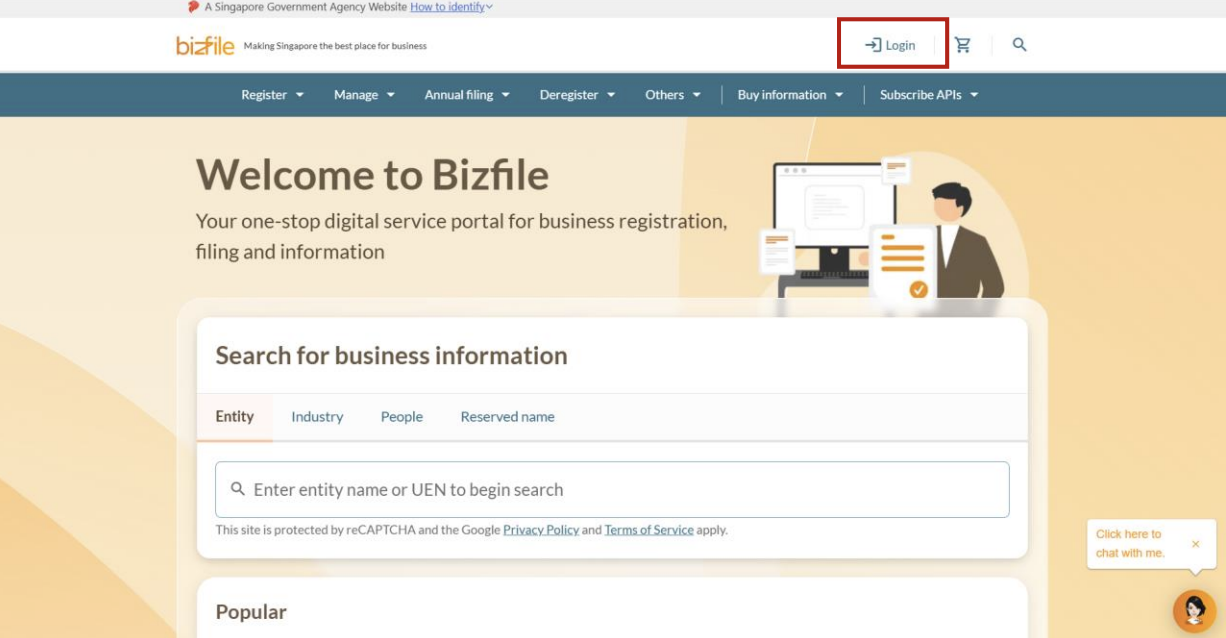
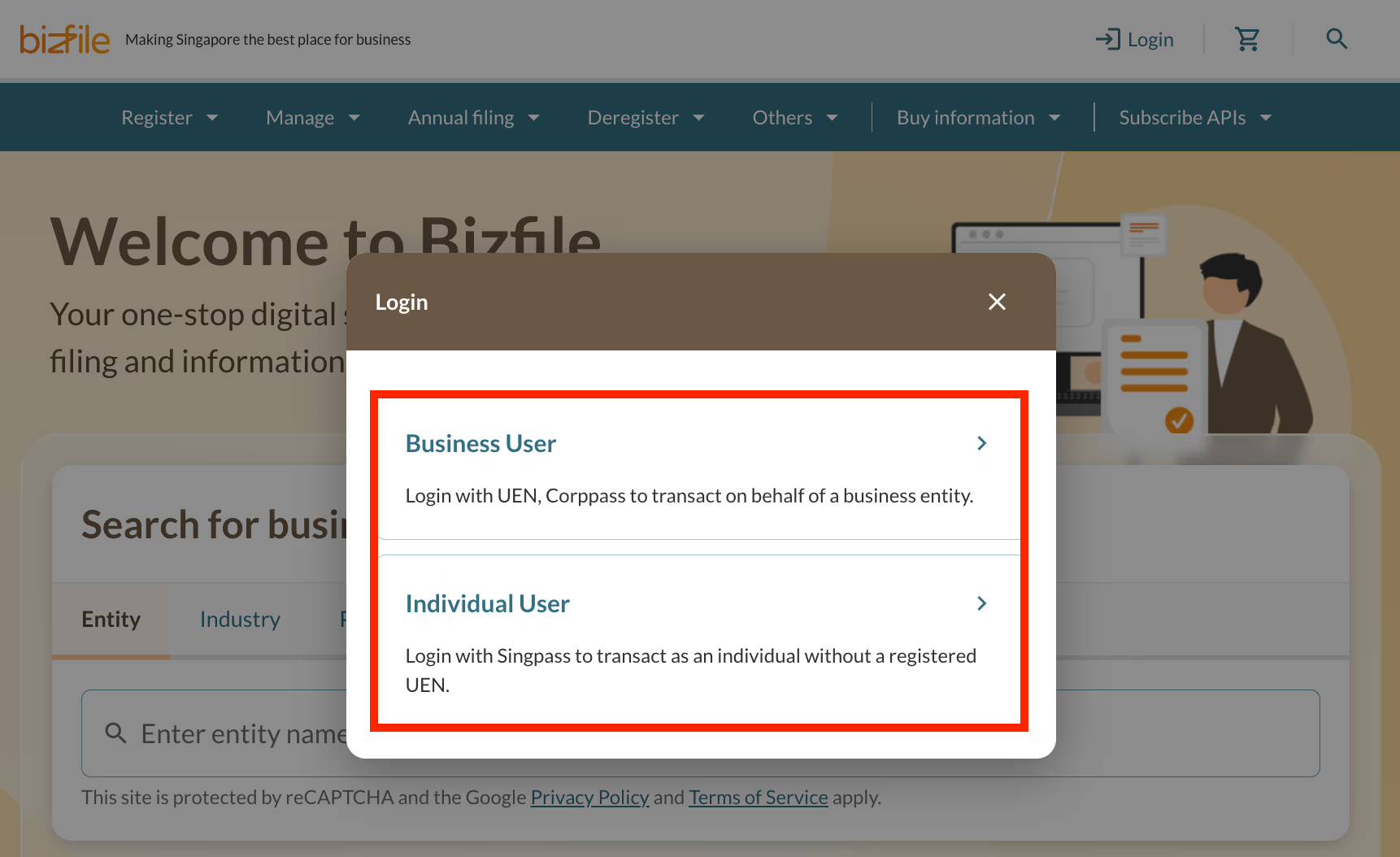
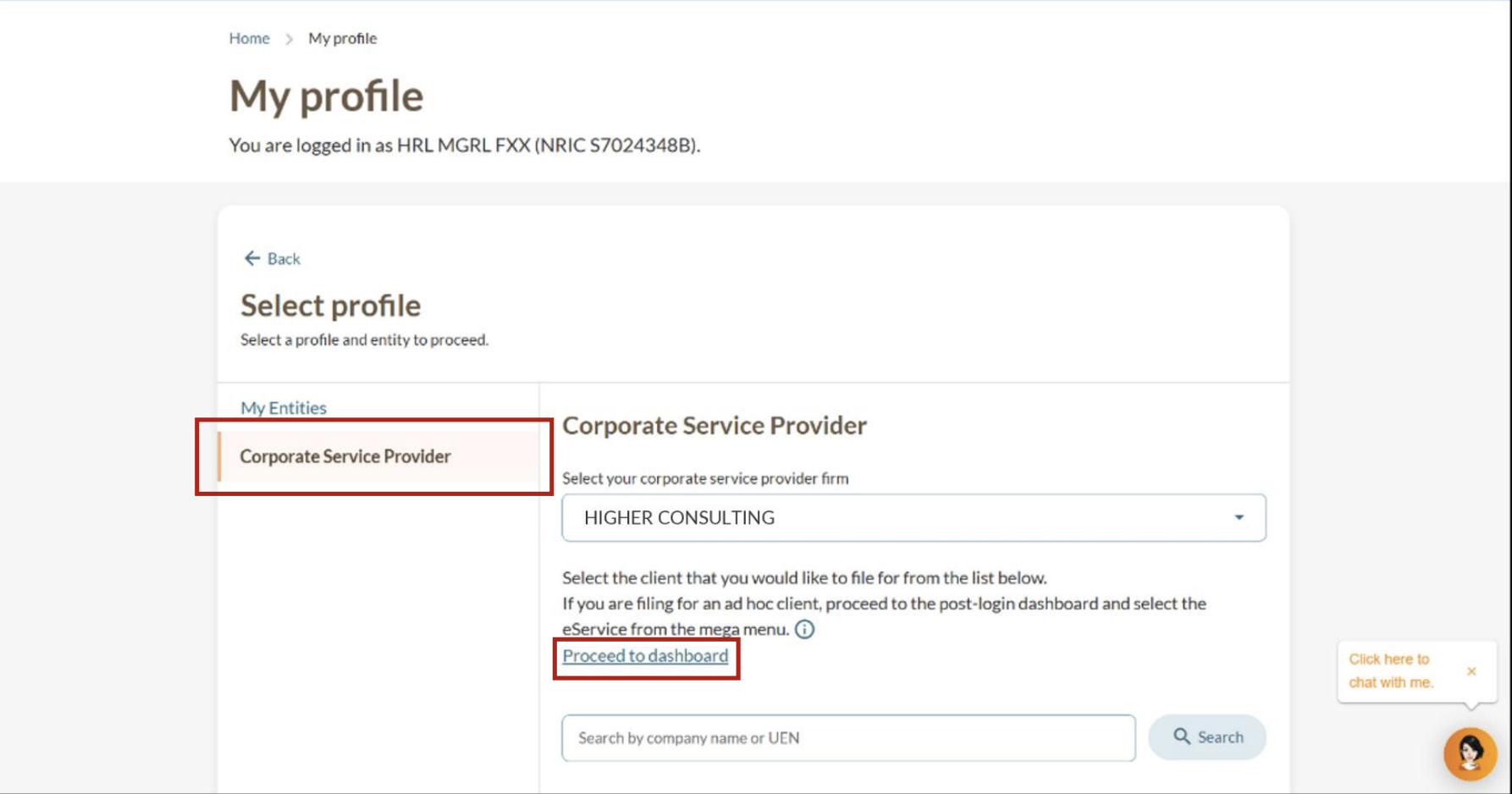
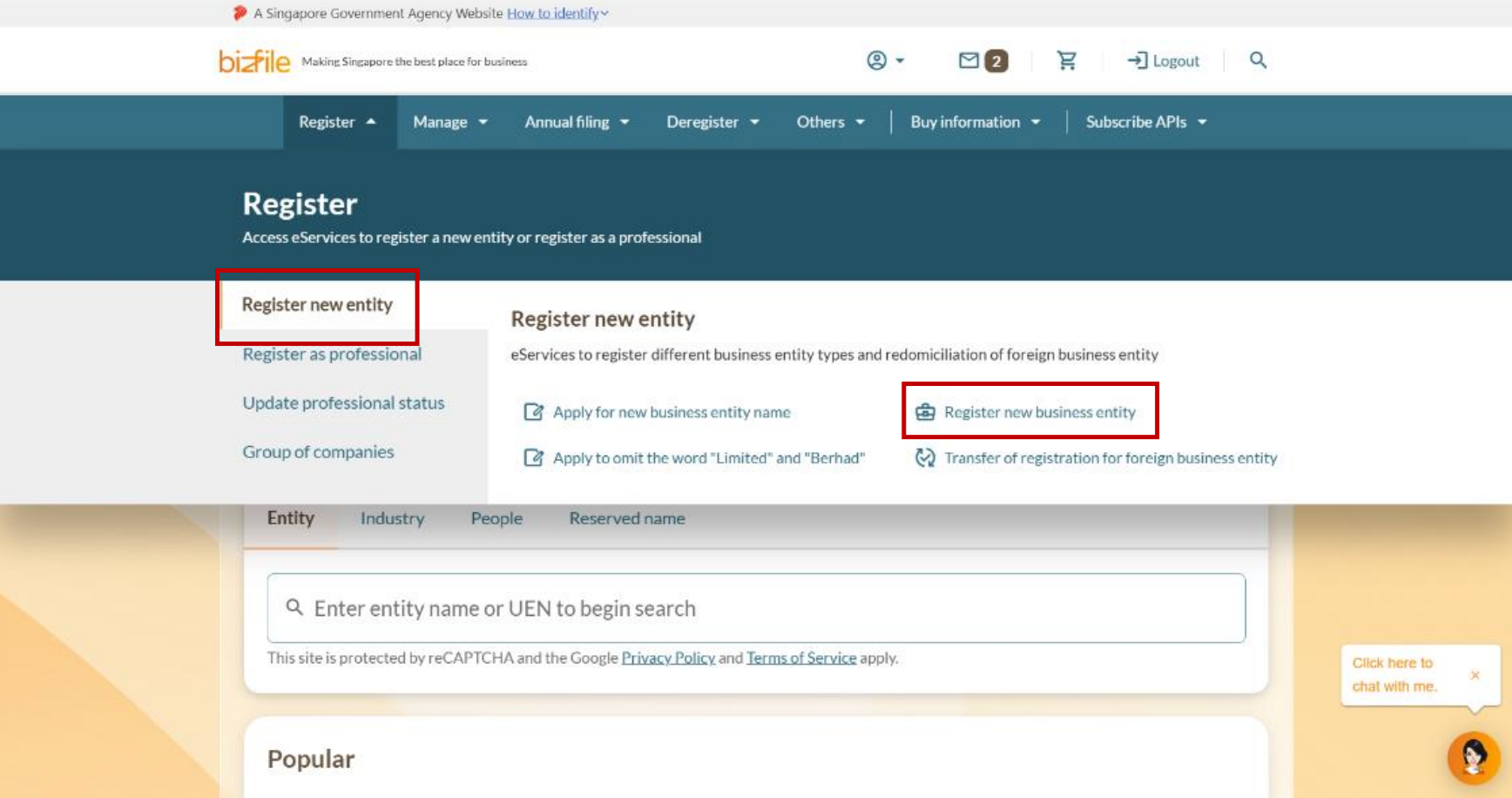
Step 1: Log in to Bizfile and open the "Register new business entity" eService
Follow these steps to navigate to the right eService.
Note: All entity and personal information (including UEN, entity details, NRIC or FIN numbers, names and addresses) shown are dummy data for illustration purposes only.
Step 2: Enter your company details
You can use your name registration eService number to automatically fill key details. You'll also need to provide your company's financial year end (FYE), office address, office hours, and email.
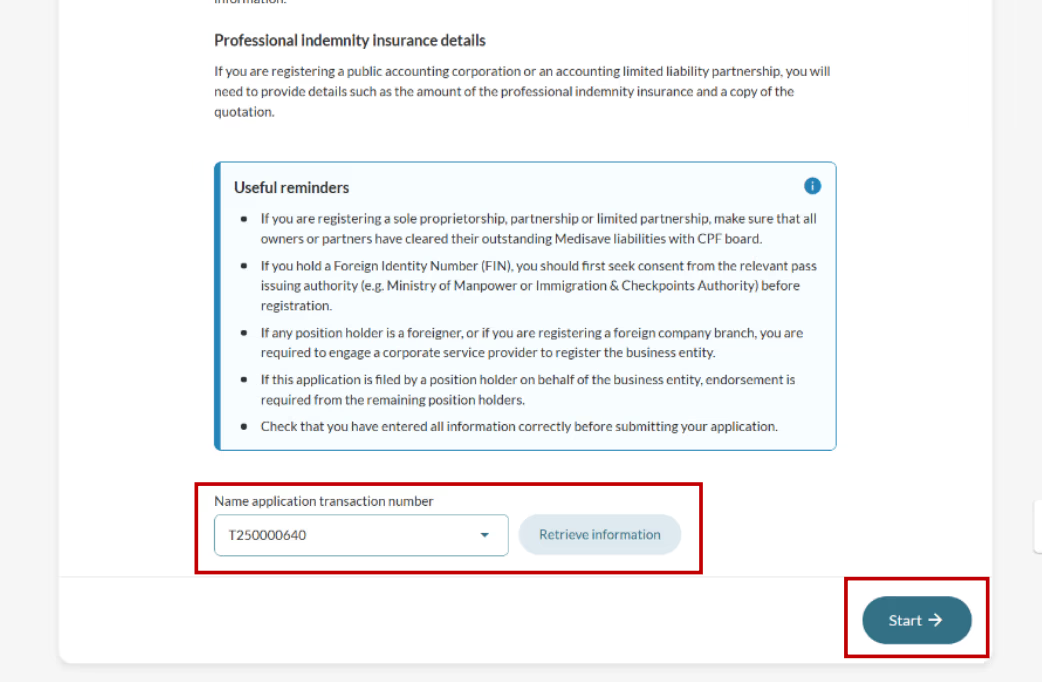
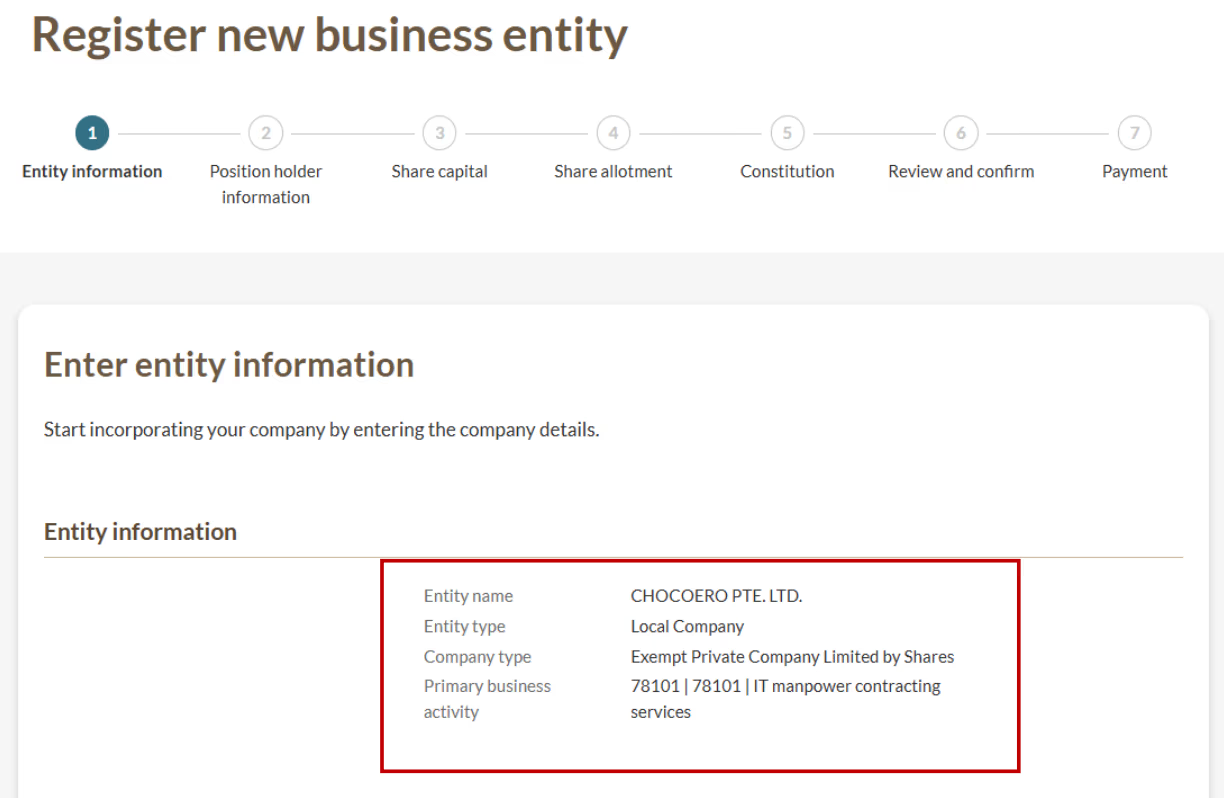
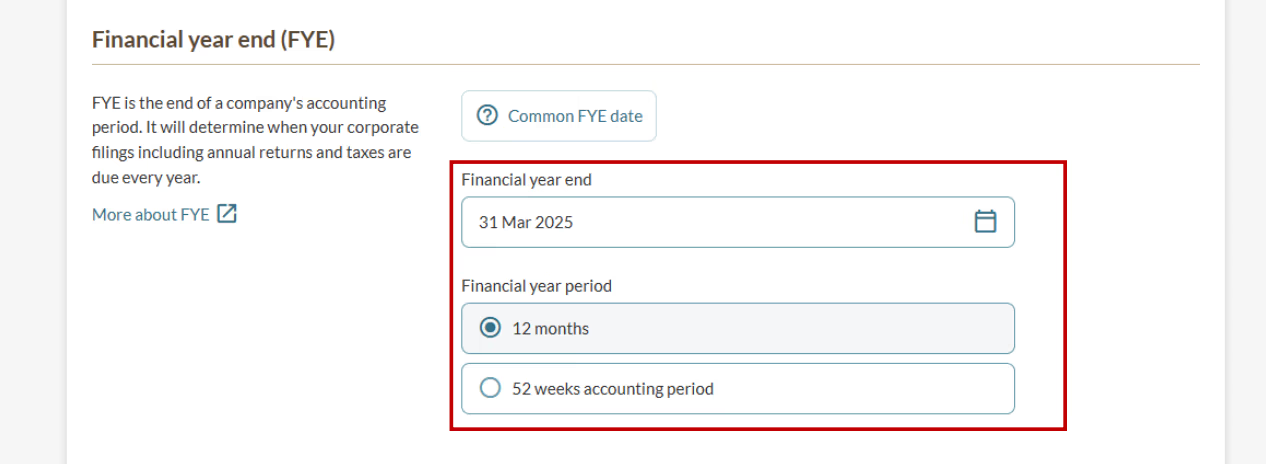
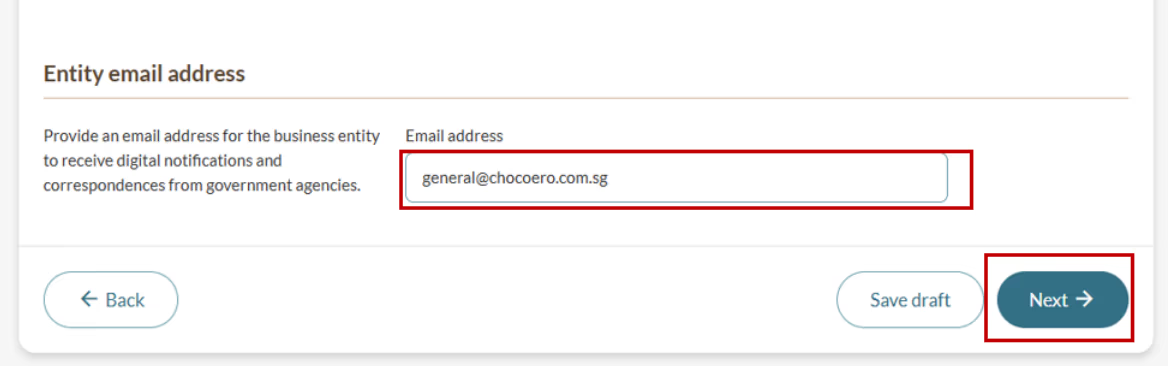
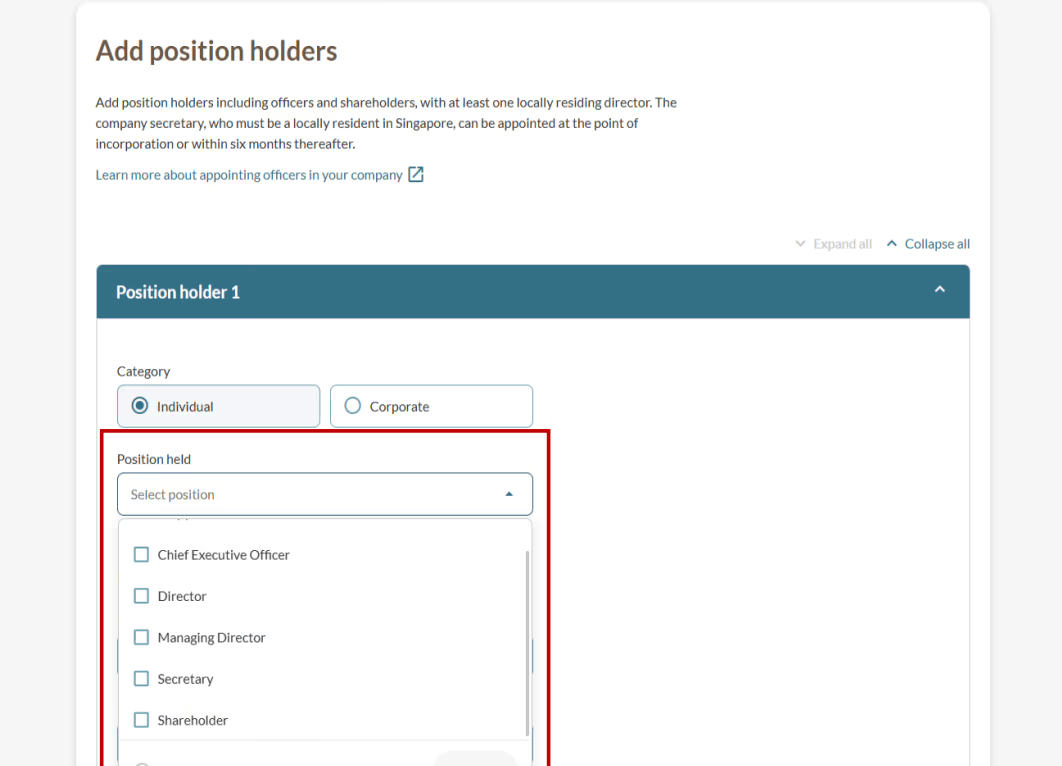
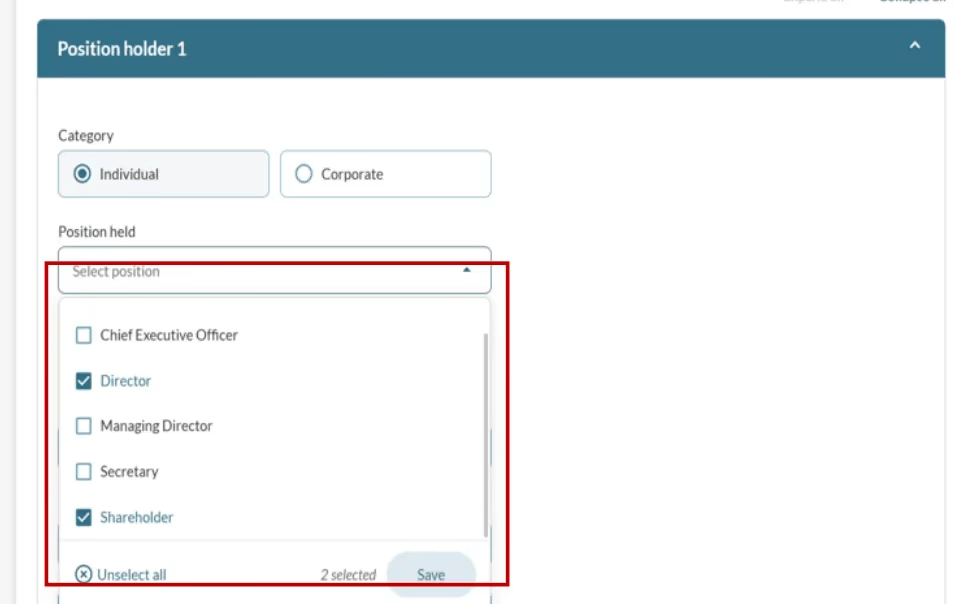
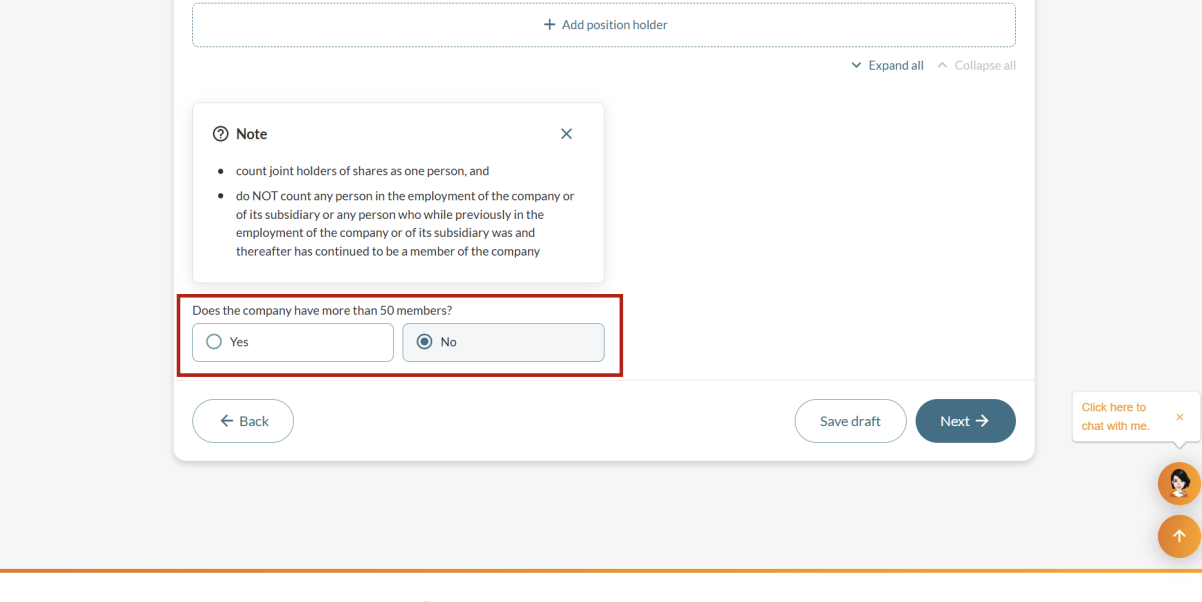
Step 3: Add position holders and shareholders
Company officers and shareholders are called position holders. Position holders can be individuals or corporate entities.
Step 4: Add nominator information
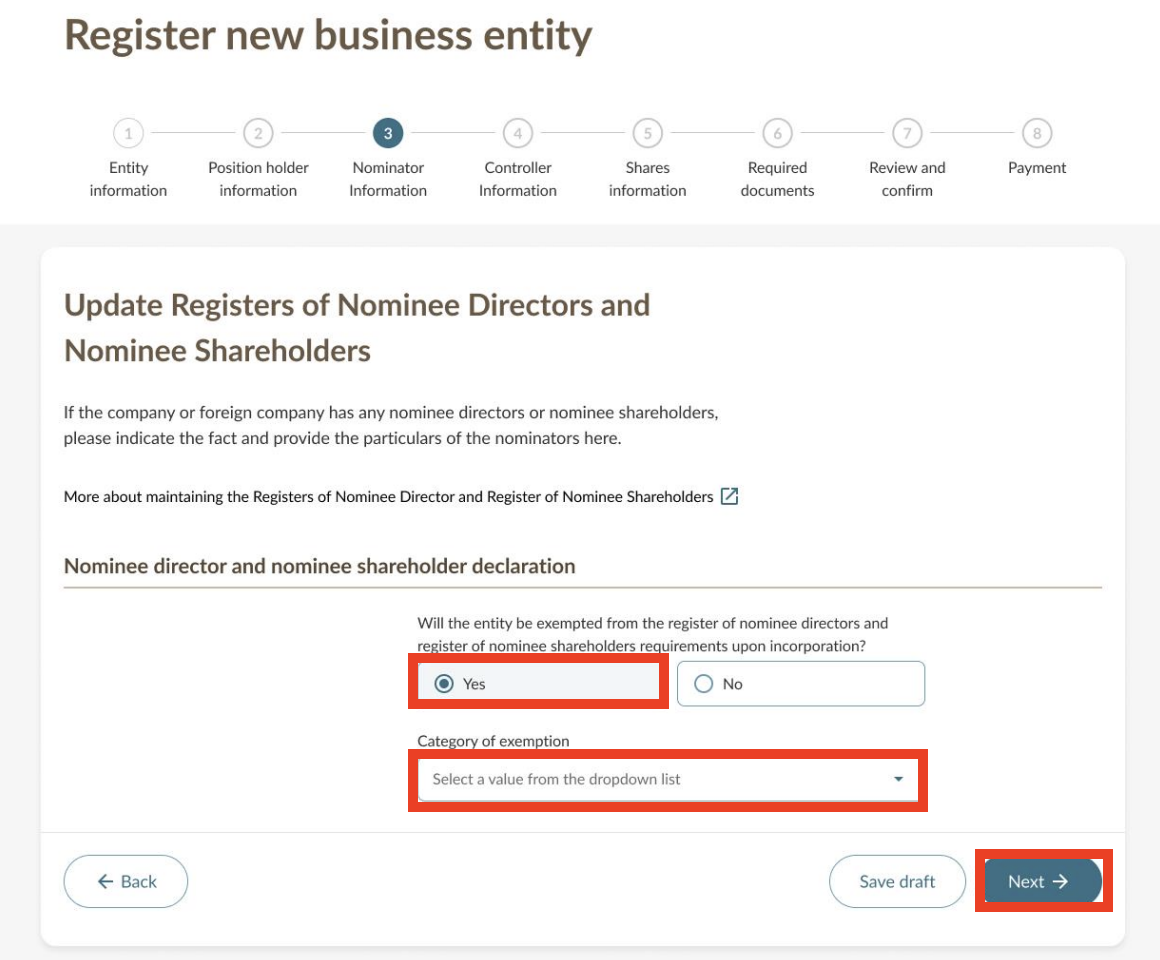
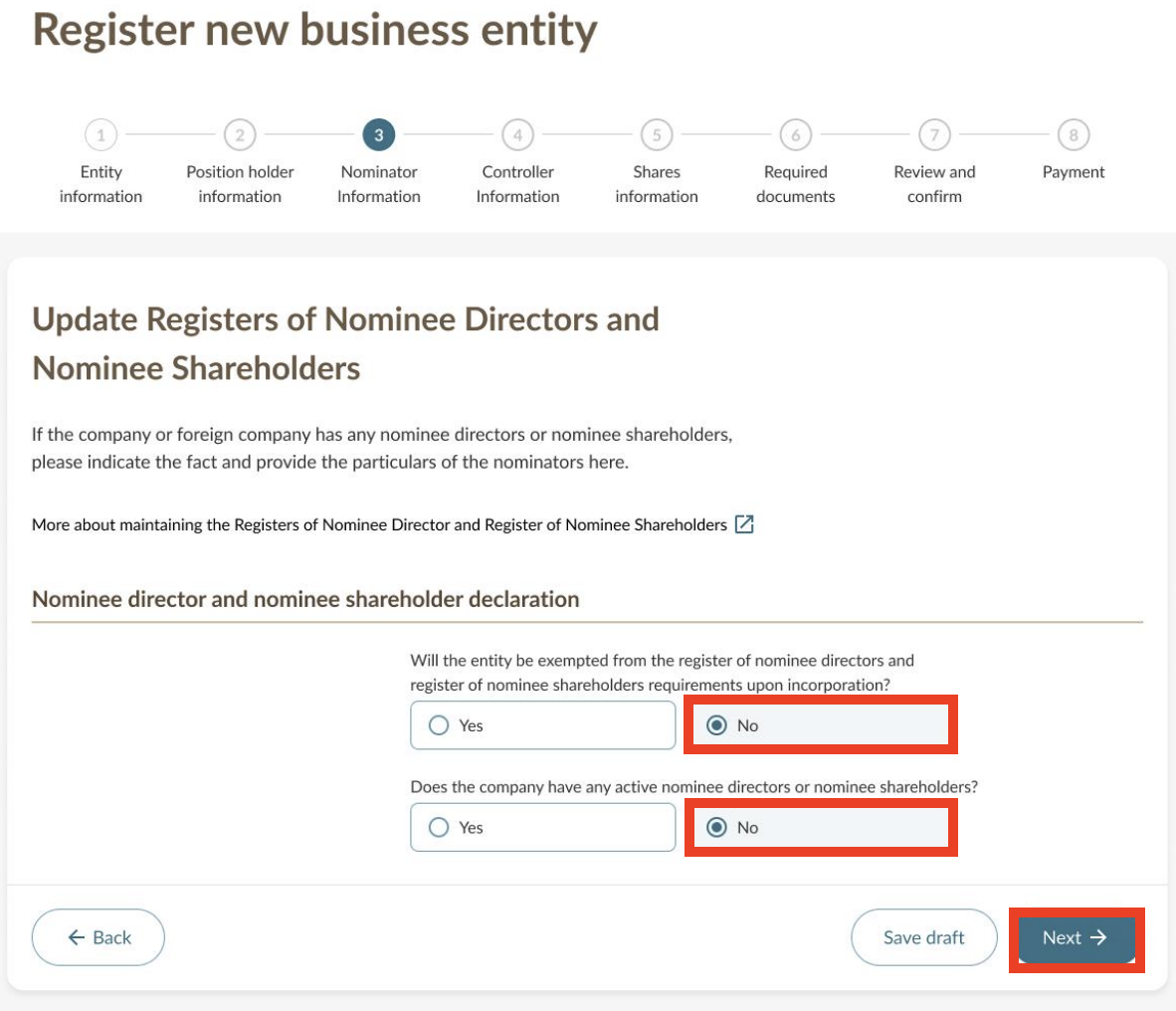
All companies need to state whether they are exempt from maintaining the Registers of Nominee Directors (ROND) and Nominee Shareholders (RONS).
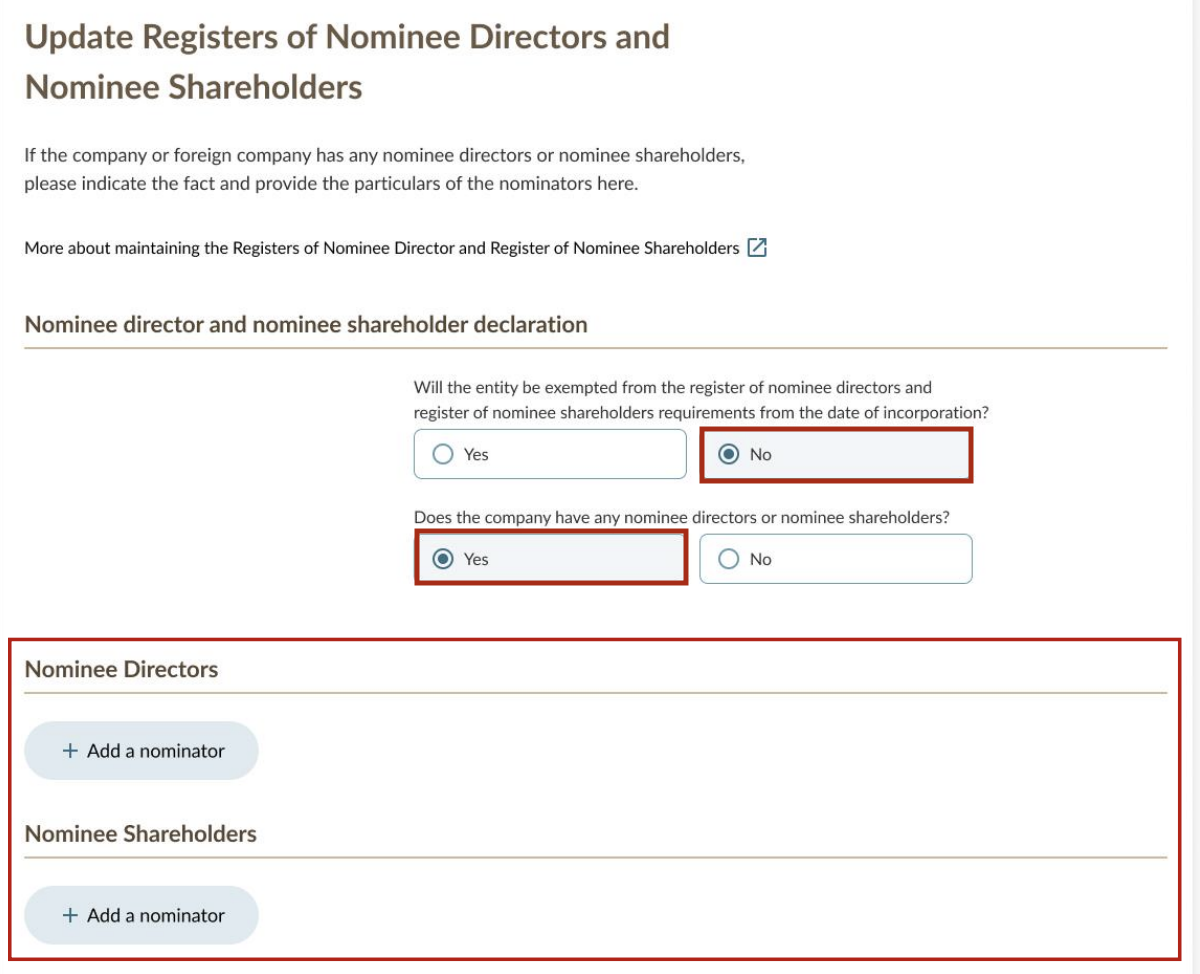
If you have nominee directors (ND) or shareholders (NS), you need to provide their details too.
Scenarios
If your company is exempted
Select Yes to state that the entity is exempt from ROND and RONS requirements upon incorporation.
Select the exemption category from the dropdown list.
Click Next to proceed.
If your company is not exempt, and does not have any ND or NS
Select No to state that the entity is not exempt from ROND and RONS requirements.
Select No to state that the entity does not have any ND or NS.
Click Next to proceed.
If your company is not exempt, and has an ND or NS
Select No to state that your company is not exempt.
Select Yes to state that your company has an ND or NS.
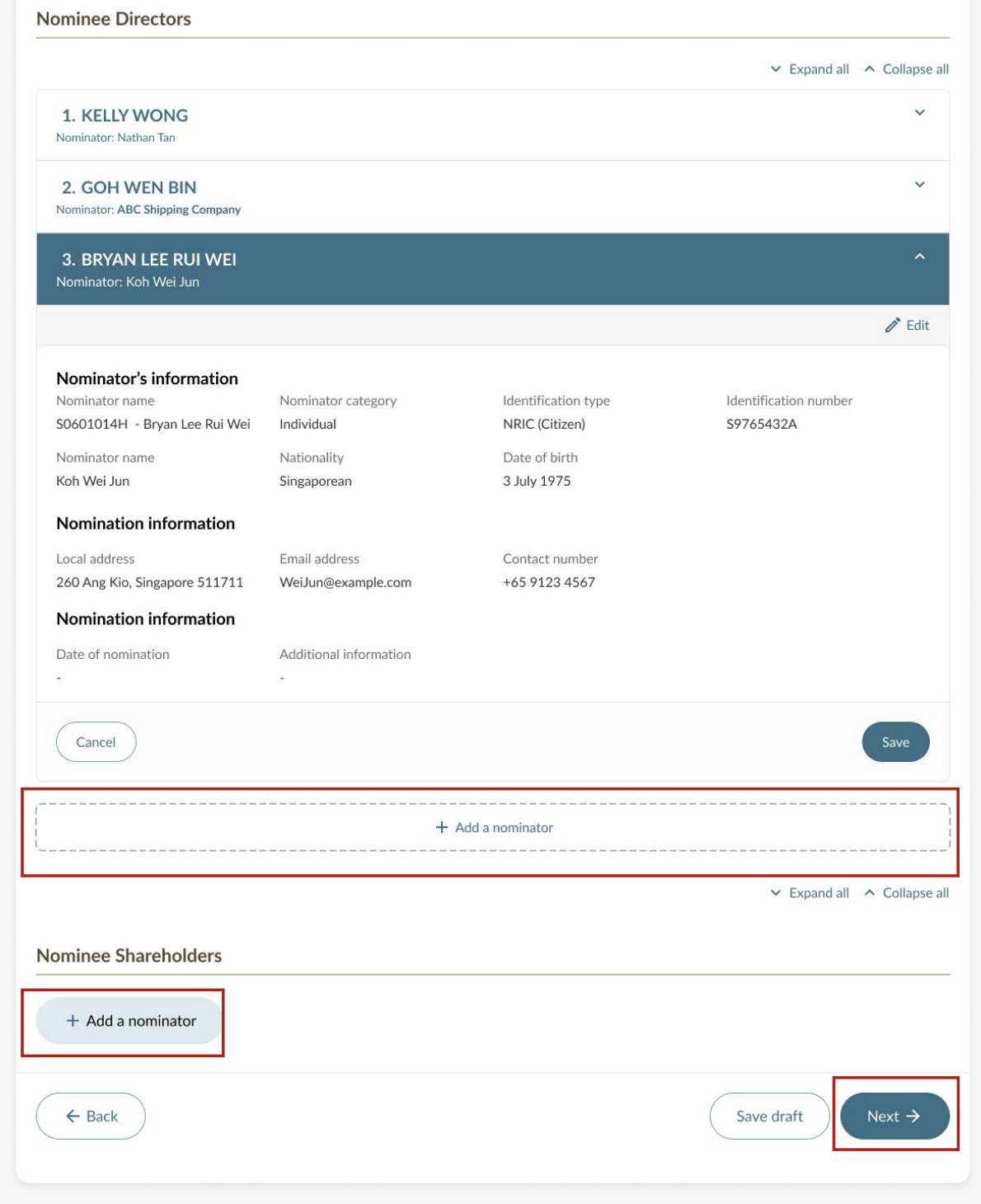
Click Add a nominator under the "Nominee Directors" section or the "Nominee Shareholders" section.
Select the ND or NS from the dropdown list.
Under the "Nominator's information" section, provide the nominator's details
Under the "Residential address" section, enter the nominator’s contact details. For local addresses, enter the postal code and click "Retrieve address" to automatically add the address details.
To add more nominators, click Add a nominator and repeat Steps 4 to 6. Once you have added all nominators, click "Next".
Tip: Members of the public cannot buy ROND or RONS information. Learn more about publicly available nominee details.
Step 5: Add controller details
All companies need to state whether they are exempt from maintaining the Register of Registrable Controllers (RORC).
If you are able to identify your controllers, you need to provide their details too.
Scenarios
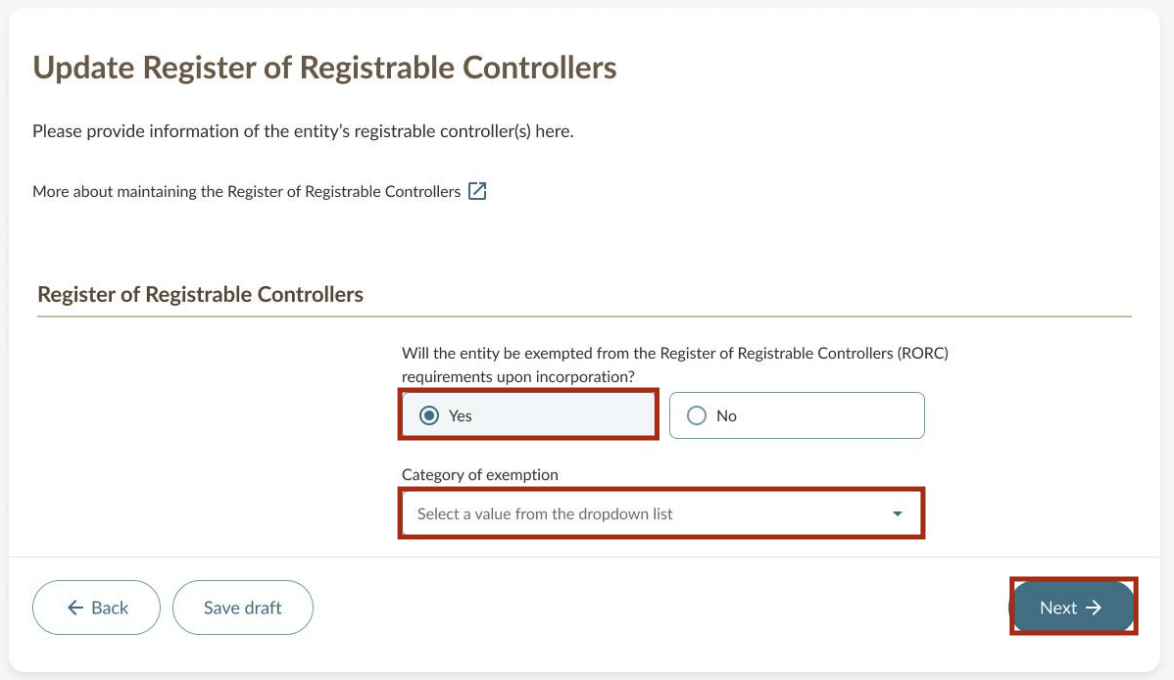
If your company is exempt
Select Yes to state that your company is exempt from RORC requirements upon incorporation.
Select the exemption category from the dropdown list.
Click Next to proceed.
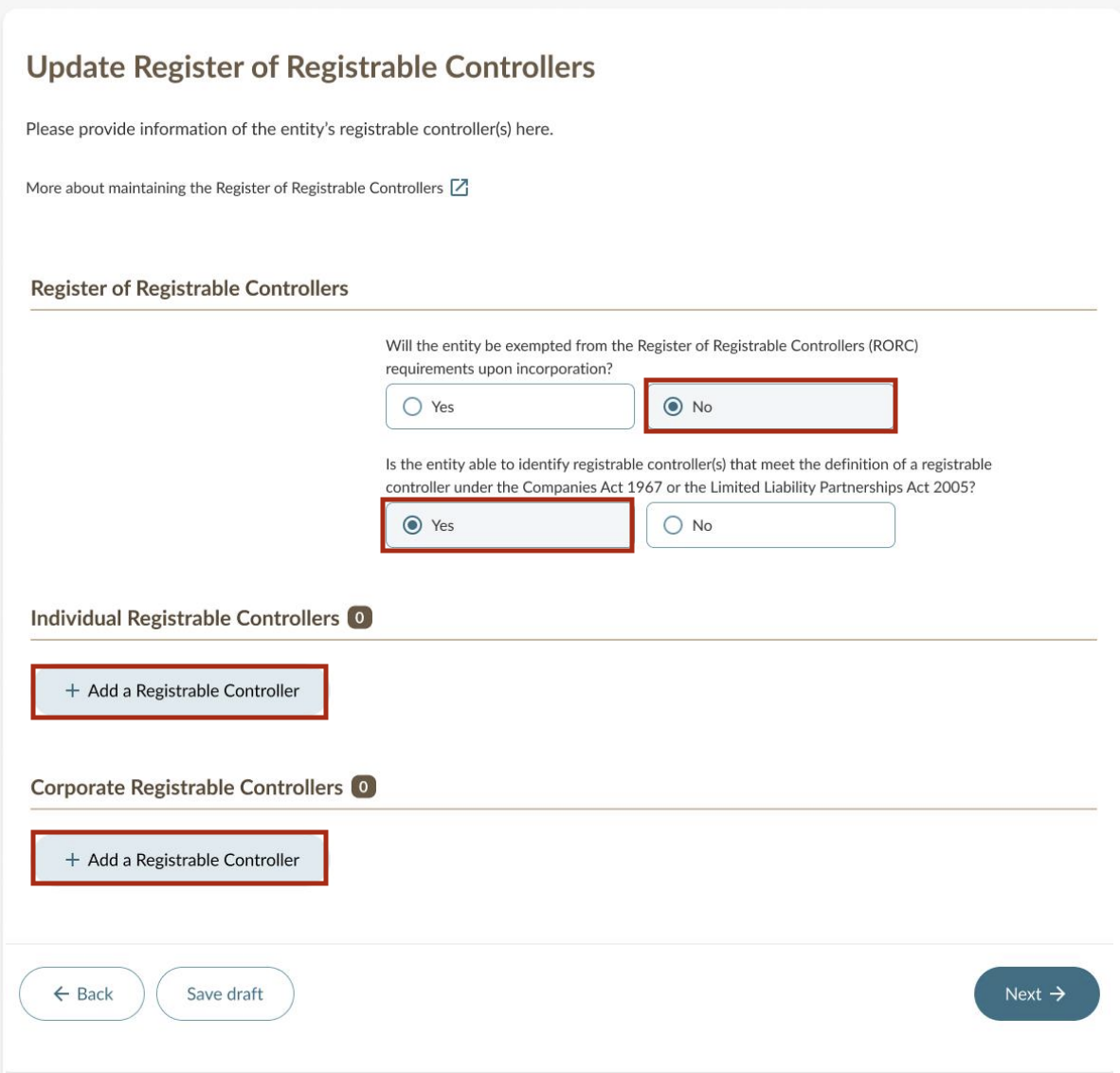
If your company is not exempt, and able to identify controllers
Select No to state that your company is not exempt from RORC requirements.
Select Yes to state that your company is able to identify controllers.
Click Add a Registrable Controller under "Individual Registrable Controllers" or "Corporate Registrable Controllers" and provide their details.
(Optional) To add more registrable controllers, repeat Step 3.
Click Next after you have added all registrable controllers.
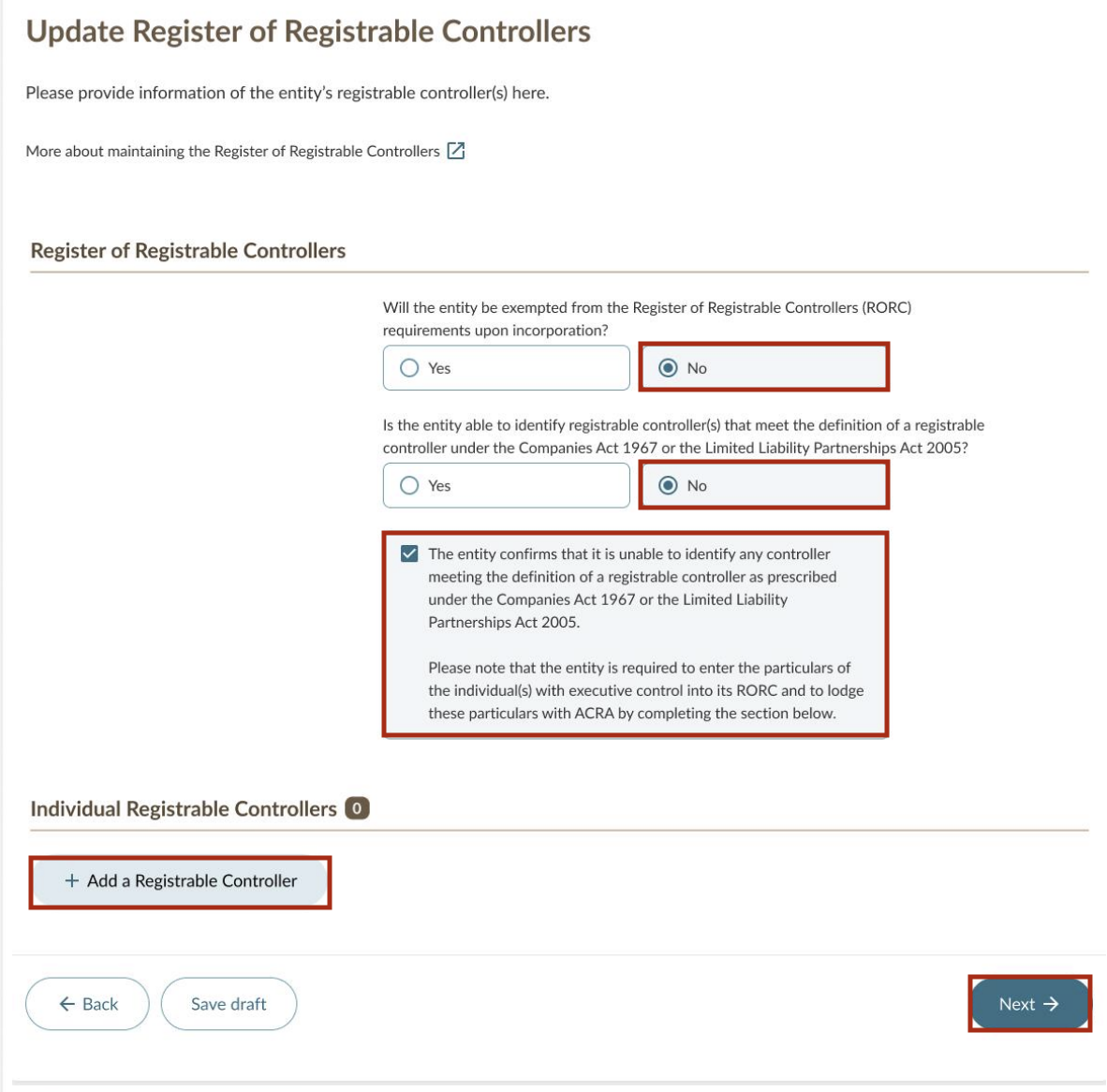
If your company is not exempt, and unable to identify controllers
Select No to state that your company is not exempt from RORC requirements.
Select No to state that your company is unable to identify controllers and check the declaration box.
Click Add a Registrable Controller under "Individual Registrable Controllers" and provide the details of the individuals with executive control.
(Optional) To add more registrable controllers, repeat Step 3.
Click Next after you have added all registrable controllers.
Tip: Members of the public cannot view or buy your RORC information. Learn more about who may access your RORC.
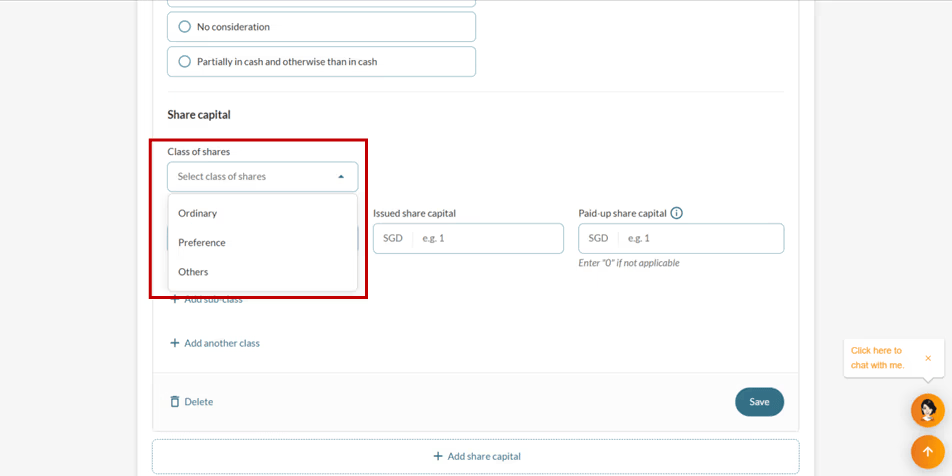
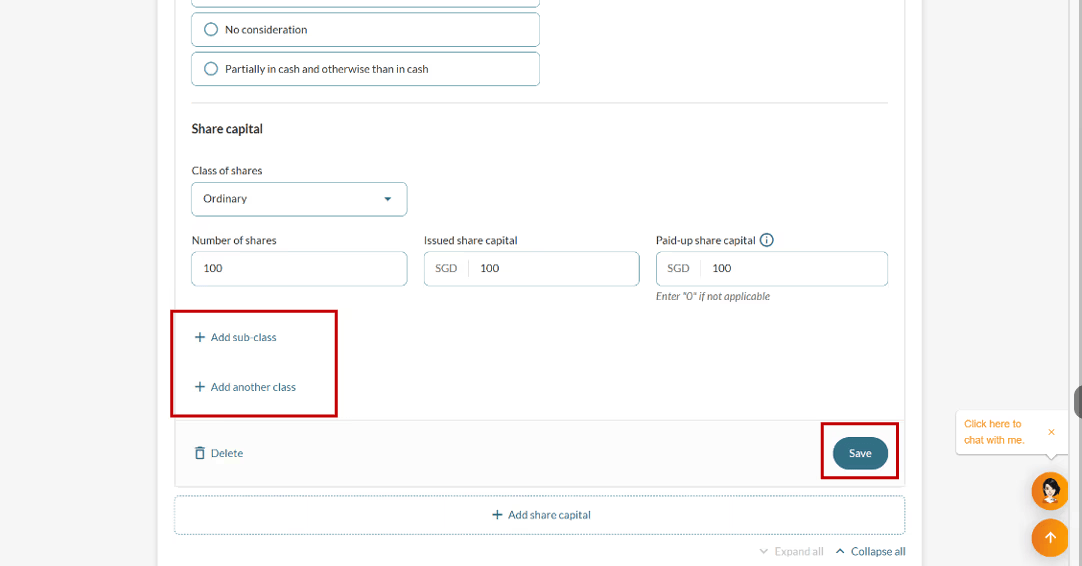
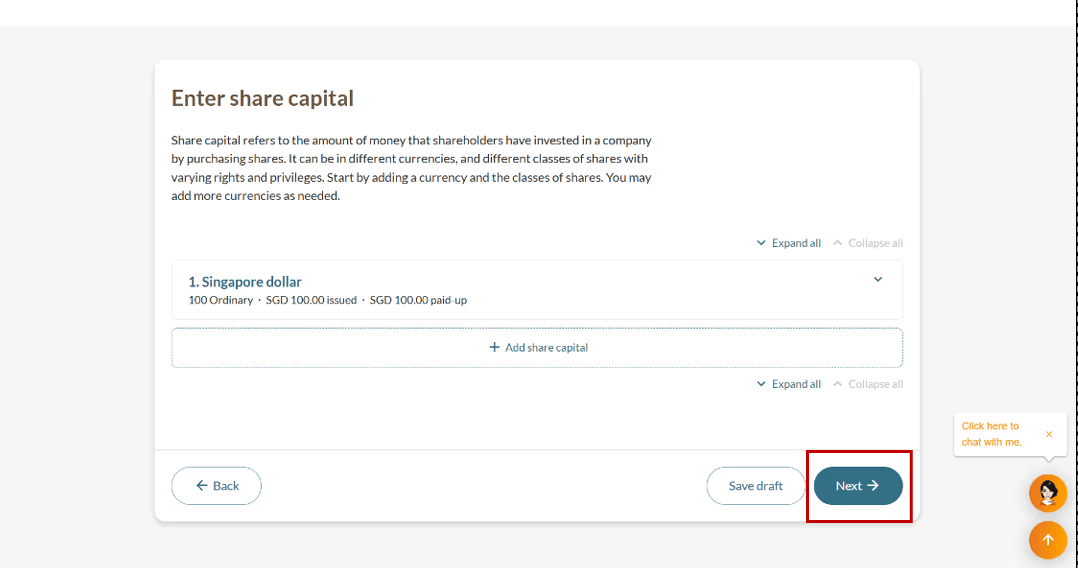
Step 6: Add share capital details
Share capital is the amount of money that shareholders have invested in your company.
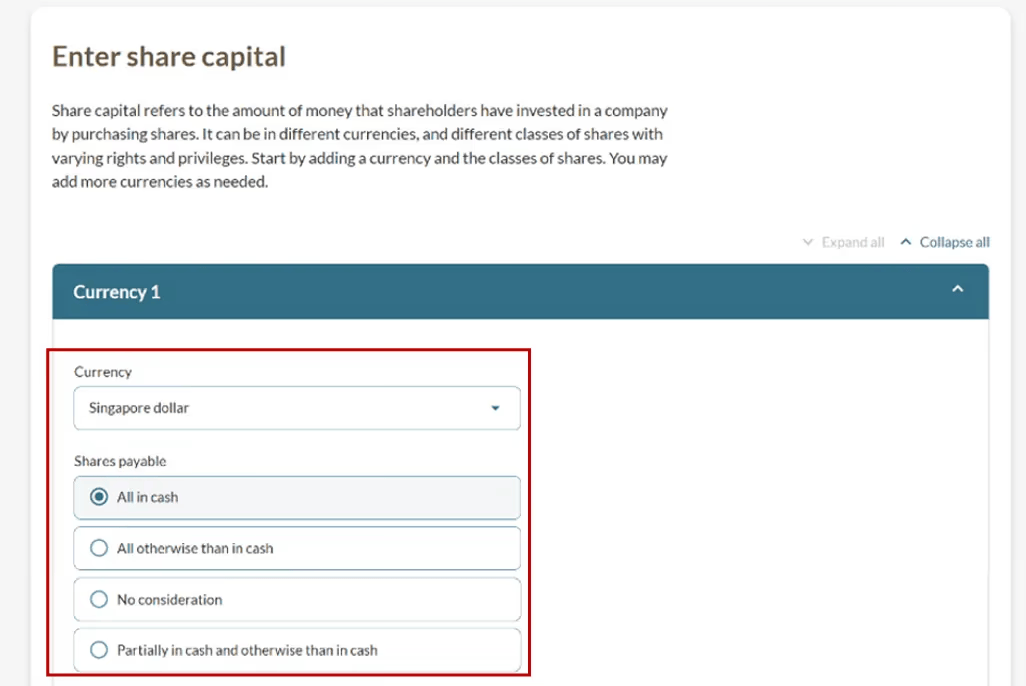
You will see these options when you issue shares through Bizfile. These terms describe the mode of payment for shares issued:
All in Cash: Shares issued with payment made entirely in cash
All Otherwise than in Cash: Shares issued fully by non-cash consideration, such as assets or services
No Consideration: Shares issued without any consideration (for example, bonus shares)
Partially in Cash and otherwise than in cash: Shares partly paid in cash and partly with consideration other than cash
For detailed legal definitions, please refer to the Companies Act or seek professional advice. Follow the steps below to add details related to your share capital.
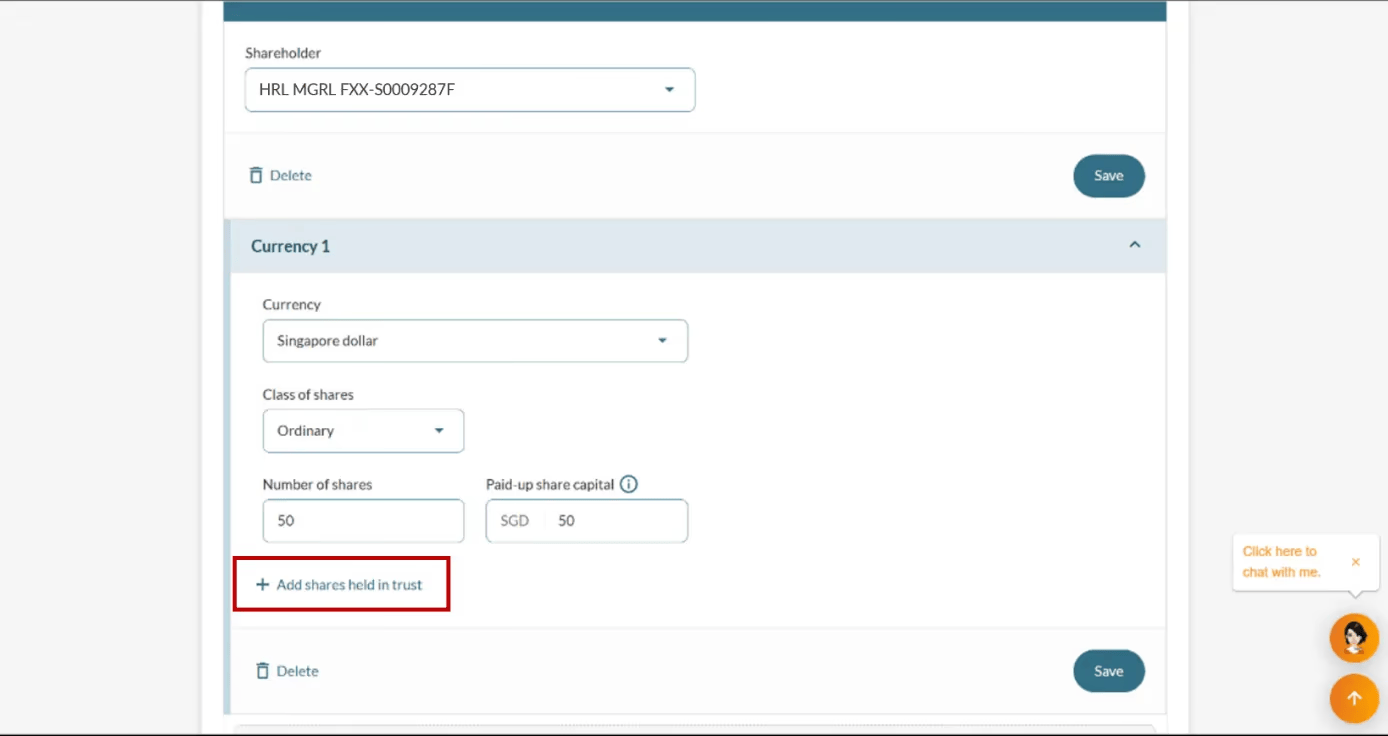
Step 7: Allot shares
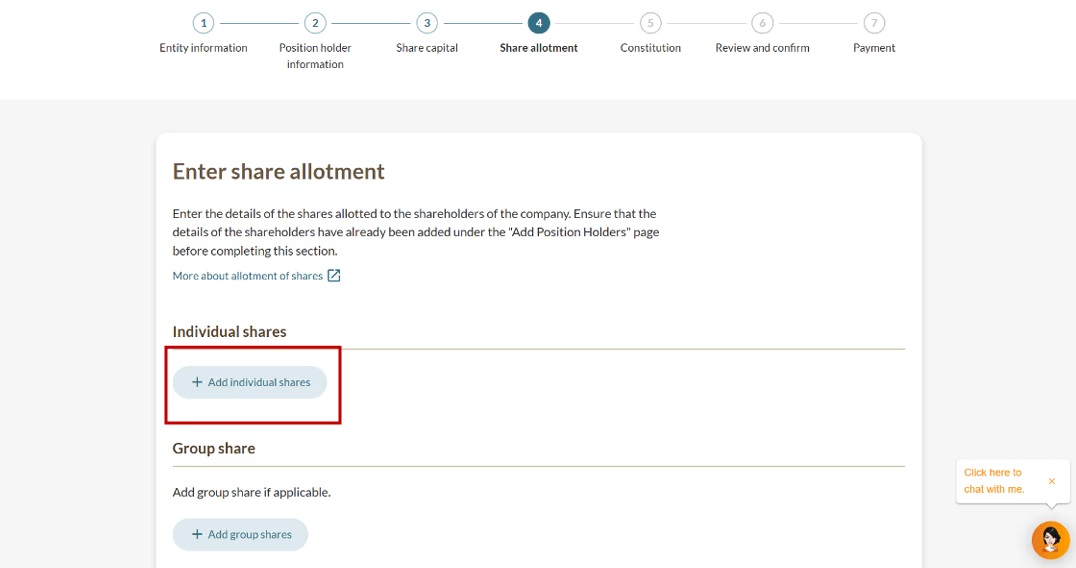
In this step, you will allot your company’s shares to each shareholder.
What you need to know
Share allotment: Each shareholder must either have an individual share allotment or be part of a group share.
Currency: Your company may issue shares in multiple currencies as per its constitution and regulatory requirements.
Class of shares: There are five types (or "classes") of shares. Learn more about company shares.
Number of shares: The minimum number of issued shares is one. The maximum figure may contain up to 19 digits, with up to 19 decimal places for precise valuation.
.png)
.png)
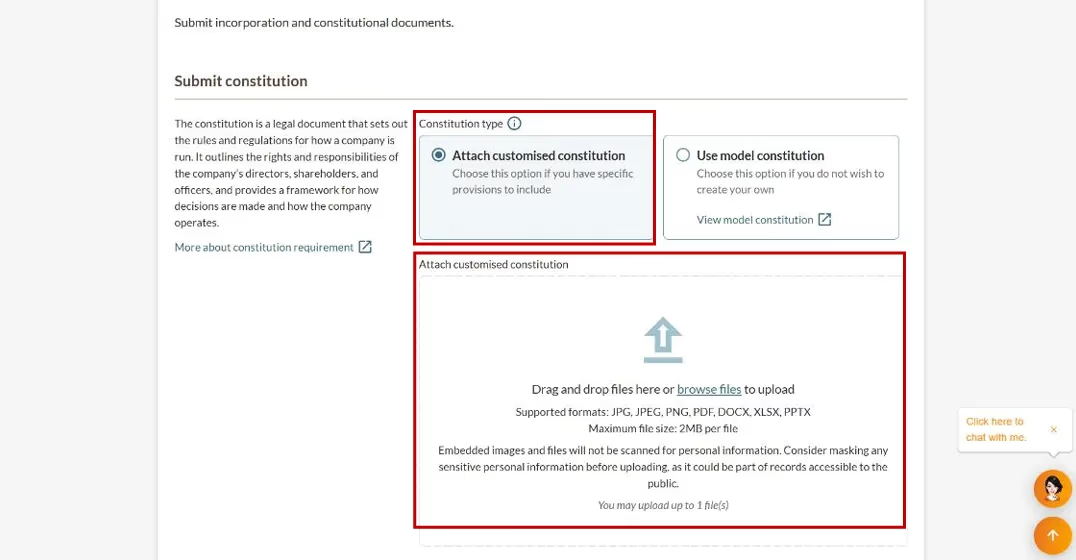
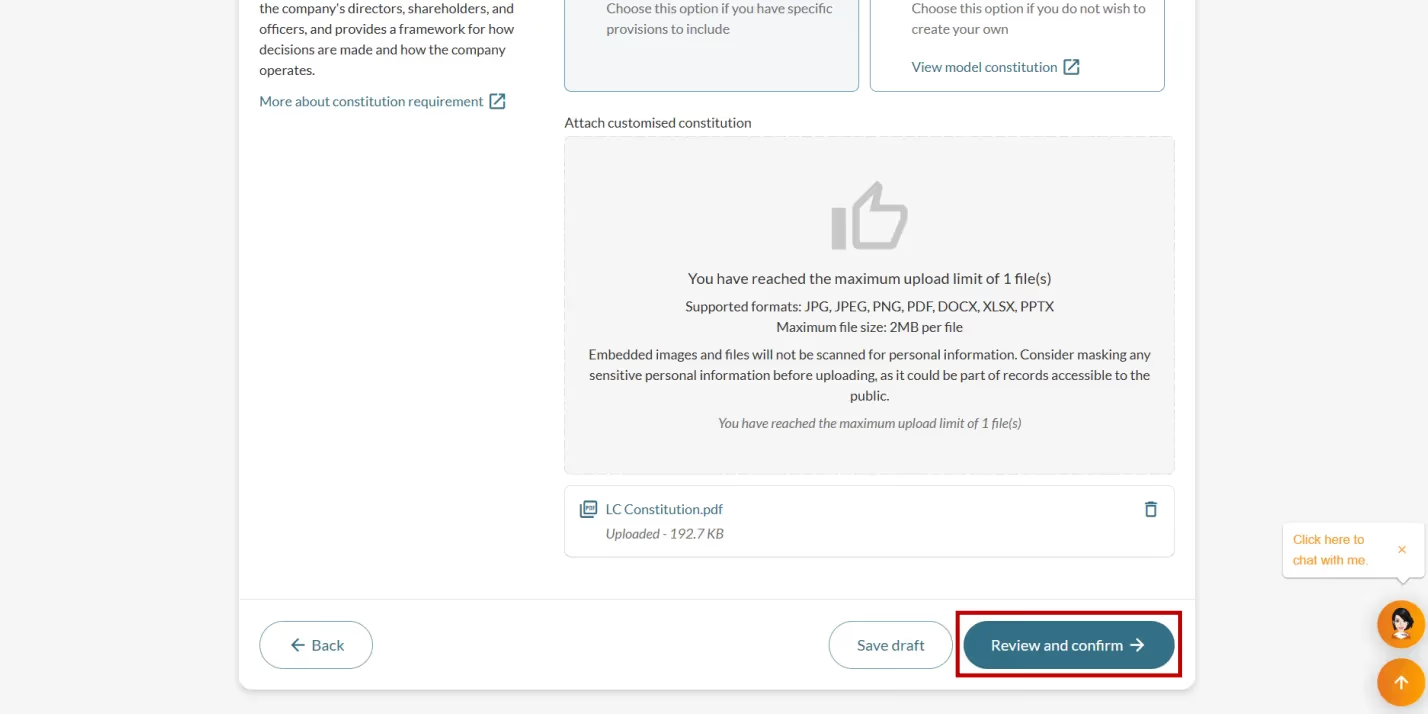
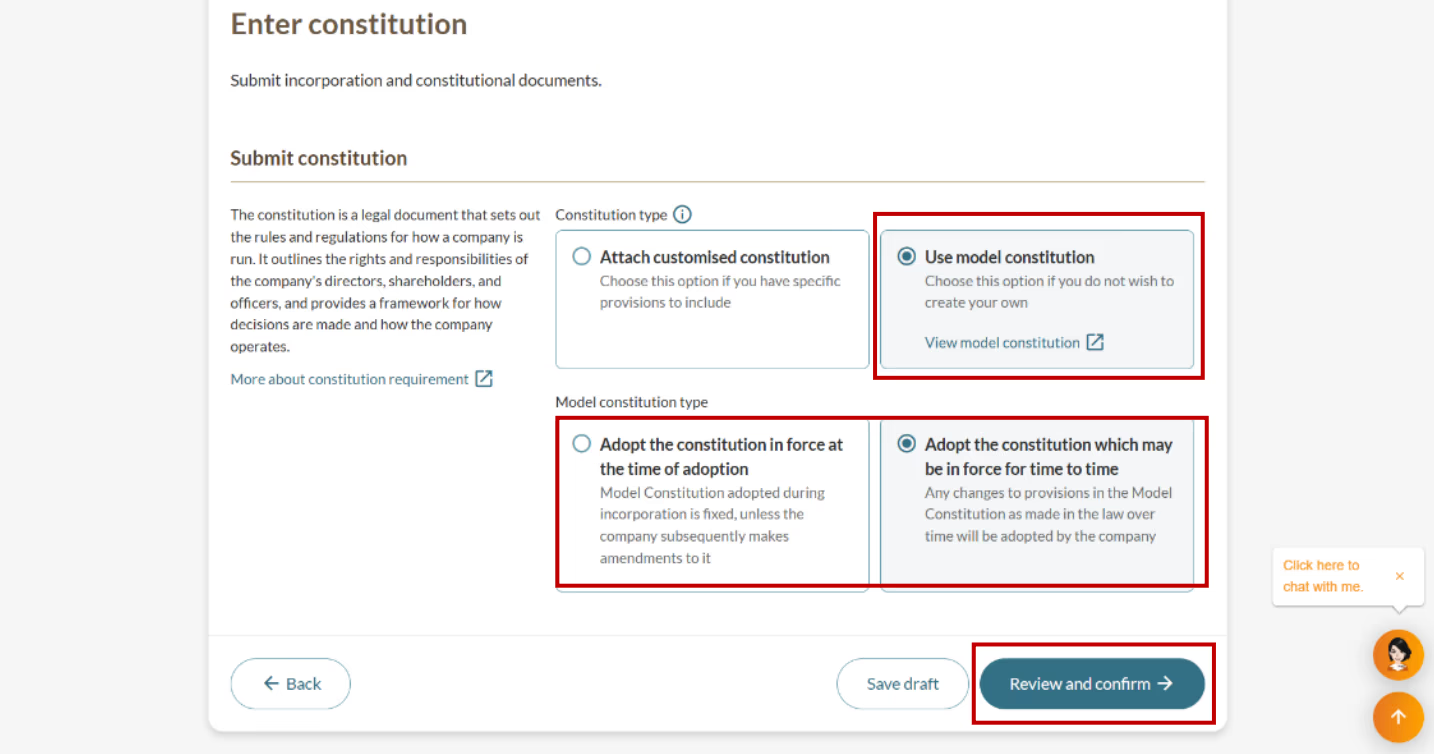
Step 8: Submit the constitution
The company constitution sets the rules and regulations for your company. You can either upload a customised constitution or use a model constitution (if you do not wish to create your own).
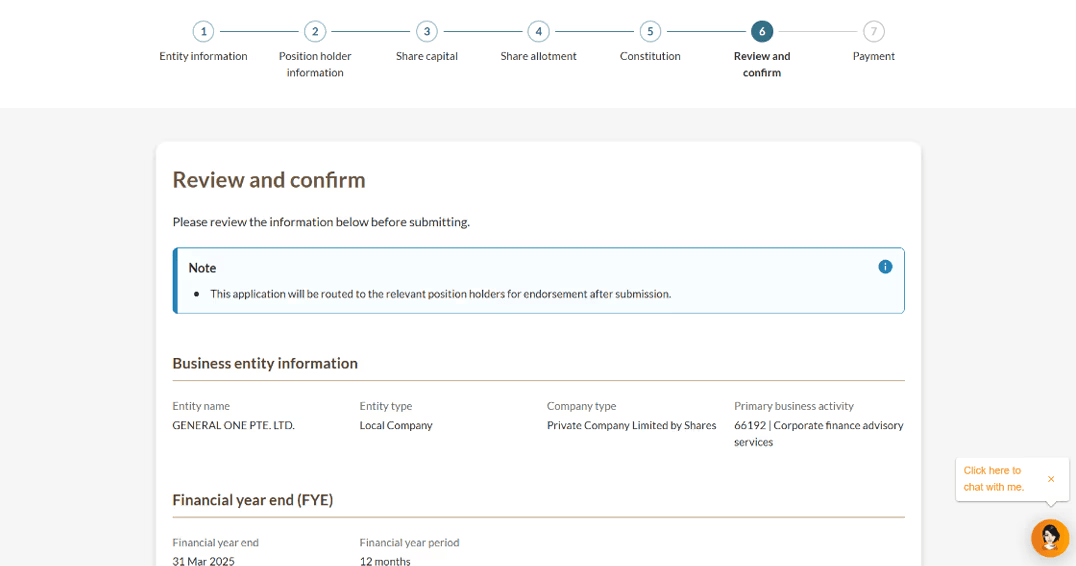
Step 9: Final review, endorsement, and payment
After you submit your application, all other position holders must endorse the registration within 60 days. This is not required if a CSP filed for you.
Once all endorsements are received, you will get a payment notification in your Bizfile inbox. You can choose a special unique entity number (SUN) during the payment process.
.png)
.png)
.png)
Step 10: Check your Bizfile inbox
Check your Bizfile inbox for your registration outcome after you make payment.
If the registration is approved, you will receive:
Notice of successful incorporation.
Unique entity number (UEN) for the company. Use this to deal with government agencies.
Link to download a free copy of the company’s Business Profile.
.png)
Notification of registration outcome
Frequently asked questions (FAQs)
My page froze when I was making payment for incorporation. How do I access the payment link again?
What you need to do:
Log in to Bizfile.
Click on the entity icon and select My transactions.
Check your transaction status. If the status shows "Payment Failed", you need to register again.
More details: Viewing your transactions in Bizfile
Related pages
Registering a company in Singapore: Forms & templates
Download forms and templates that may be required to register a company
Post-registration guide: Local company or subsidiary
Use this checklist to understand key requirements and services before your company starts operations
Troubleshooting guide: Name application and business registration
Fix common issues when applying for a new business entity name and registering a new business entity on Bizfile
Downloading free copies of information products
Check when your business might be eligible for free copies of these information products, and the steps to download.
Overview of managing a company
Get everything you need to know about managing a company in a single place, from legal requirements to popular resources