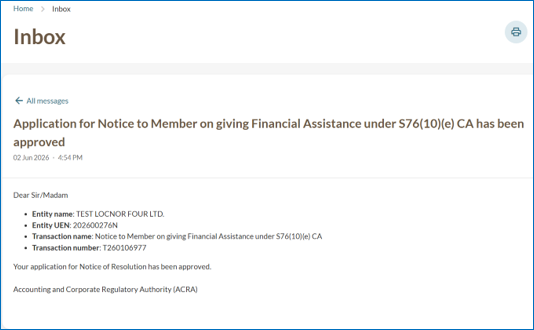
Filing a notice to member on giving financial assistance under CA S76
File a notice to member on giving financial assistance under CA S76 for your local company through the "Notice of Resolution" eService on Bizfile.
Last updated 26 June 2026
Before you file
Use this guide to file a notice to member on giving financial assistance under section 76 of the Companies Act (CA) for your local company through Bizfile.
You can file notices under the following sections:
● Notice to member on giving financial assistance under S76(9A) CA
● Notice to member on giving financial assistance under S76(9B) CA
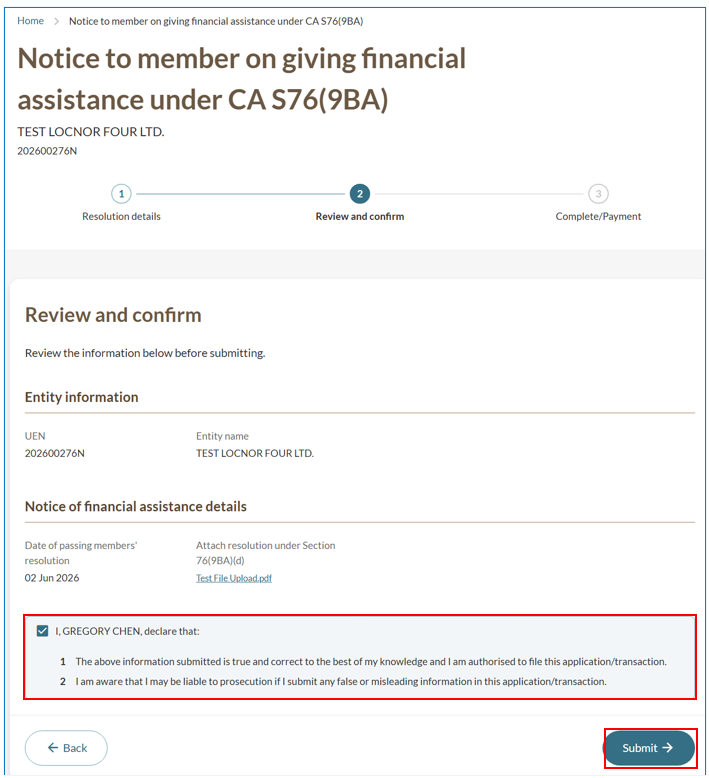
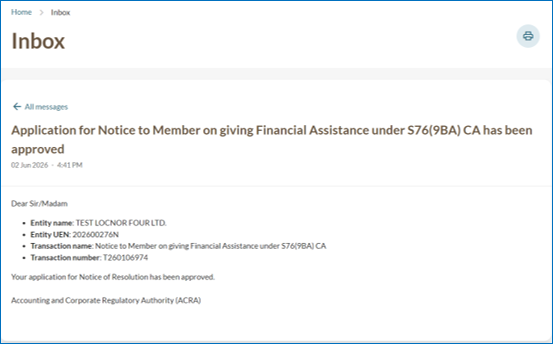
● Notice to member on giving financial assistance under S76(9BA) CA
● Notice to member on giving financial assistance under S76(10)(e) CA
Who may file
Company officers (such as a director or company secretary) may file on behalf of the company.
Corporate service providers (CSPs) may also file on behalf of their clients.
What you need to prepare
Required documents and information
You need to prepare | Details |
Notice of financial assistance details |
|
Copy of notice (PDF) | Required for S76(9A) and S76(10)(e). Maximum file size: 5MB. |
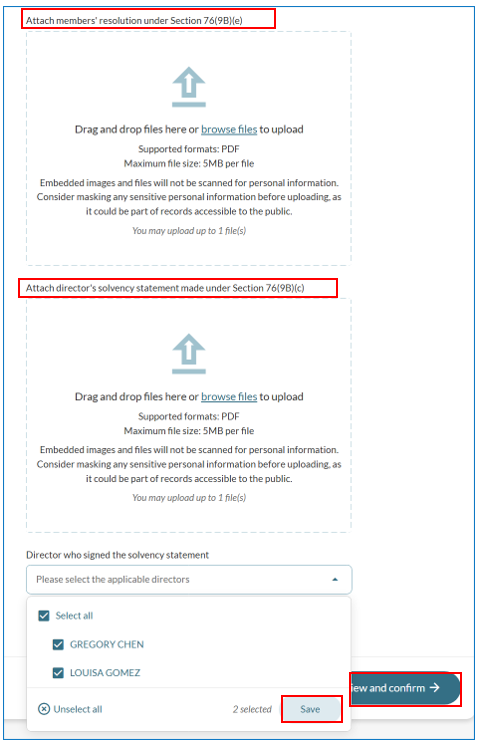
Director's solvency statement (PDF) | Required for S76(9A) and S76(9B). Maximum file size: 5MB. |
Copy of members' resolution (PDF) | Required for S76(9B). Maximum file size: 5MB. |
Copy of resolution (PDF) | Required for S76(9BA). Maximum file size: 5MB. |
Copy of statement under S76(10)(c) (PDF) | Required for S76(10)(e). Maximum file size: 5MB. |
Fees and processing time
Filing a notice to member on giving financial assistance under CA S76
What you need to know | Details |
Fee | $0 |
Processing time | Immediate |
How to file
The login and navigation steps below apply to all four sections. Follow the steps for your specific section after completing the login and navigation steps.
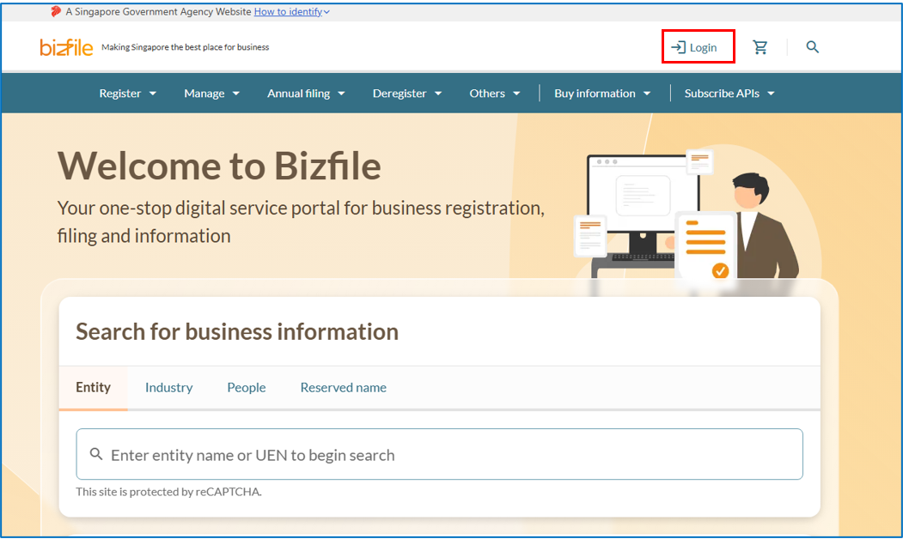
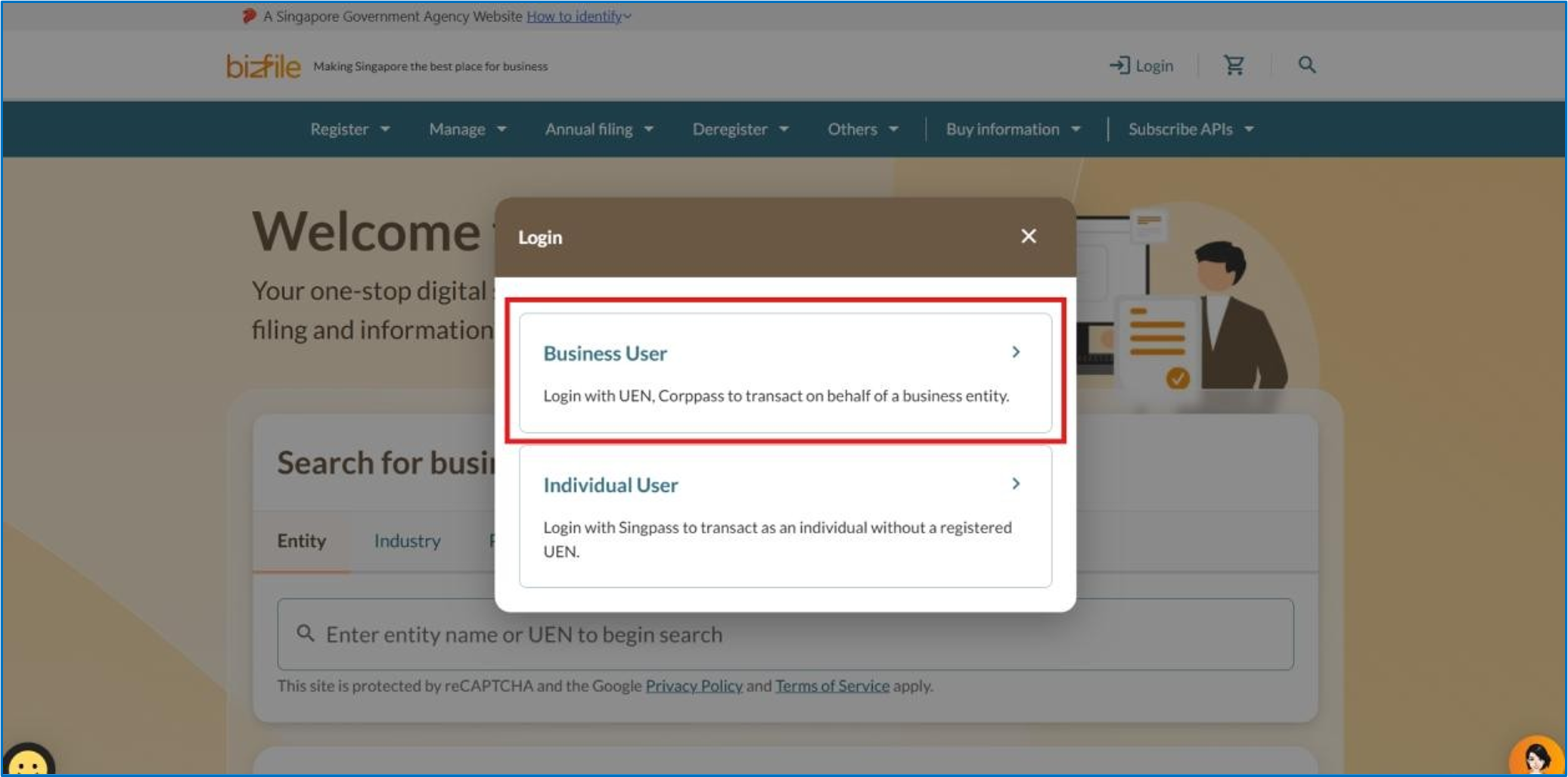
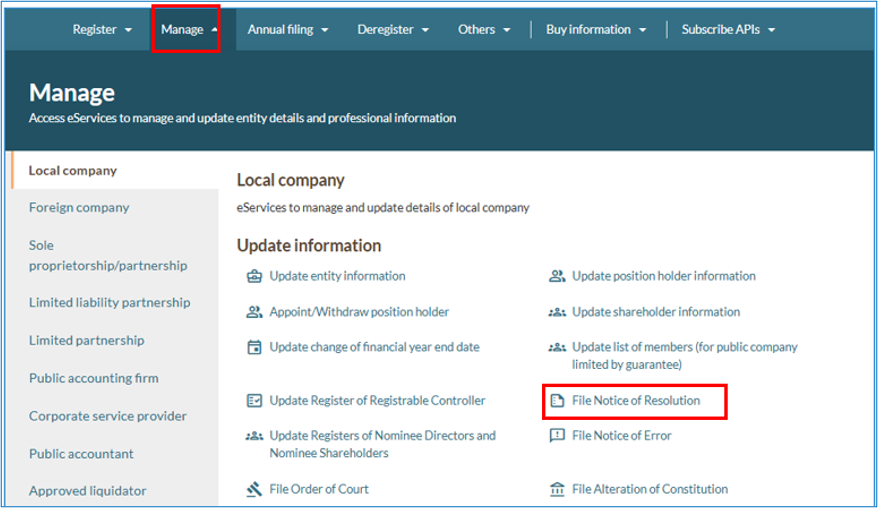
Step 1: Log in to Bizfile and open the "Notice of Resolution" eService
Follow these steps to log in and navigate to the File Notice of Resolution (opens in new tab) eService.
Note: All entity and personal information (including UEN, entity details, NRIC or FIN numbers, names and addresses) shown are dummy data for illustration purposes only.
Step 2: Check your entity dashboard
Follow these steps to confirm you are filing for the correct entity.
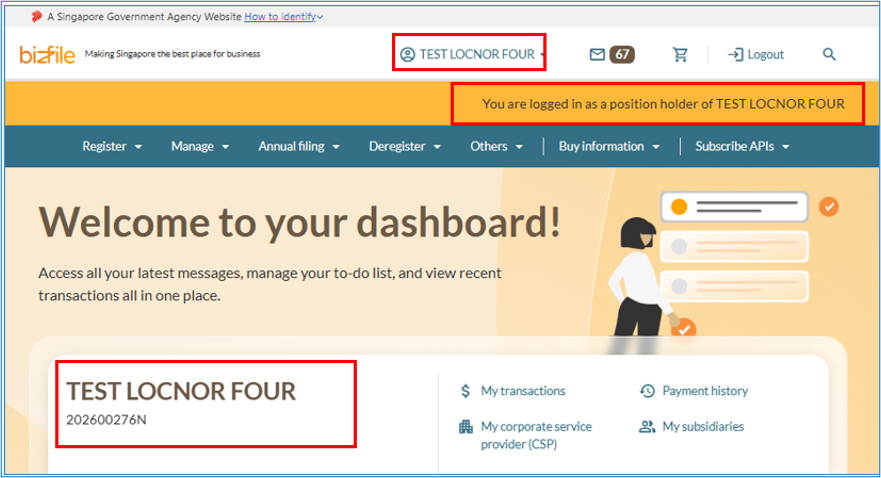
1. Check that you are on the correct entity dashboard. The entity name will be displayed on the top menu bar and the dashboard. Check that the status indicator confirms you are logged in as a position holder of that entity.
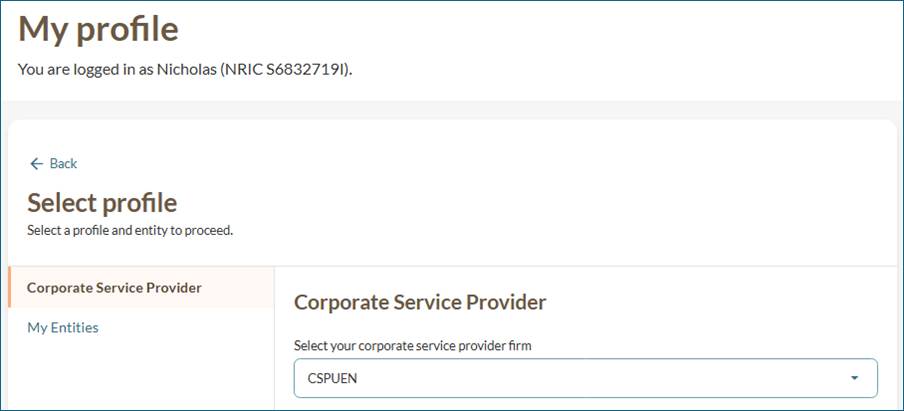
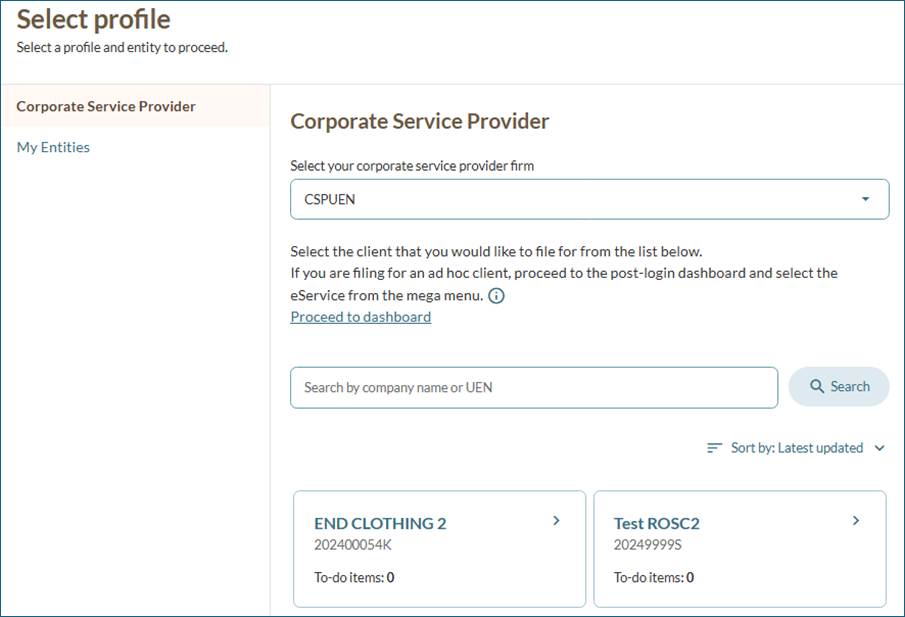
If you are a corporate service provider (CSP)
If you are filing on behalf of a client, follow these steps before proceeding to Step 3.
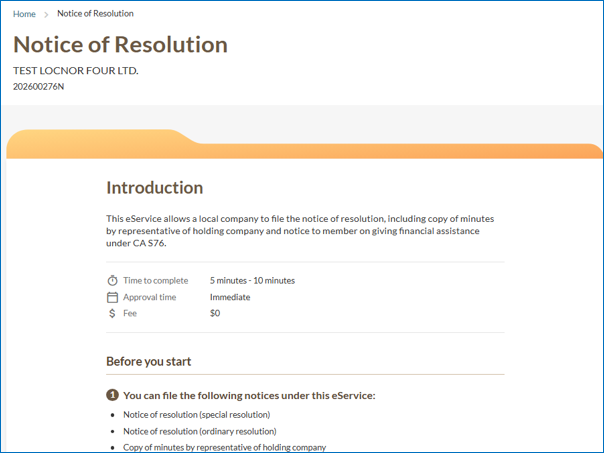
Step 3: Open the eService and select the notice type
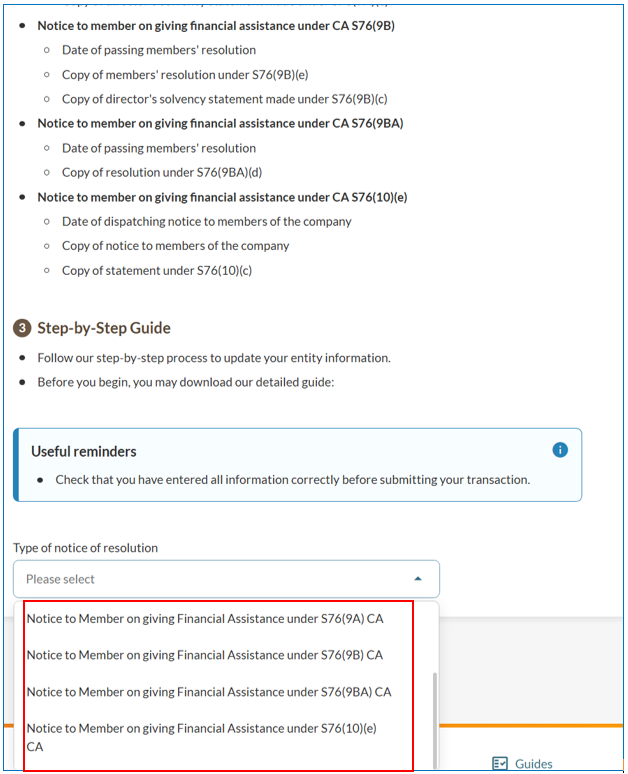
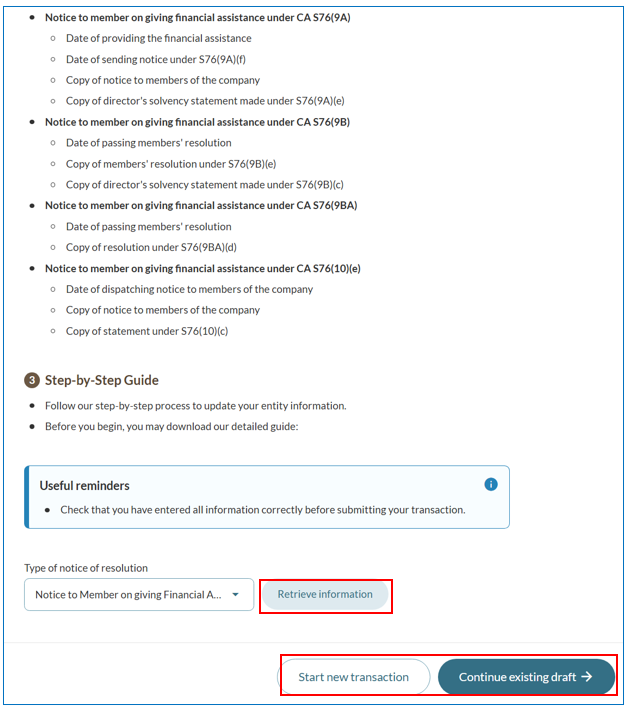
Follow these steps to navigate to the correct sub-transaction.
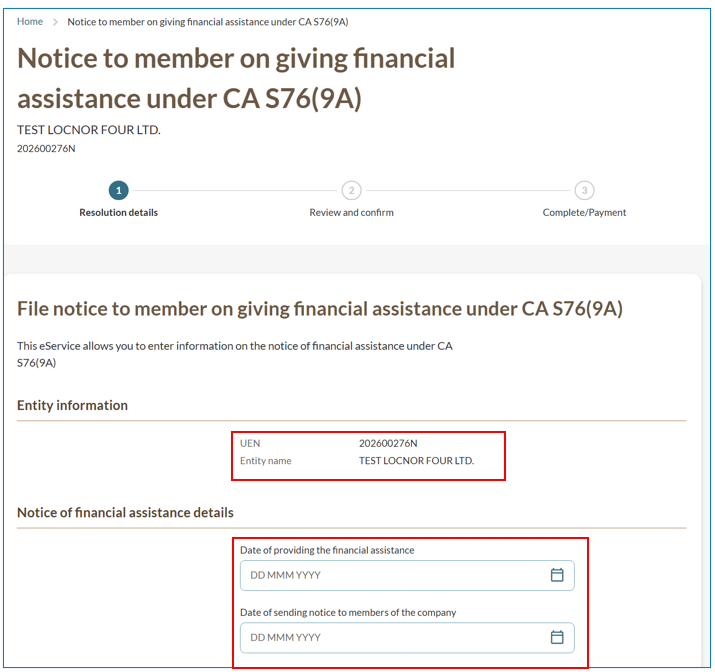
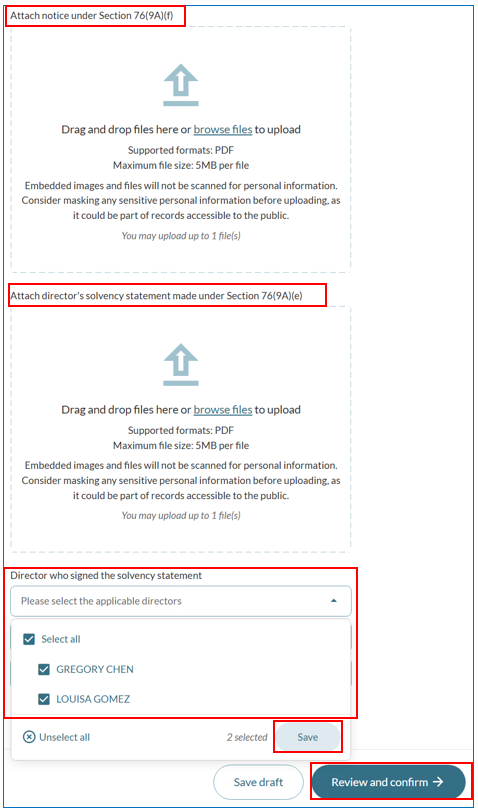
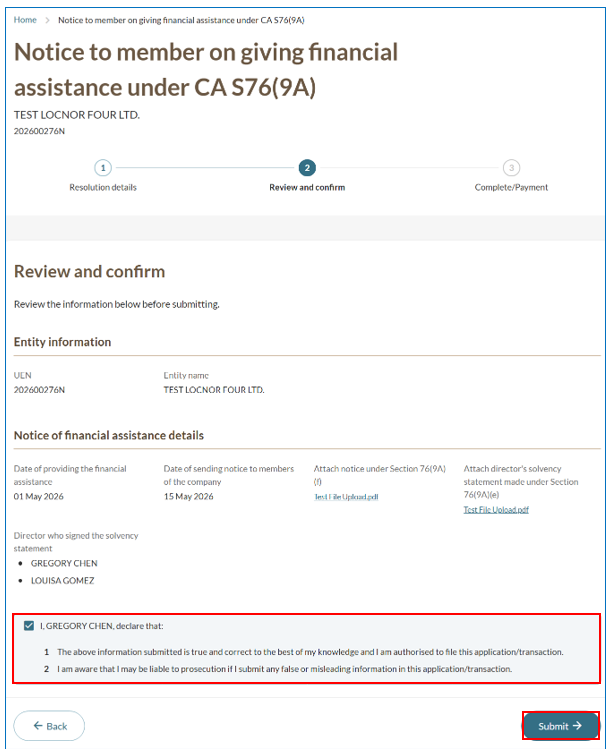
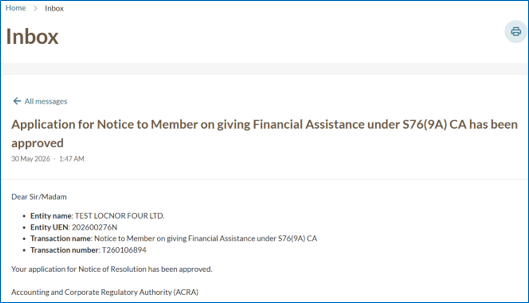
If you are filing under S76(9A) CA
On the "Notice of resolution" introduction page, scroll to the bottom of the page. From the dropdown menu of "Type of notice of resolution", choose "Notice to Member on giving Financial Assistance under S76(9A)".
Note: When uploading supporting documents, ensure the file name includes only alphanumeric characters (letters A–Z, a–z, and numbers 0–9). Do not include spaces, special characters (such as ., @, #, $, %, &, *), or foreign language characters in the filename.
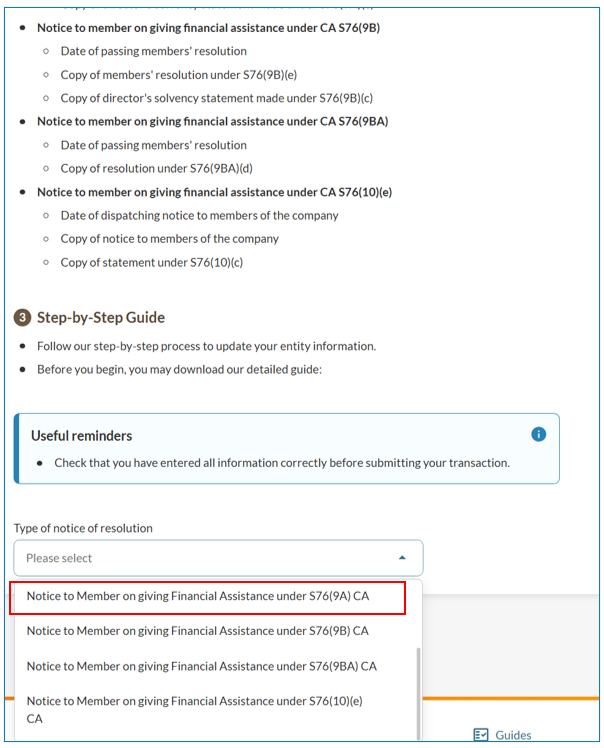
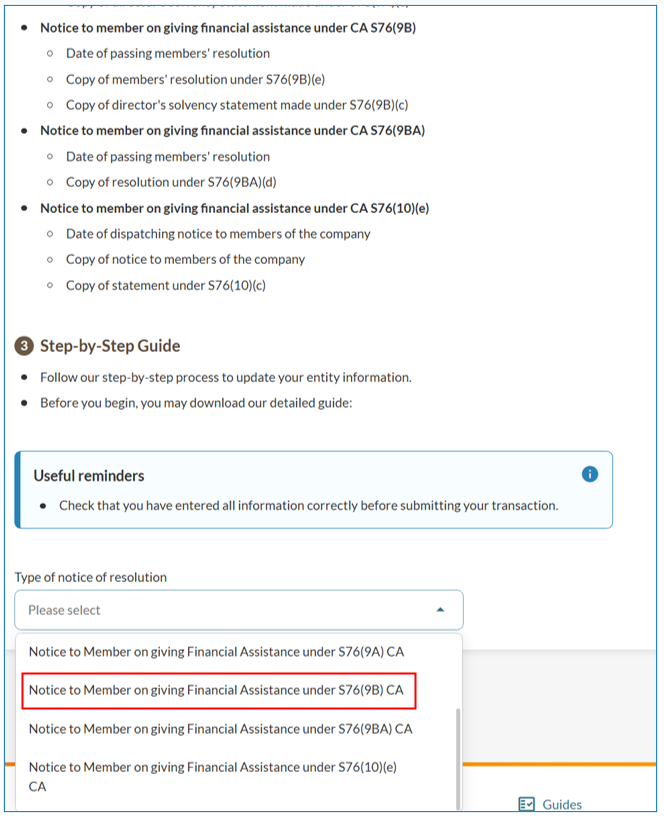
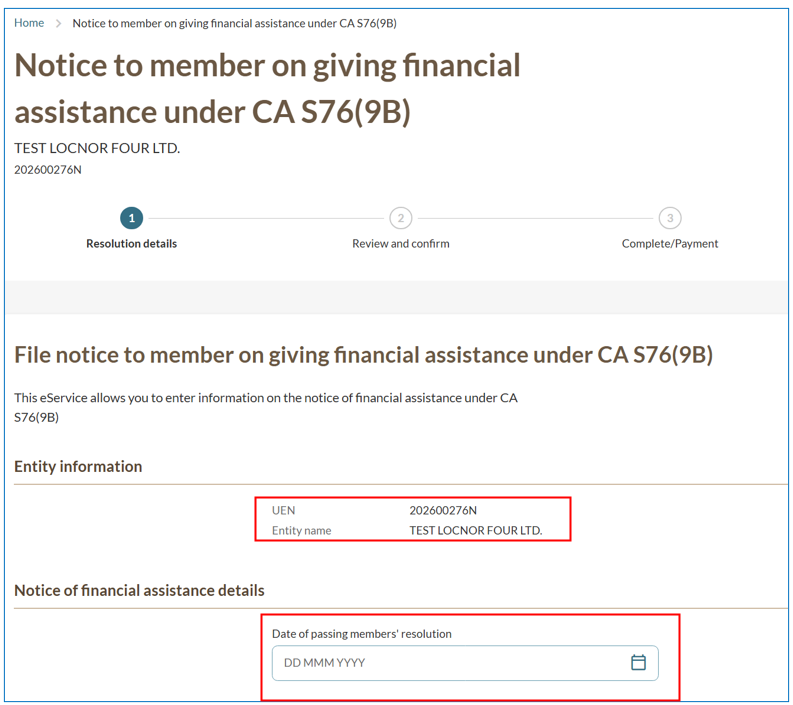
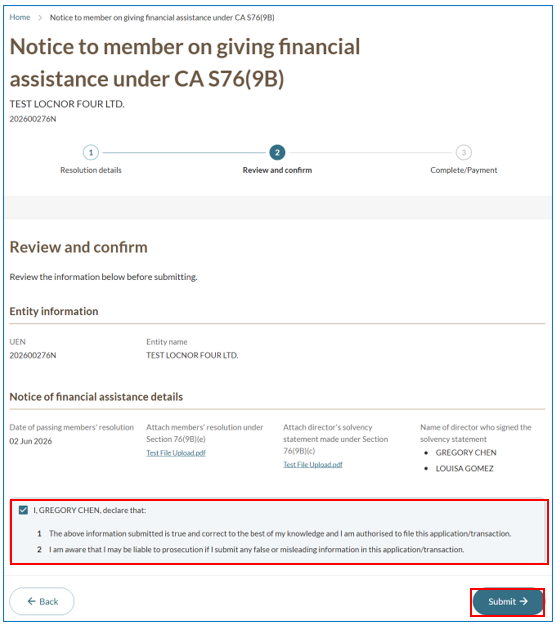
If you are filing under S76(9B) CA
On the "Notice of resolution" introduction page, scroll to the bottom of the page. From the dropdown menu of "Type of notice of resolution", choose "Notice to Member on giving Financial Assistance under S76(9B)".
Note: When uploading supporting documents, ensure the file name includes only alphanumeric characters (letters A–Z, a–z, and numbers 0–9). Do not include spaces, special characters (such as ., @, #, $, %, &, *), or foreign language characters in the filename.
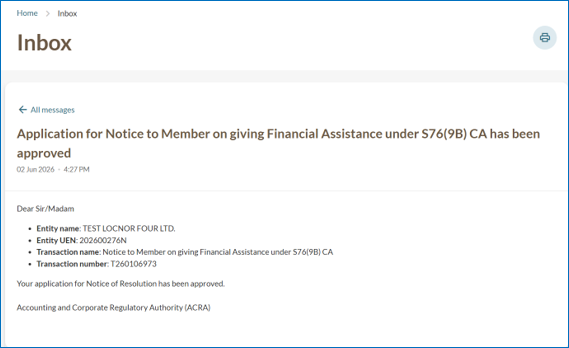
If you are filing under S76(9BA) CA
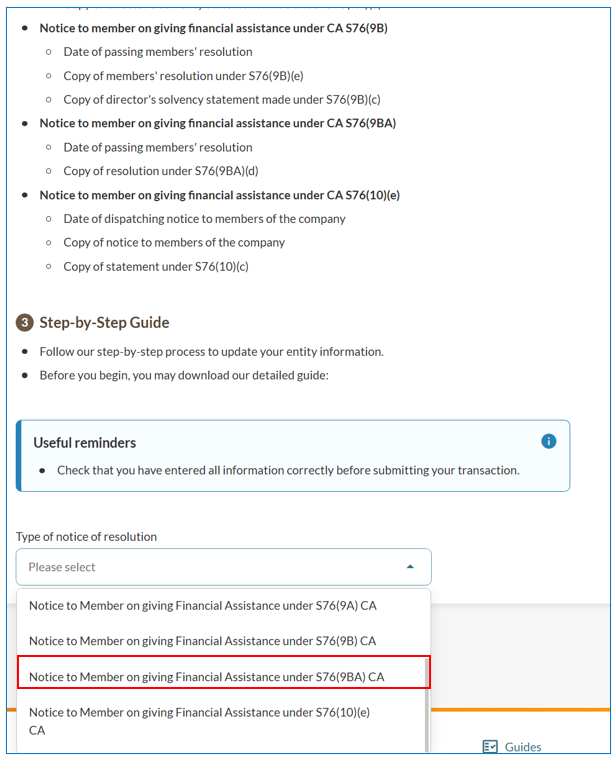
On the "Notice of resolution" introduction page, scroll to the bottom of the page. From the dropdown menu of "Type of notice of resolution", choose "Notice to Member on giving Financial Assistance under S76(9BA)".
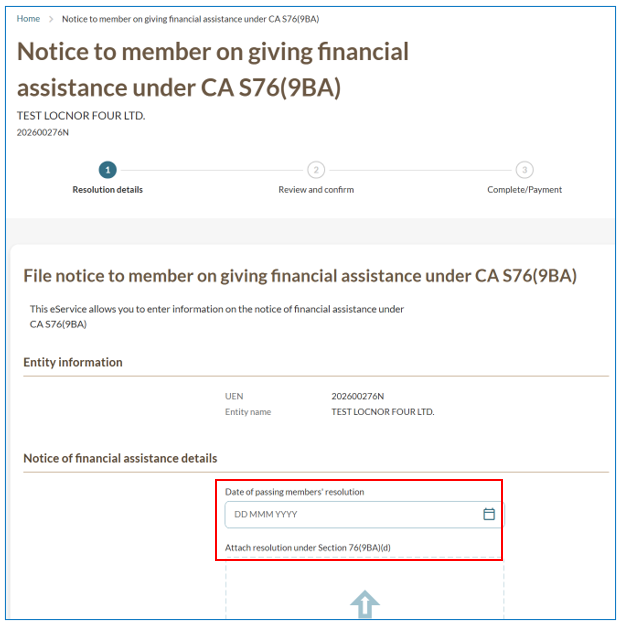
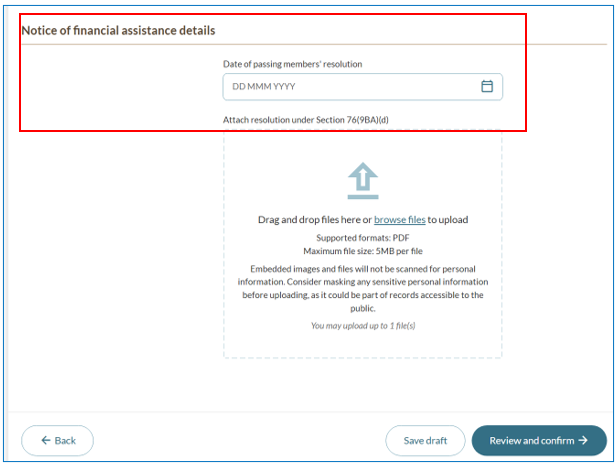
Note: When uploading supporting documents, ensure the file name includes only alphanumeric characters (letters A–Z, a–z, and numbers 0–9). Do not include spaces, special characters (such as ., @, #, $, %, &, *), or foreign language characters in the filename.
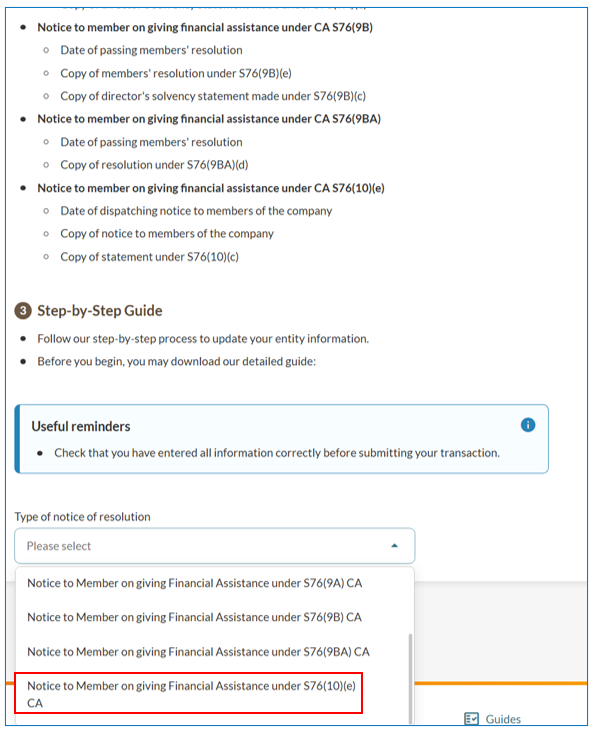
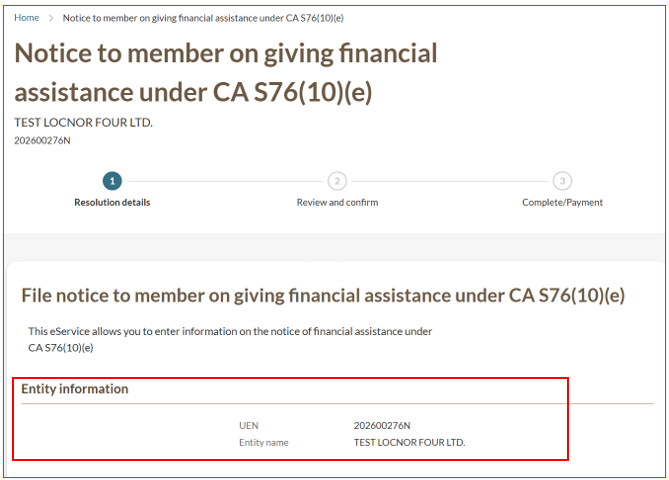
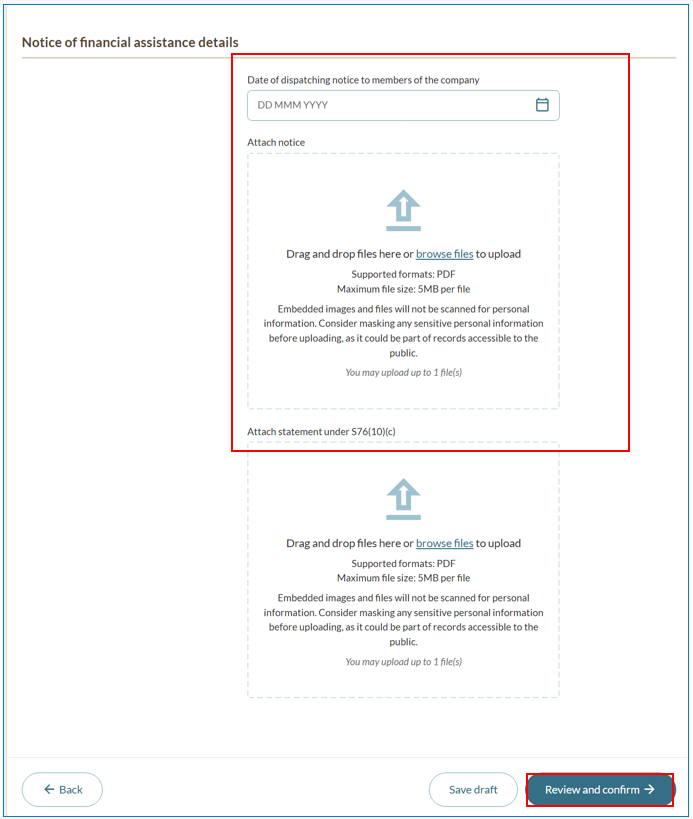
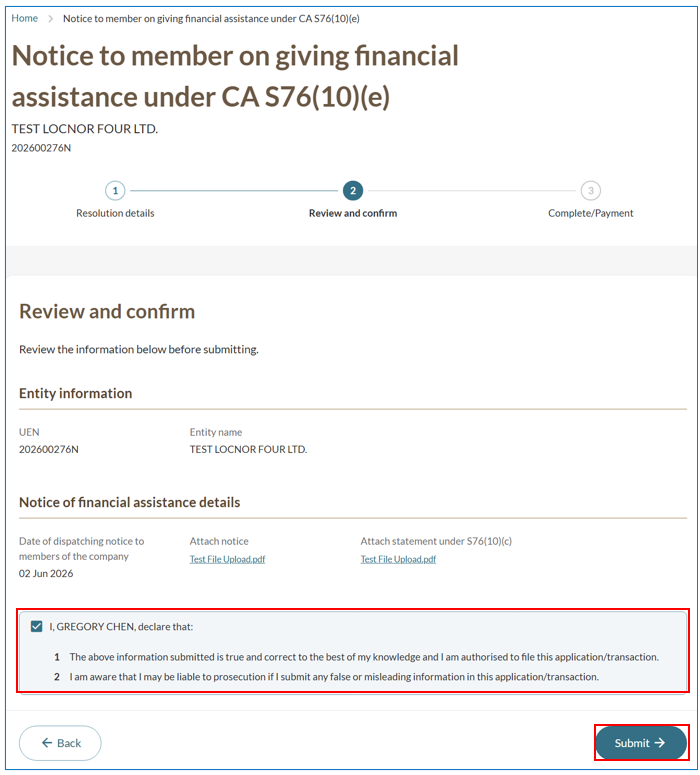
If you are filing under S76(10)(e) CA
On the “Notice of resolution” introduction page, scroll to the bottom of the page. From the dropdown menu of “Type of notice of resolution”, choose “Notice to Member on giving Financial Assistance under S76(10)(e)”.
Note: When uploading supporting documents, ensure the file name includes only alphanumeric characters (letters A–Z, a–z, and numbers 0–9). Do not include spaces, special characters (such as ., @, #, $, %, &, *), or foreign language characters in the filename.